Fashion Product Photo Examples
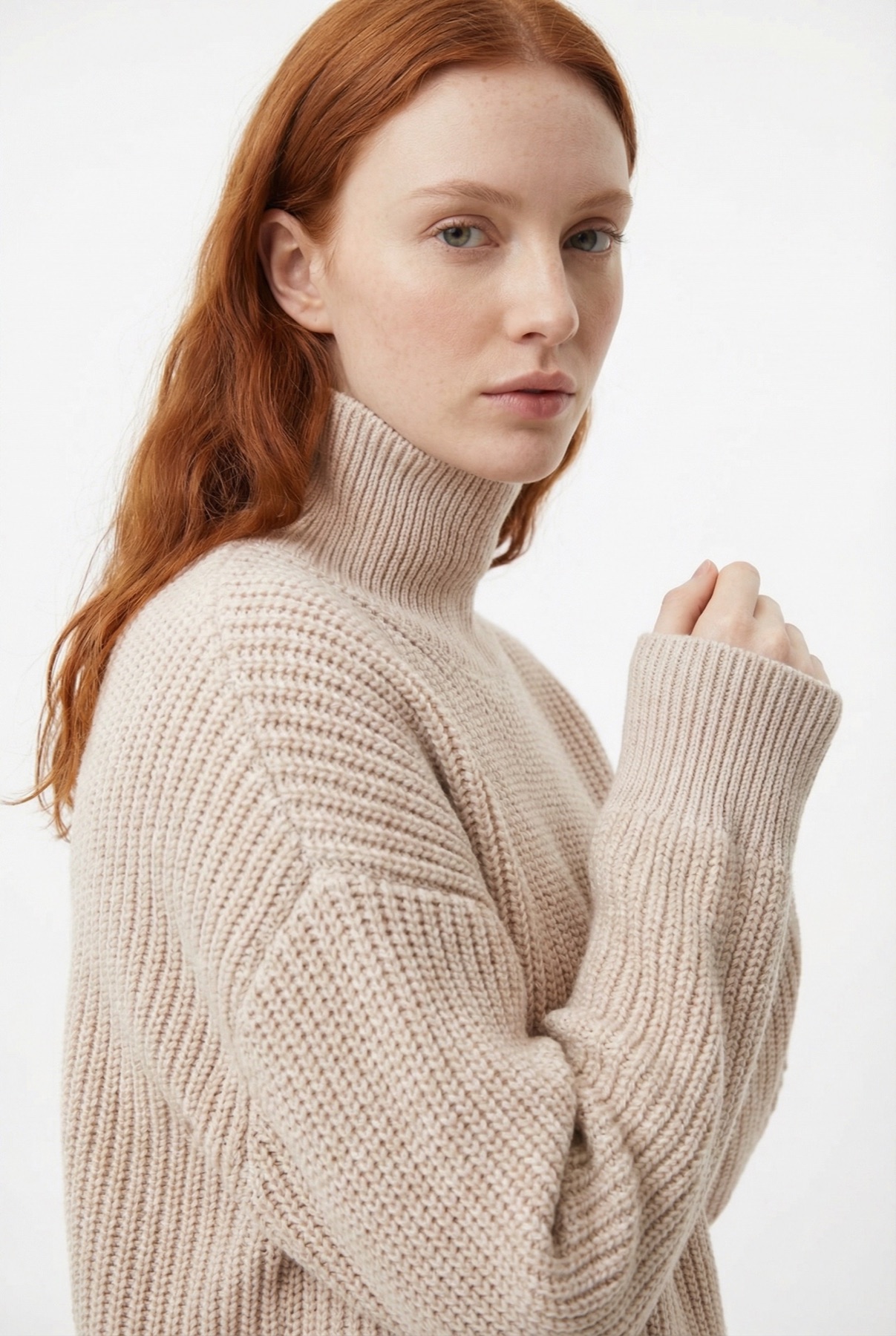
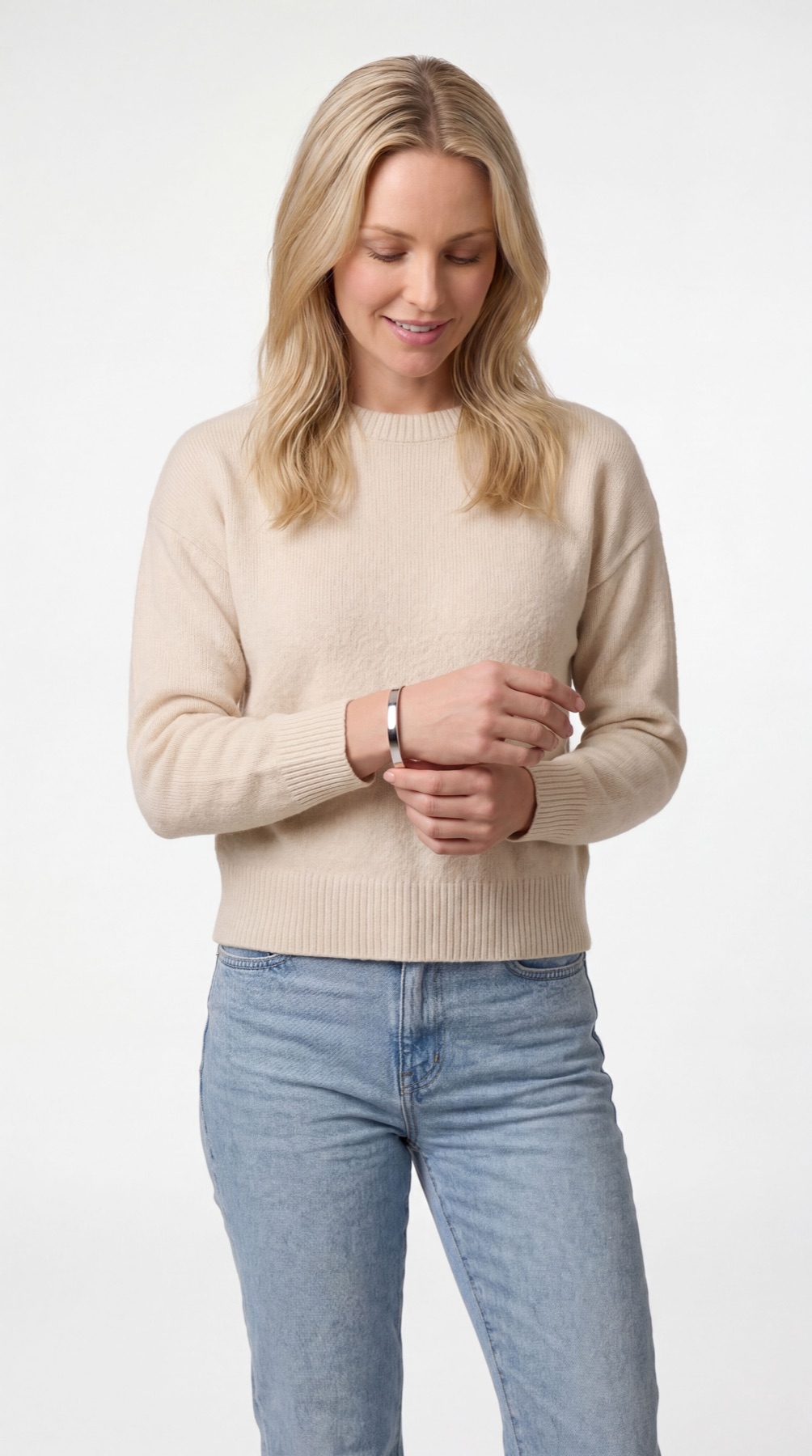
For fashion brands planning editorial, catalog, and campaign visuals: show a coherent collection mood while keeping each garment or accessory readable. See the input, output set, review points, and limits before creating anything.
- One clear source
- Review before publishing
- No credit card required
Visual directions
Fashion Product Photo Examples: outputs with a clear job
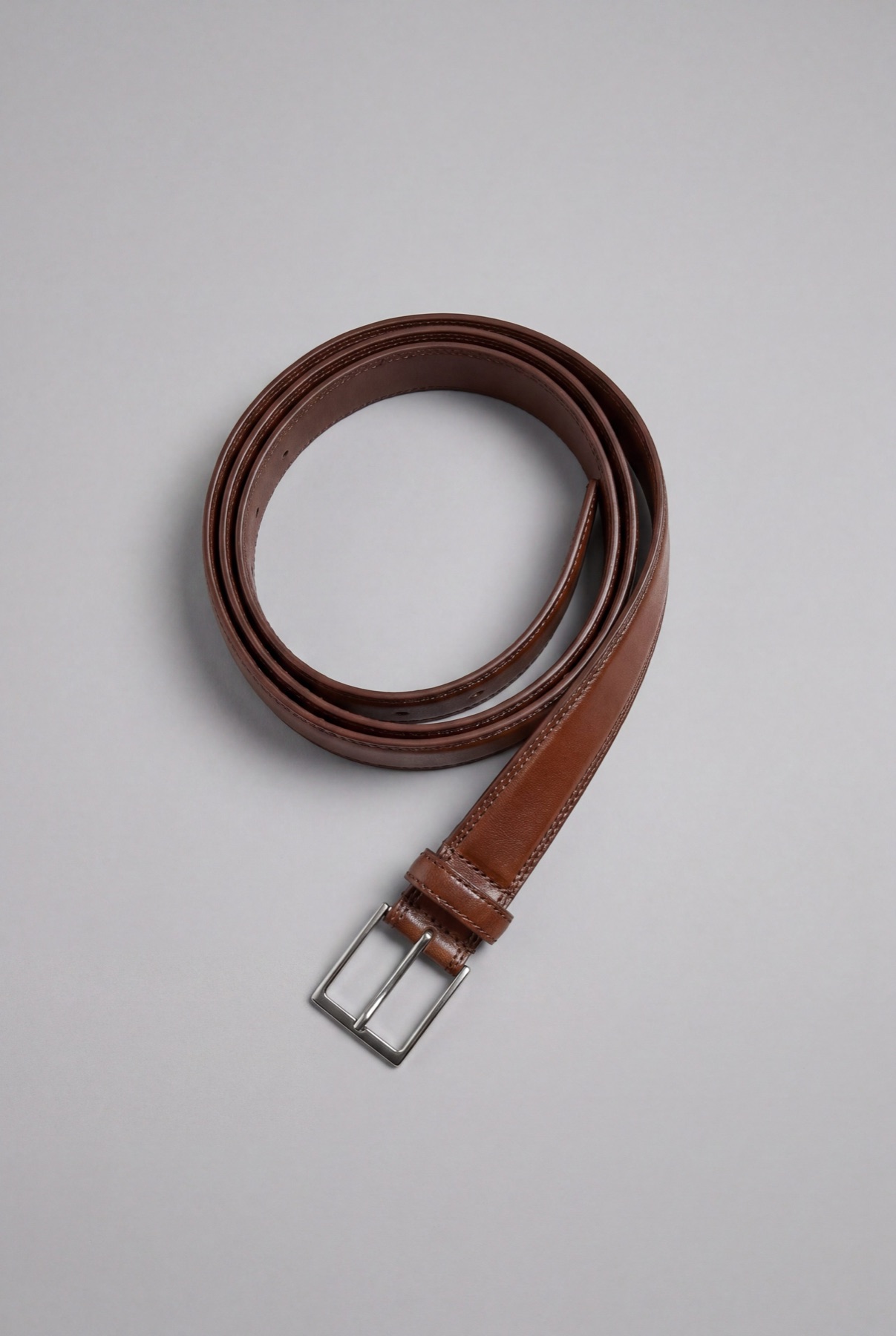
Plan catalog views, styled flat lays, editorial scenes, on-model options, and campaign crops. Each approved image should answer a shopper question or fill a defined channel role.
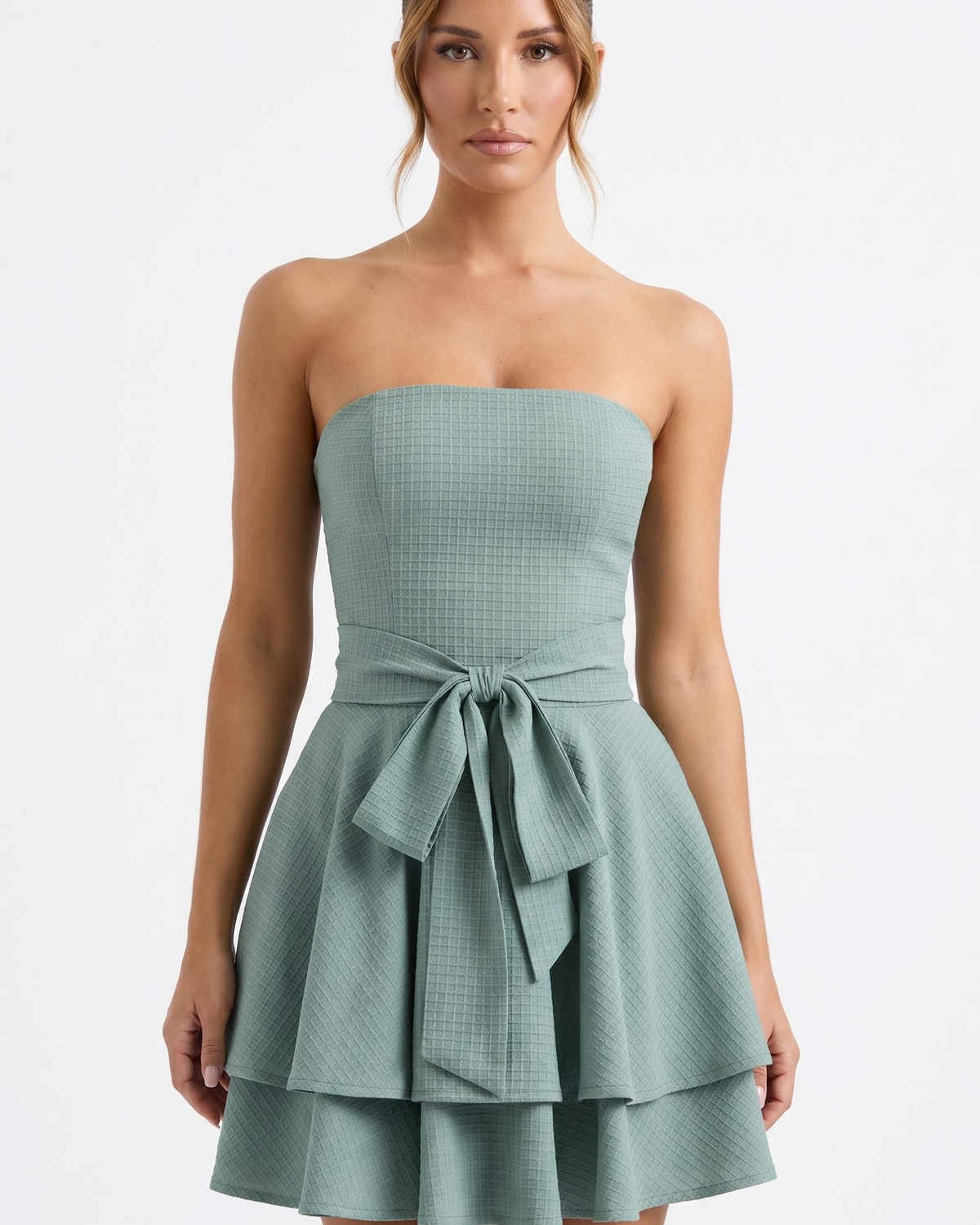
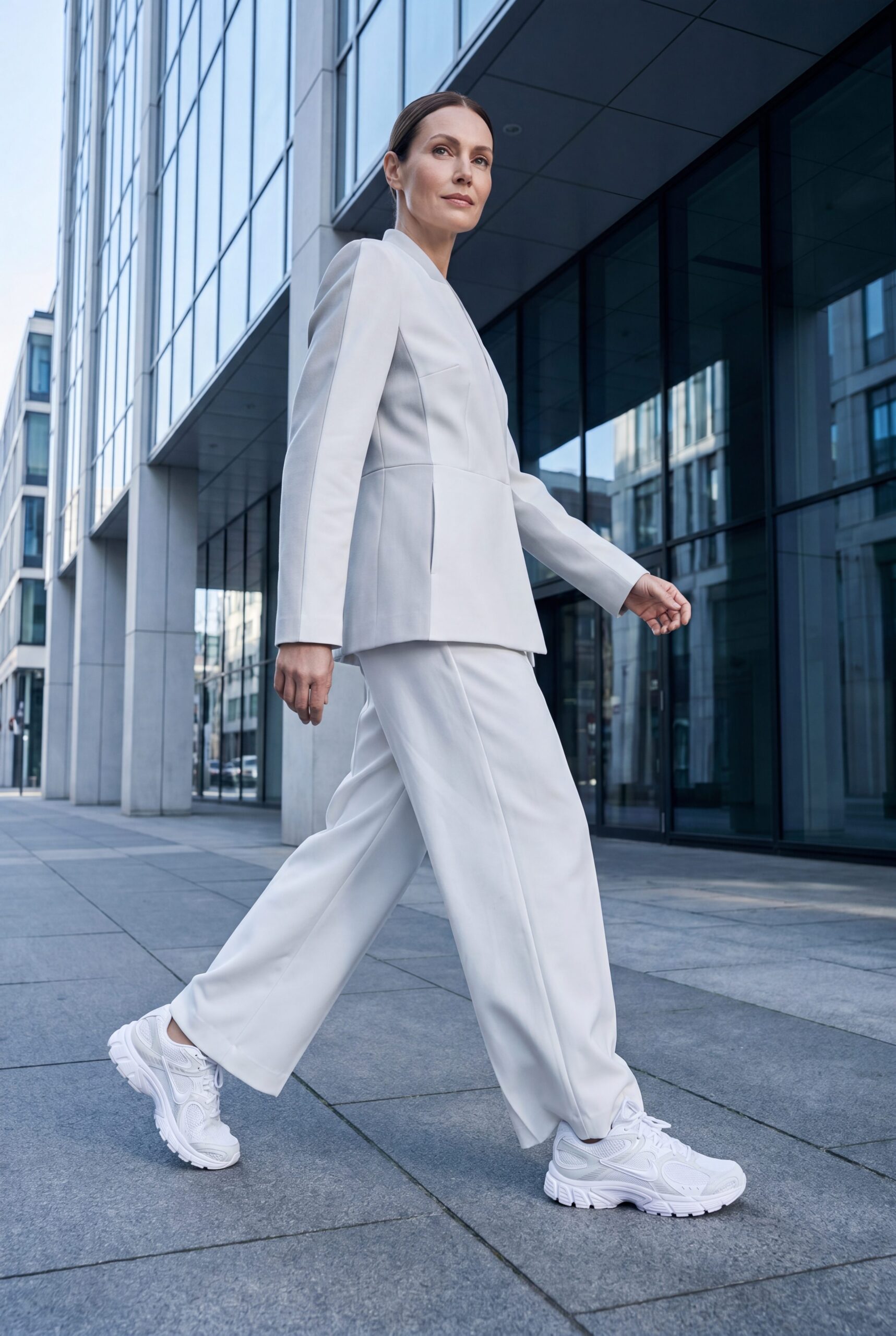

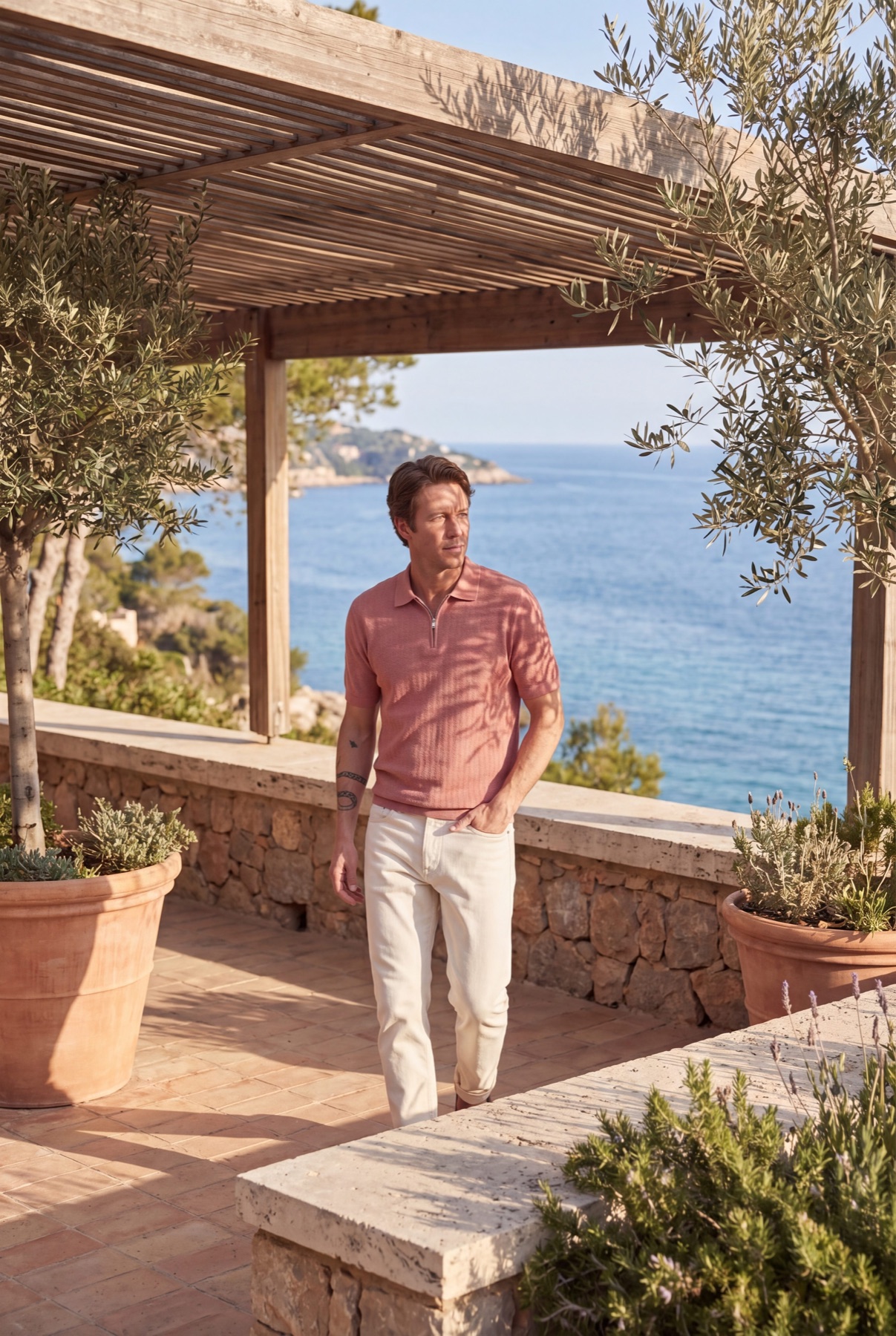
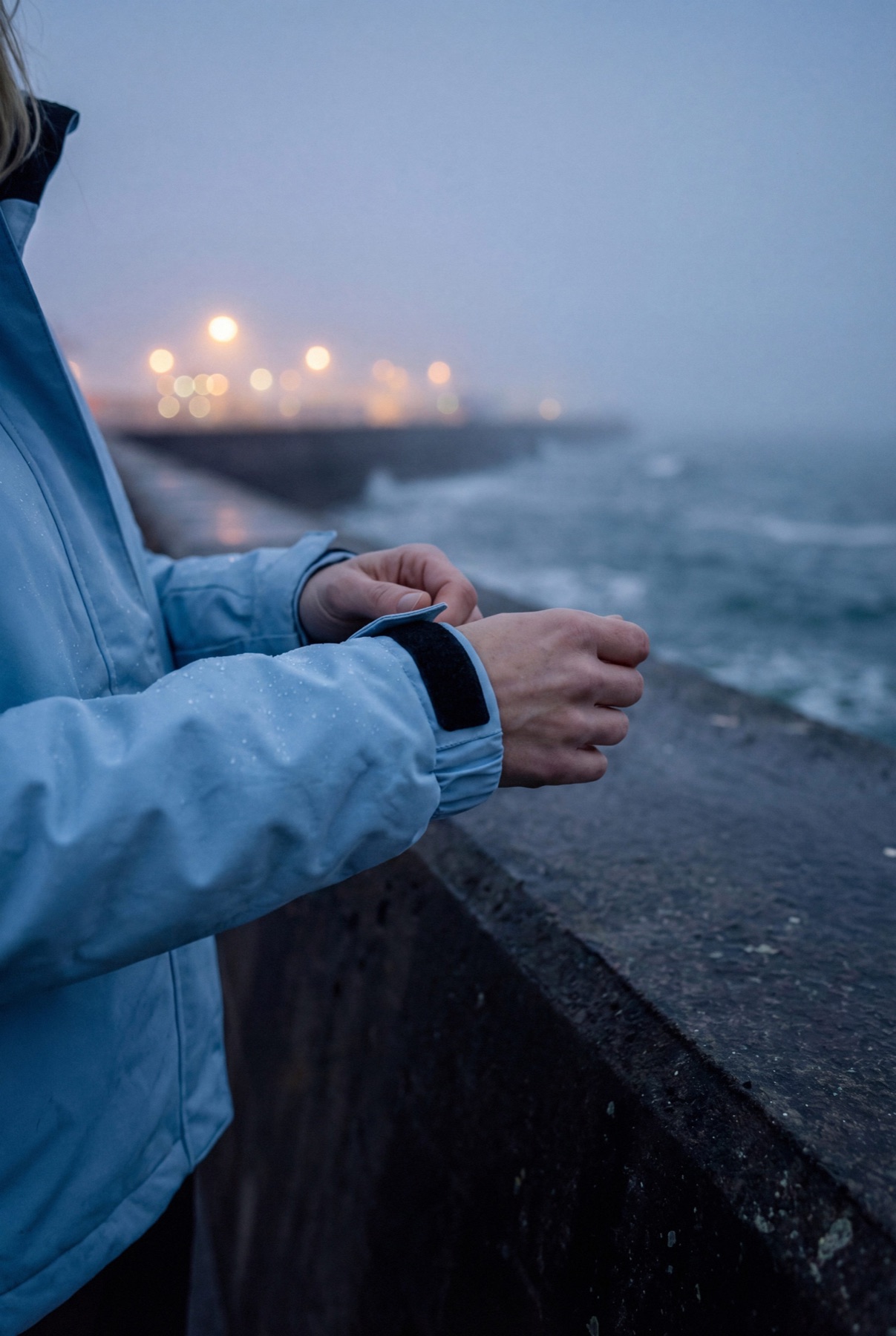
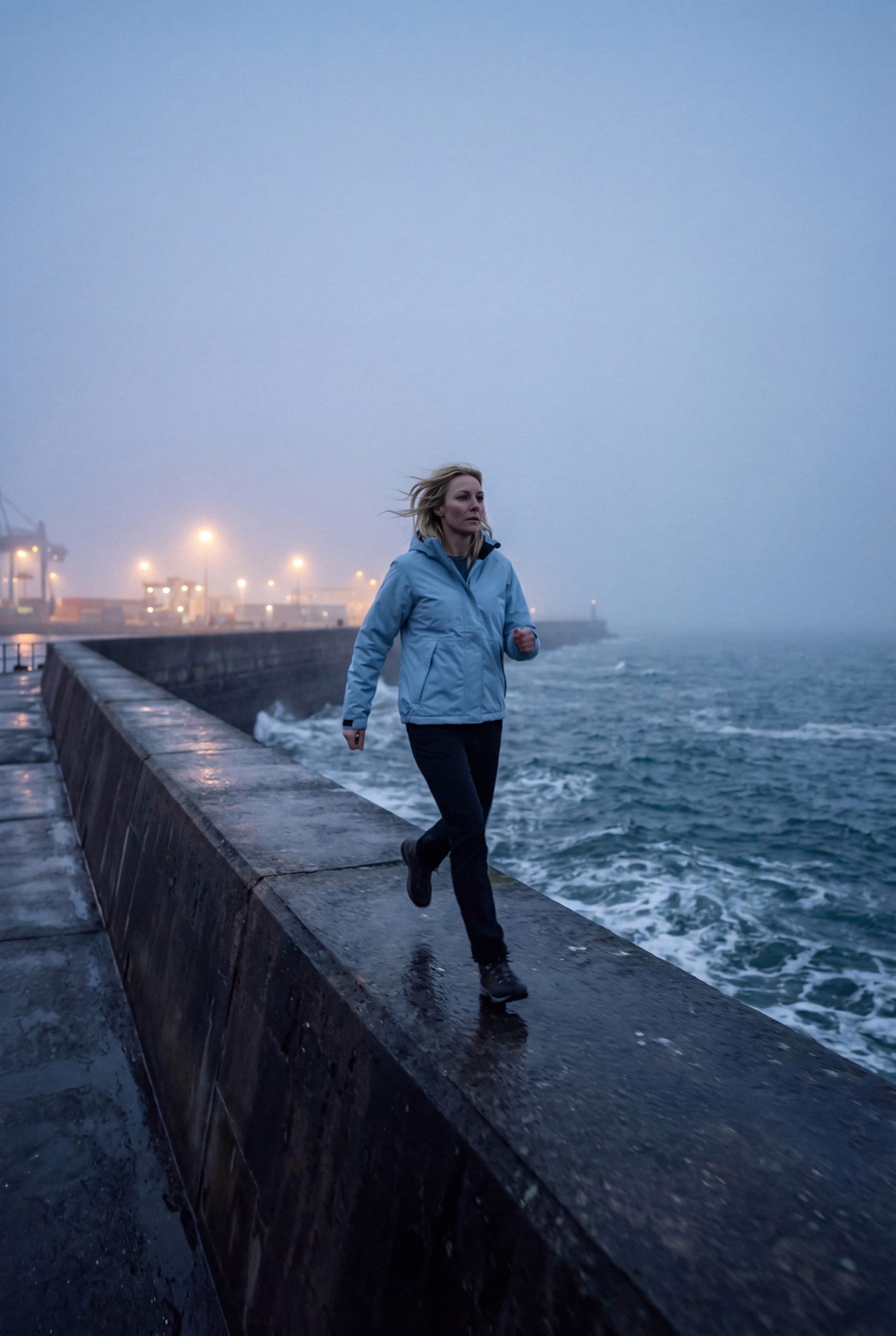

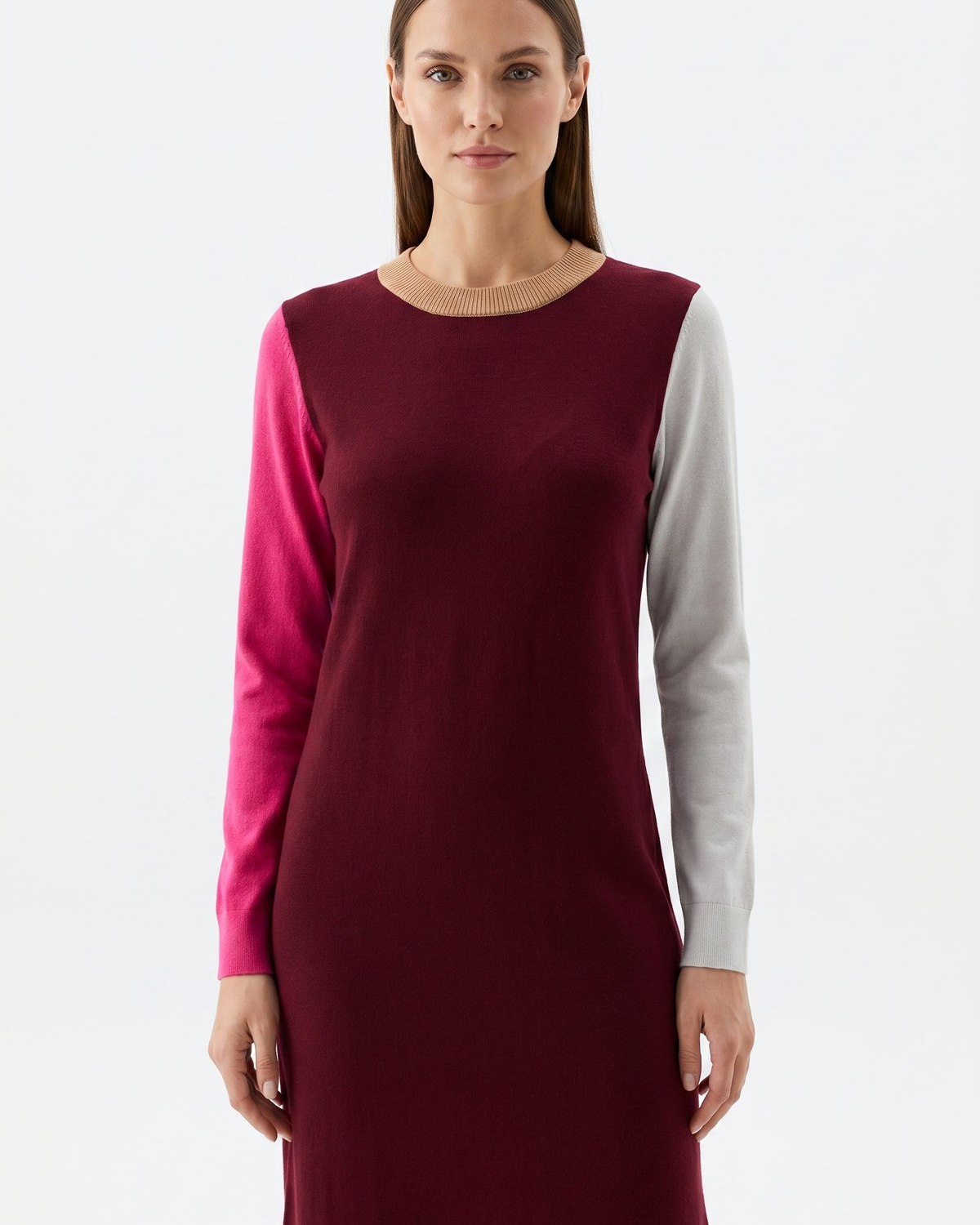
Plan the image set
Solve the buying problem before choosing the scene.
The core decision is to show a coherent collection mood while keeping each garment or accessory readable. Start with the product-page need, then add context and campaign formats.
How it works
Create and review fashion product images.
Start with a clean source image that clearly shows silhouette, fabric, construction, color, and distinctive details. Approve one focused direction before applying it to more products or formats.
-
Step 1
Prepare the exact product input
a clean source image that clearly shows silhouette, fabric, construction, color, and distinctive details
-
Step 2
Choose the image jobs
Plan catalog views, styled flat lays, editorial scenes, on-model options, and campaign crops.
-
Step 3
Review against the source product
Check silhouette, fabric behavior, seams, closures, pattern placement, color, styling, and collection consistency.
-
Step 4
Expand only the approved direction
Reuse the accepted treatment for additional products and crops, while reviewing each new output.
Choose the next surface
Choose your next workflow.
Find the product tool, category, or use case that matches what you want to create.
Planning and review
Fashion Product Photo Examples FAQs
Use this resource to show a coherent collection mood while keeping each garment or accessory readable. The goal is an useful image set, not more decorative variations.
Test the workflow
Try this direction on your product.
Use a clear source, generate a focused set, and publish only the outputs that pass the product and channel review. Use fit photography when accurate drape, sizing, movement, or construction evidence is essential.
- Use your own product
- Review every output
- No credit card required