Image variations

Create new versions of a product image that already works

Keep the product recognizable while testing different settings, crops, lighting, and campaign directions.

Same product
Open Fotogenic AI
See pricingCommercial license · Cancel anytime
yourstore.com / products / hero product
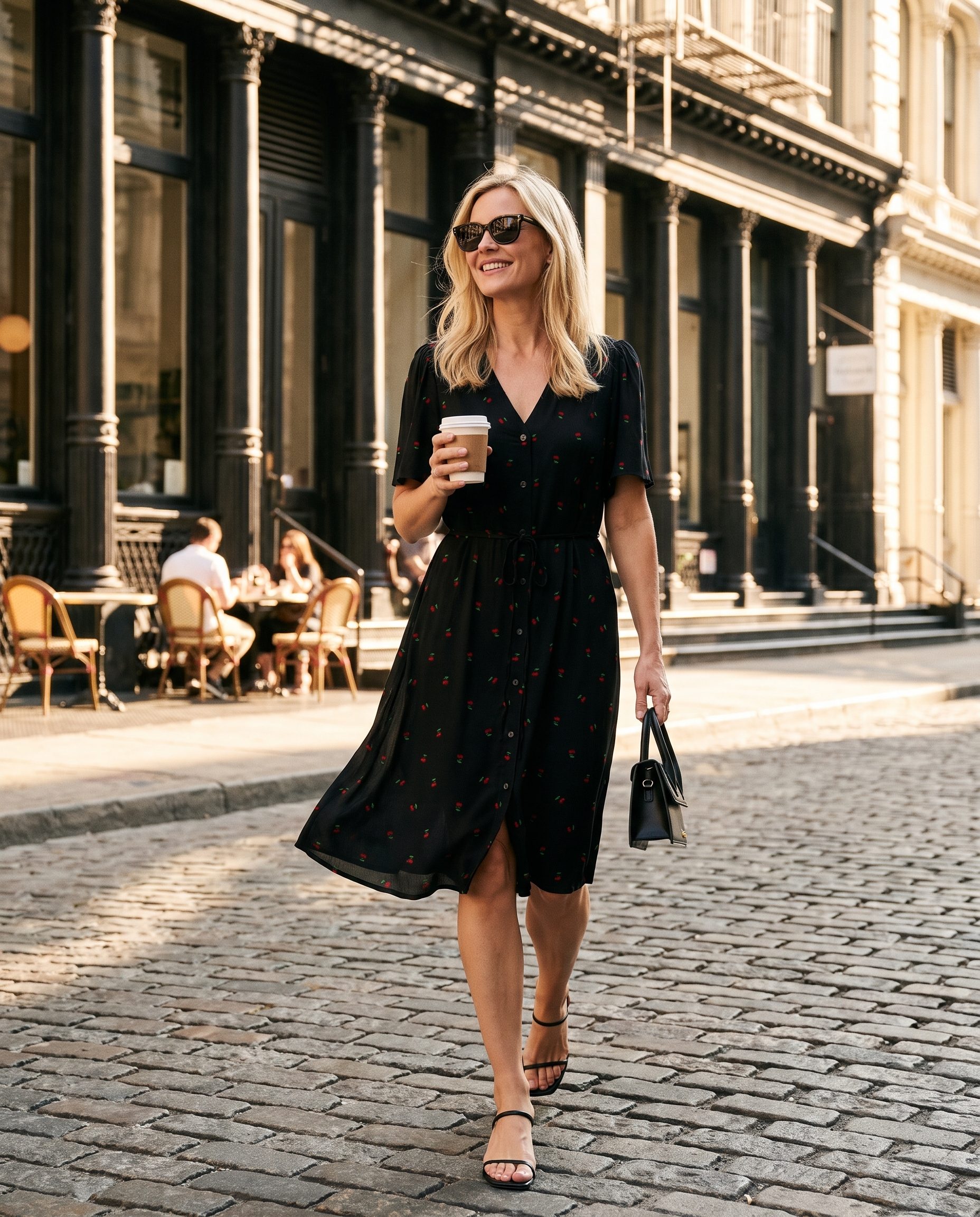
Black cherry print dress worn by a blonde model in a sunny street-style scene.
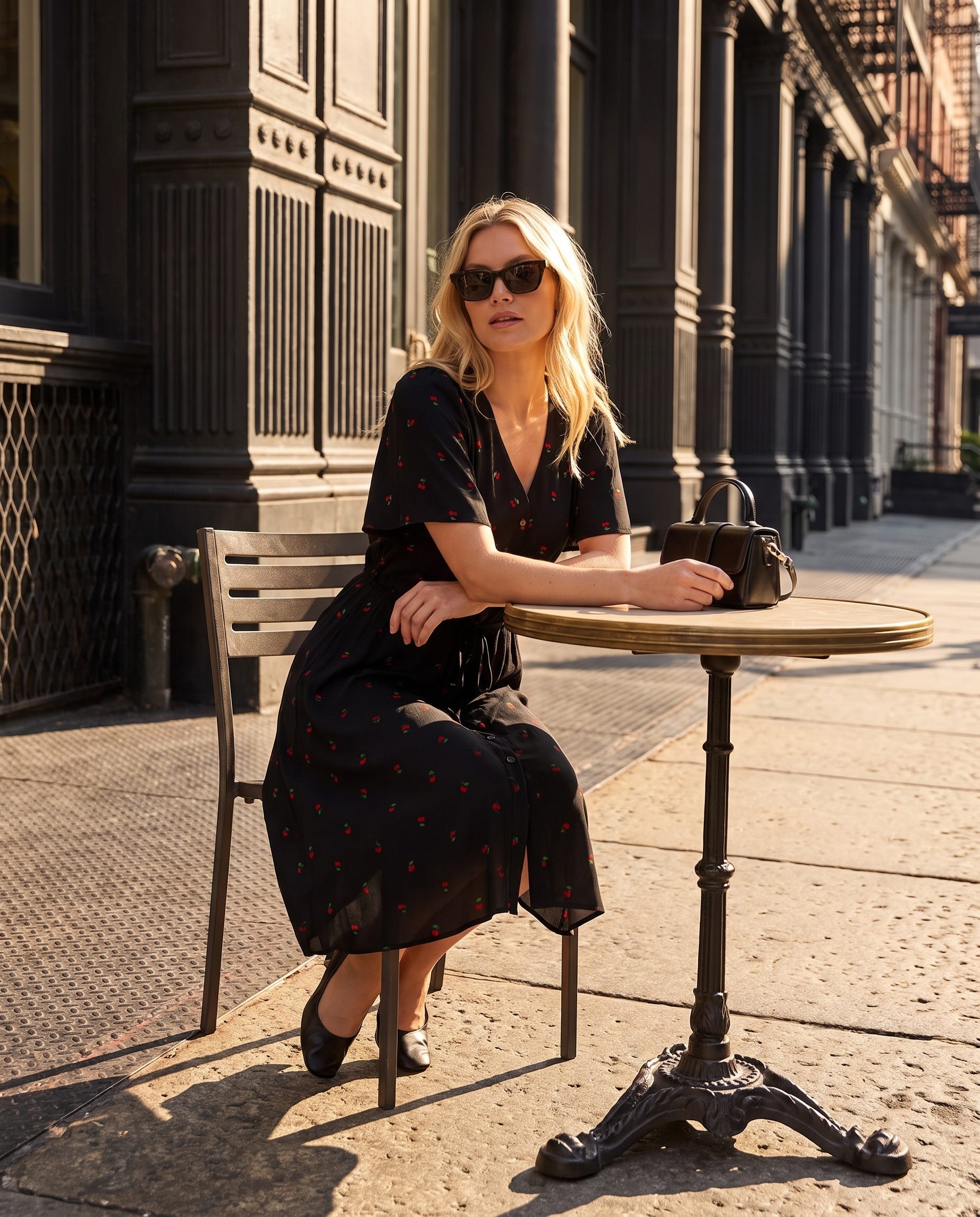
Black cherry print dress styled at an outdoor cafe table in warm city light.
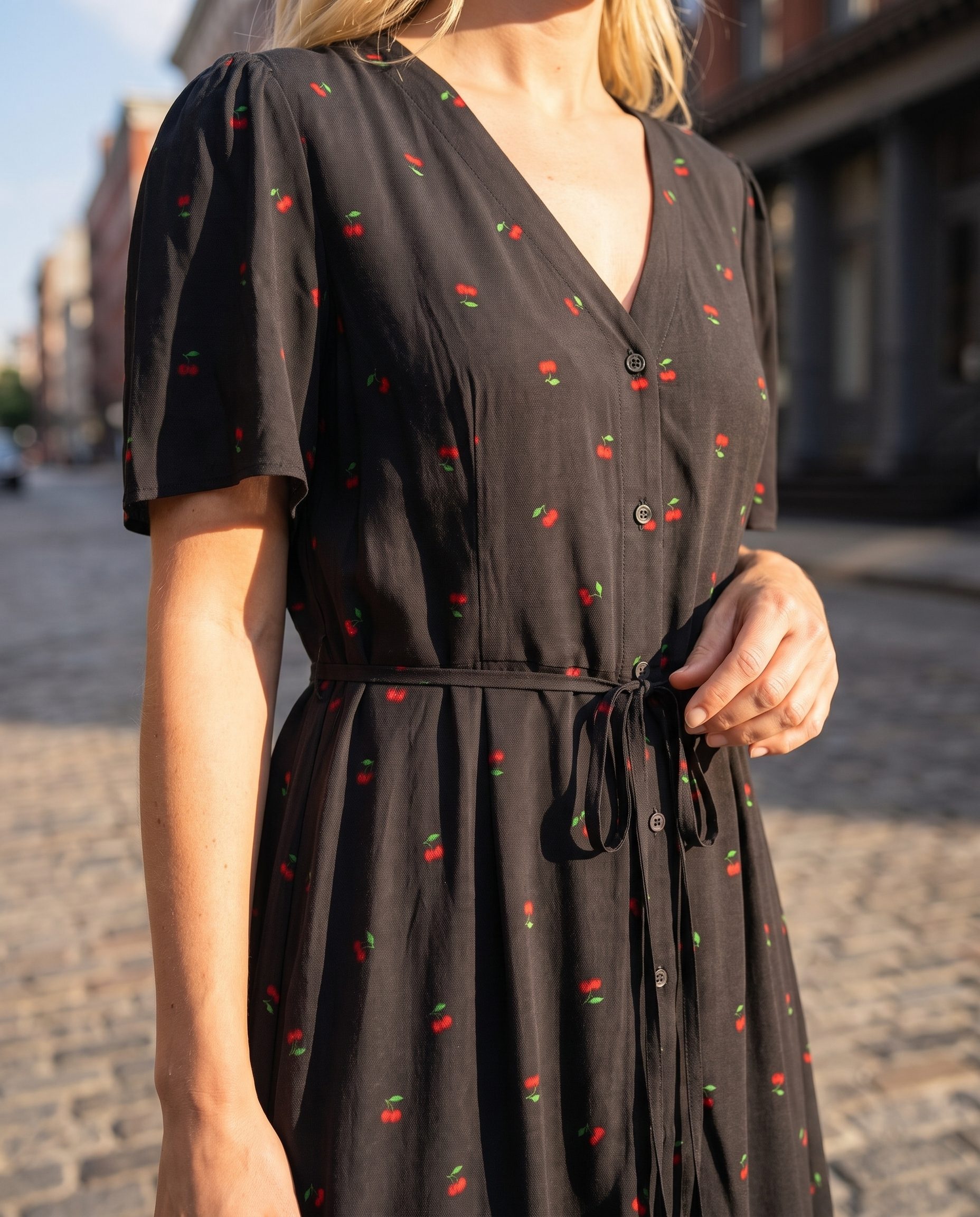
Black cherry print dress detail shown in a premium urban apparel campaign frame.
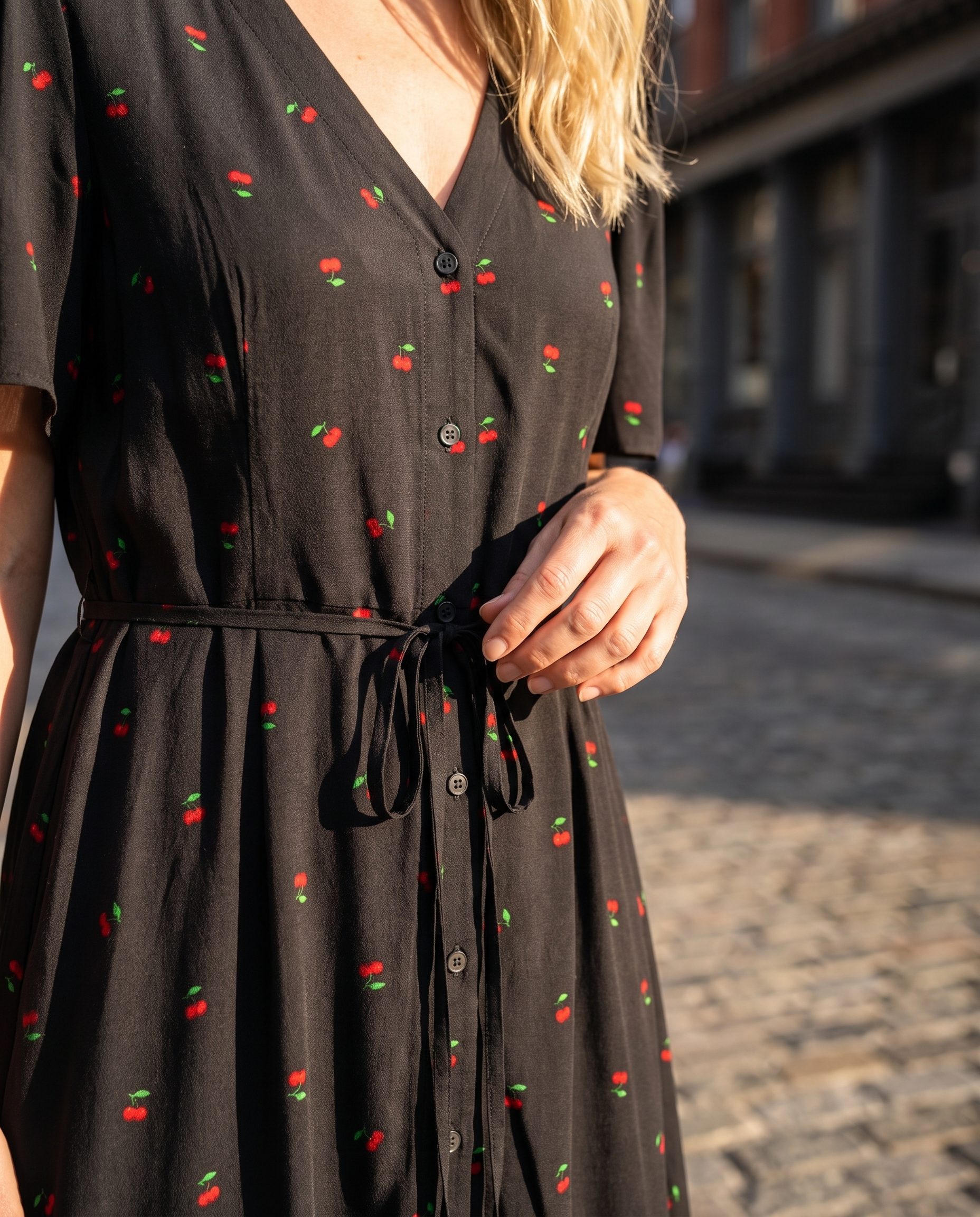
Close detail of a black cherry print dress with waist styling and fabric texture.
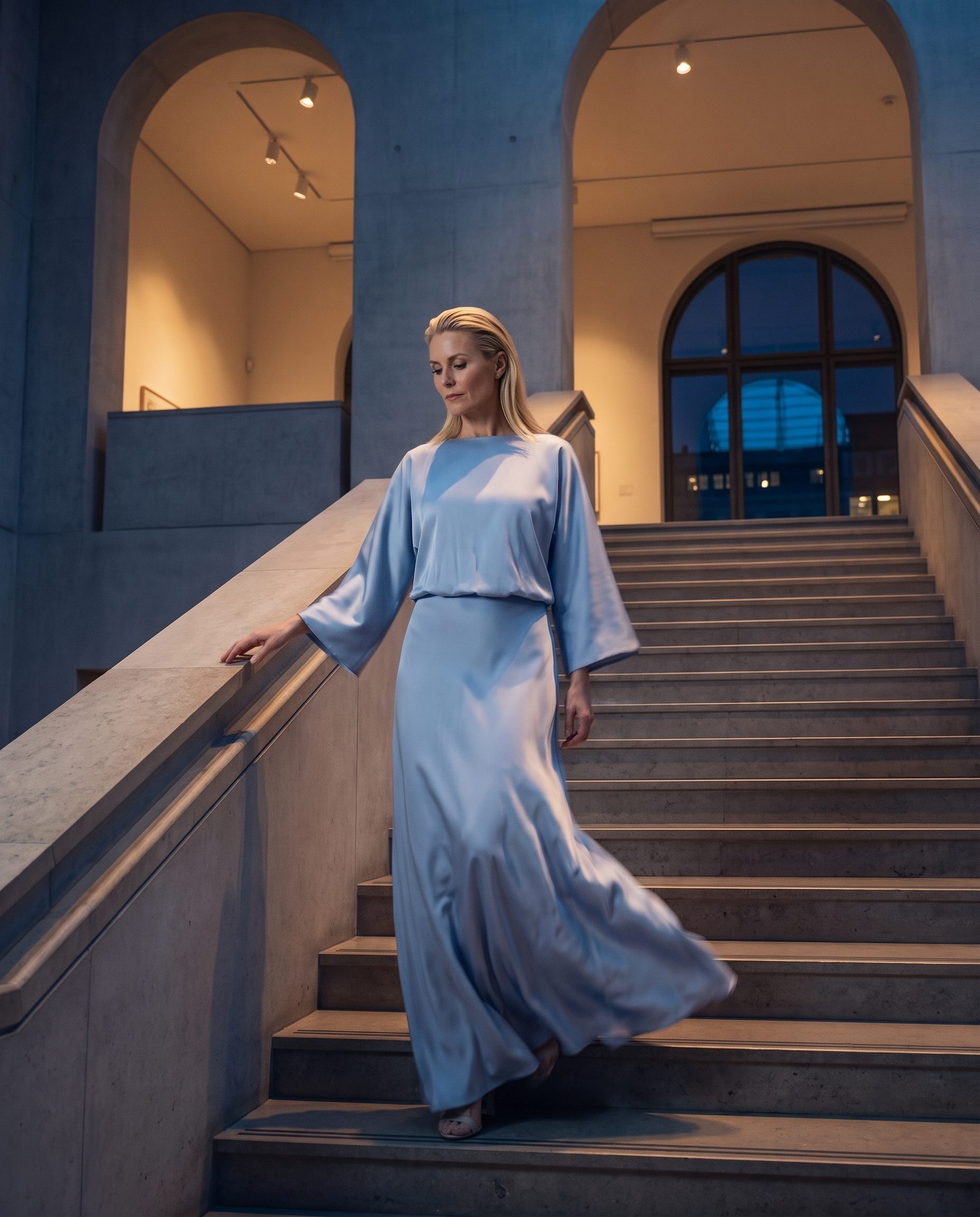
Pale blue dress worn by a blonde model on gallery stairs at blue hour.
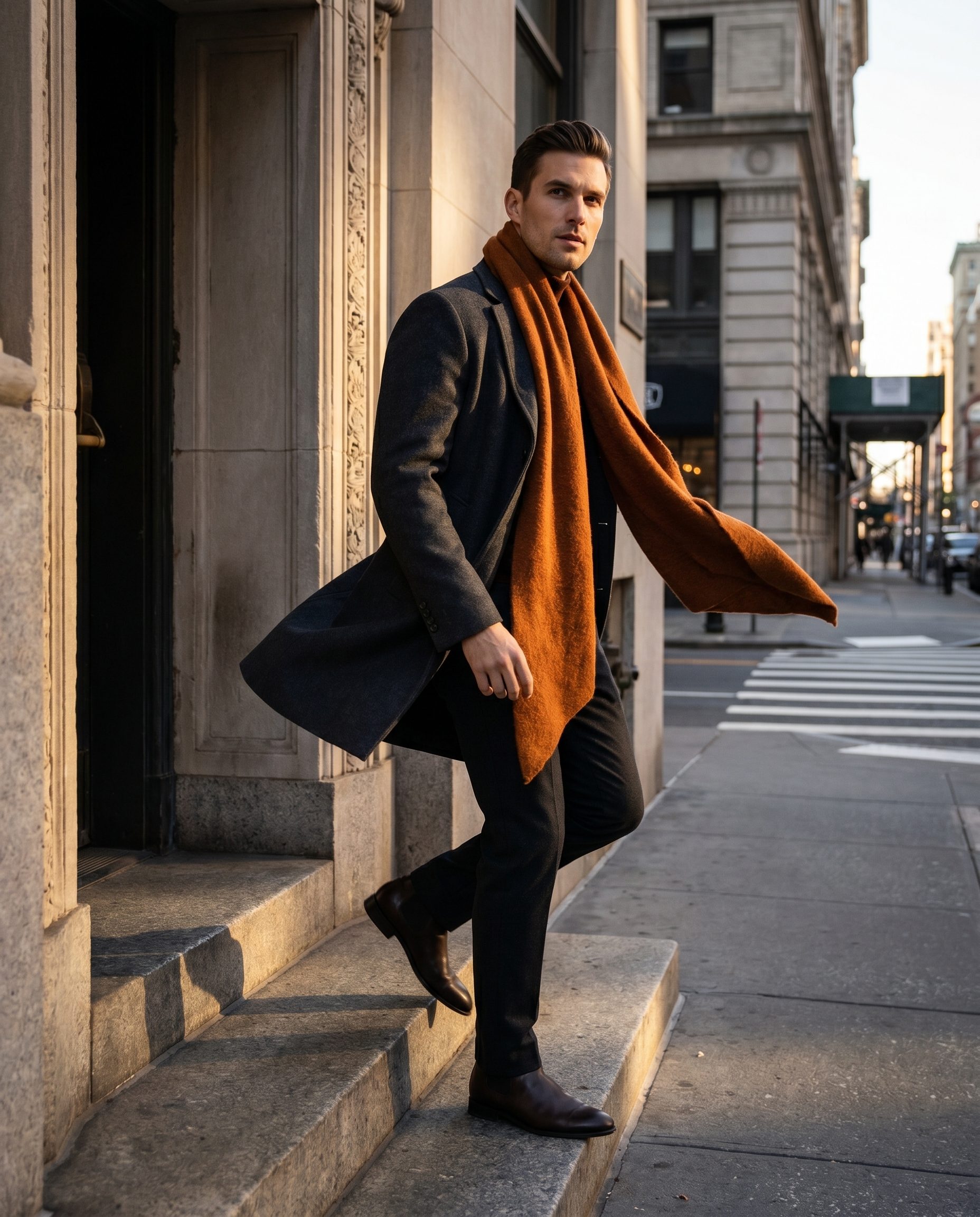
Rust scarf worn by a male model in a city doorway fashion campaign scene.

Lighting

Try a cleaner or warmer image without changing the product identity.

  • Same product
  • New light
  • Easy compare
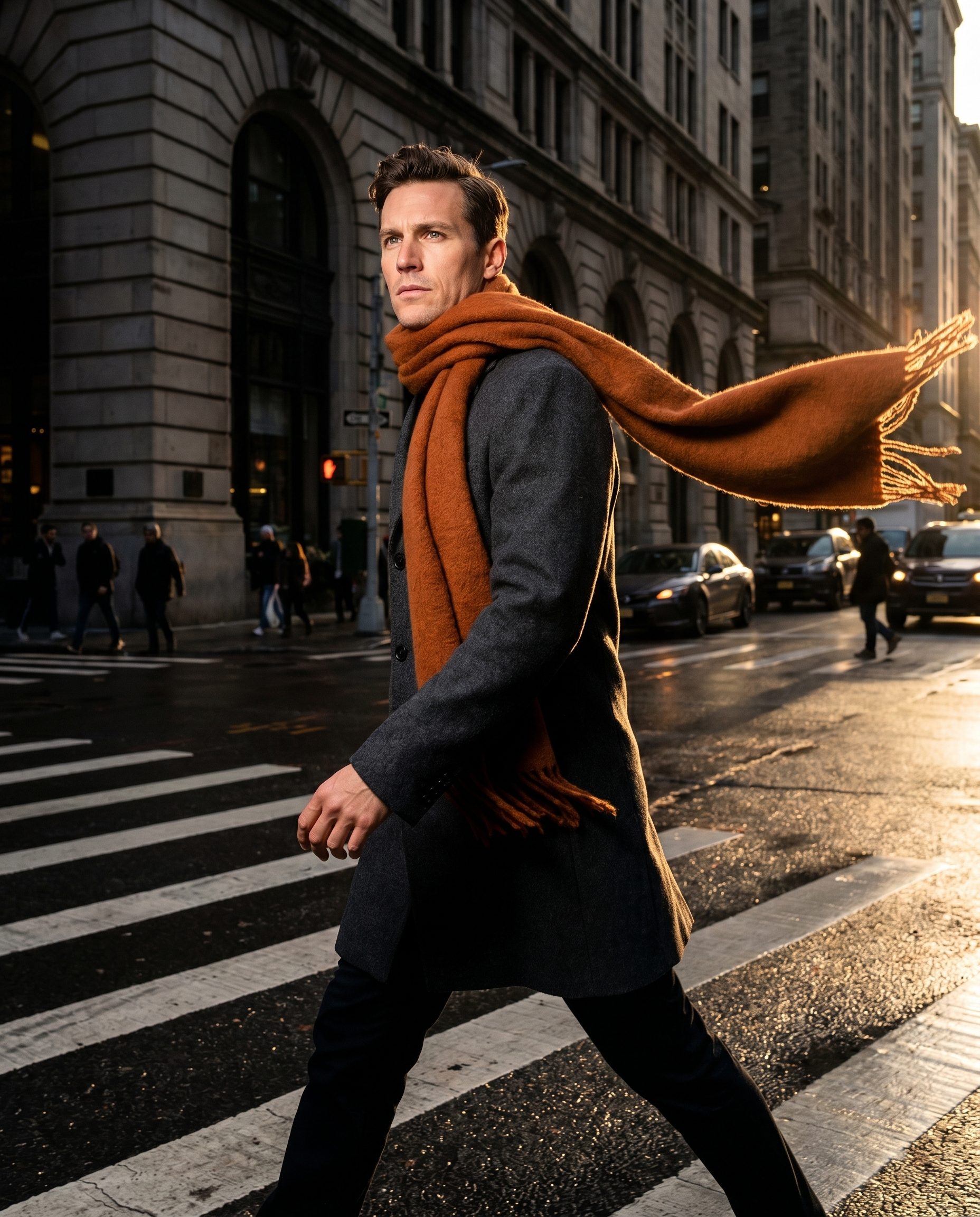
Rust scarf worn by a male model walking through a city crosswalk.

Background

Move the product into a new setting while keeping the product clear.

  • New scene
  • Same shape
  • Product first
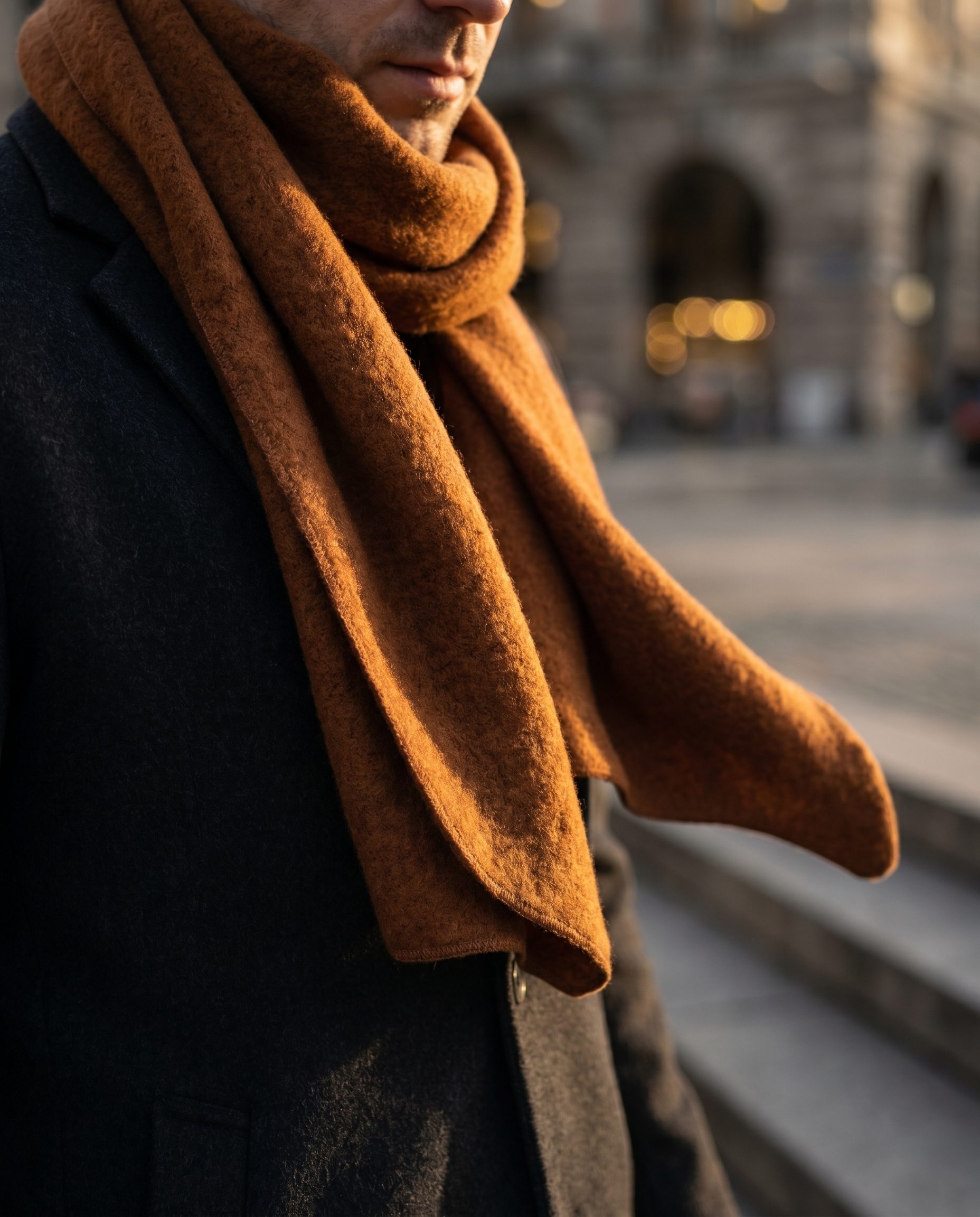
Close-up of a rust scarf styled with a dark coat in warm city light.

Crop

Create PDP, catalog, ad, and social crops from a proven direction.

  • PDP crop
  • Social crop
  • Ad support

How it works

How image variation works.

  1. Step 1

    Choose a strong image

    Start from an image worth extending.

  2. Step 2

    Set the variation goal

    Pick lighting, background, crop, or campaign direction.

  3. Step 3

    Generate alternatives

    Create options while preserving the product, crop, and detail.

  4. Step 4

    Compare and keep the best

    Review the set and keep the strongest version for publishing.

Compare

When variations are the right choice.

Use variations when one strong source image needs controlled alternatives.

Situation Best workflow Why
Good image Vary Make options
Weak image Upscale first Improve detail
New product Generate fresh Build from product
Full launch Campaign set Plan channels
Details

Keep the product stable while the scene changes.

Controlled variation is useful only when the product remains recognizable and accurate.

01

Keep the product recognizable

Use new scenes and crops without losing the product shape, material, or details buyers need.

  • Product identity
  • Material detail
  • Clear review
Gold hoop earrings worn in a warm premium beauty portrait campaign scene.
Stable
02

Match the image to the channel

Create outputs for product pages, catalog, ads, email, and social without treating every slot the same.

  • PDP crop
  • Ad space
  • Social format
Gold hoop earrings worn in a soft warm profile portrait campaign scene.
Useful
03

Review before publishing

Choose the strongest images, check product accuracy, and keep only the visuals that belong in the set.

  • Human review
  • Brand fit
  • Final choice
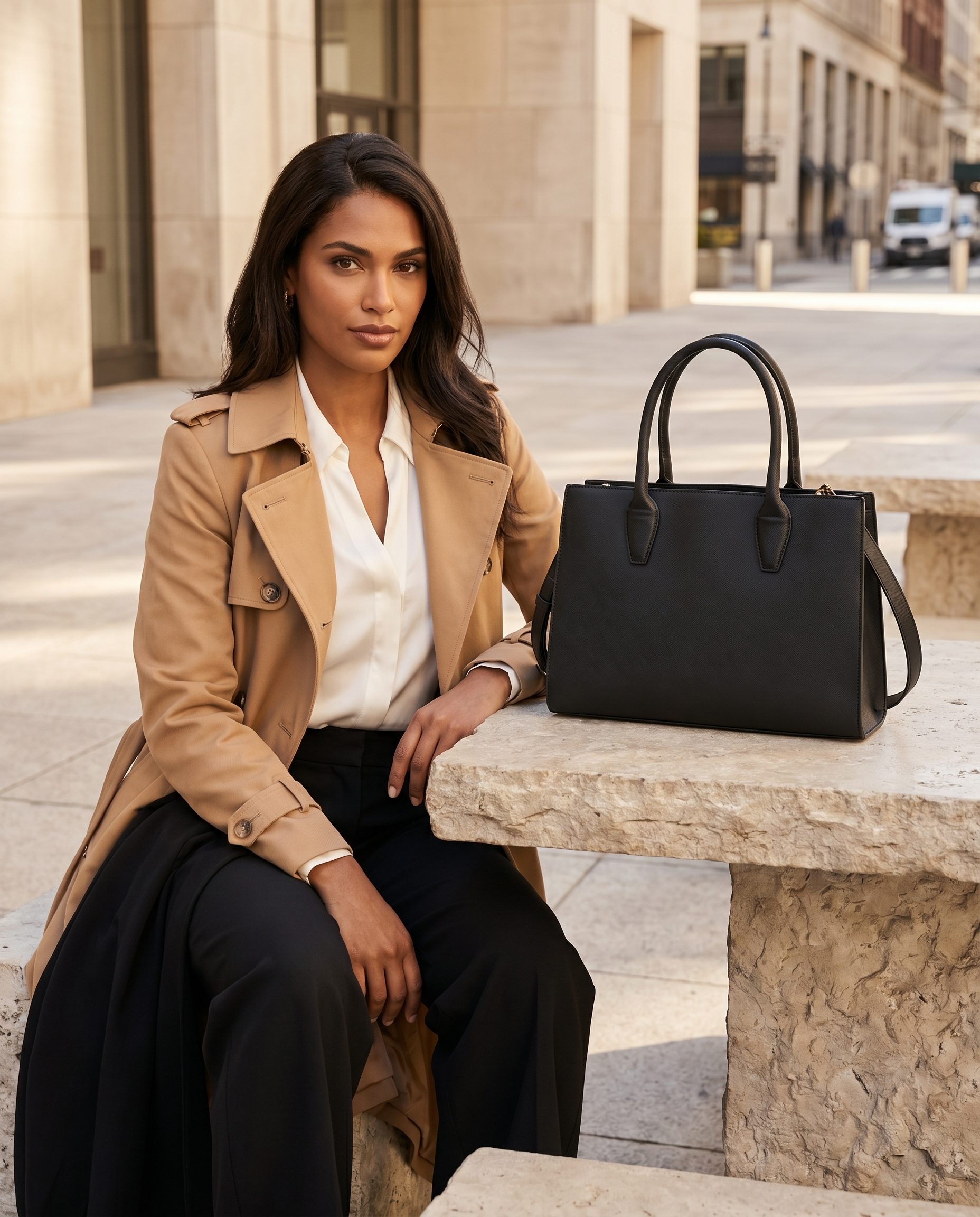
Black structured handbag in a premium seated city lifestyle campaign scene.
Ready

FAQ

Image variation questions

Common workflow questions.

Create controlled scene options.

Use an image that already has a clear product or scene direction. Weak source images should be improved first inside Fotogenic.

The main image generator creates new product image outputs from product context. Variations start from an existing image and explore controlled alternatives for production.

That is the goal. You should review product identity, details, and commercial fit before using any variation in your store.

Yes. BrandDNA helps keep alternatives closer to your saved visual system.

Use it when you like the base image but want more scene, crop, background, or mood options.

Start over when the source image has the wrong product, poor detail, or a direction that does not match the final use.

Compare them against one goal at a time before choosing the strongest image for the channel.

Ready when your next product is

Create stronger alternatives from a product image.

Start with one strong image, then generate controlled alternatives for the next channel.

  • Product context
  • Human review
  • Brand controls
  • Pricing path