Fotogenic AI vs Photoroom
Compare mobile editing and Shopify publishing with Fotogenic AI's creative workflow and reviewed WooCommerce updates.
Our pick
Product campaigns with reviewed delivery
 PhotoroomSpecialist fit
Mobile editing and direct Shopify publishing
Choose Photoroom for direct Shopify publishing or mobile editing, with explicit model and pose choices for fashion imagery.
The differences that change your choice.
Compare jacket direction, store publishing and the work between approval and the correct product listing.
Store destination
Both tools Platform decides
- Fotogenic AI
- Review selected WooCommerce product or variation updates; originals remain separate.
- Photoroom
- Import, edit and publish Shopify imagery on Max or Ultra.
Fashion direction
Both tools Match the controls
- Fotogenic AI
- Direct a new wearing scene through references, templates and custom settings.
- Photoroom
- Choose model, pose, background, ratio, quality and brand style.
Working environment
Photoroom Mobile editing
- Fotogenic AI
- Create from WooCommerce, Media Library and editorial sources in WordPress.
- Photoroom
- Use web and mobile tools, including documented Android catalog editing.
Catalog batches
Both tools
- Fotogenic AI
- Reuse approved direction across selected product sources.
- Photoroom
- Apply templates, placement, backgrounds and AI tools to Shopify imagery.
Jacket approval
Choose by task
- Fotogenic AI
- Inspect the complete jacket scene, including cuffs, pockets and closures.
- Photoroom
- Review generated fashion imagery before further edits or publishing.
Plan requirements
Choose by task
- Fotogenic AI
- Weekly or monthly workflow credits refresh without rollover.
- Photoroom
- Publishing requires an eligible tier; AI credits and exports have separate limits.
From a flat lay to an apparel campaign
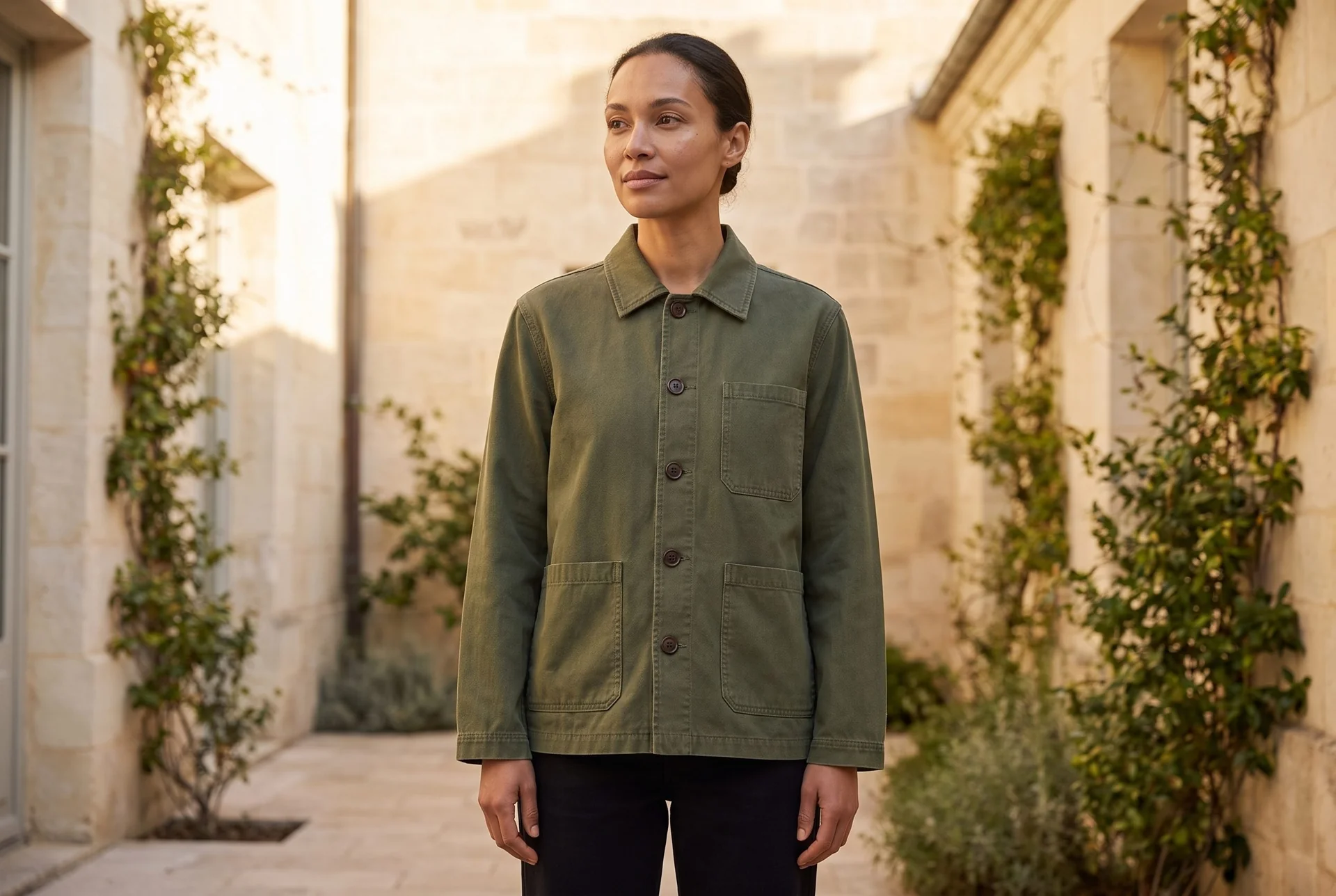
An olive jacket flat lay becomes an on-model courtyard scene, with the pockets, hem and cuffs visible.
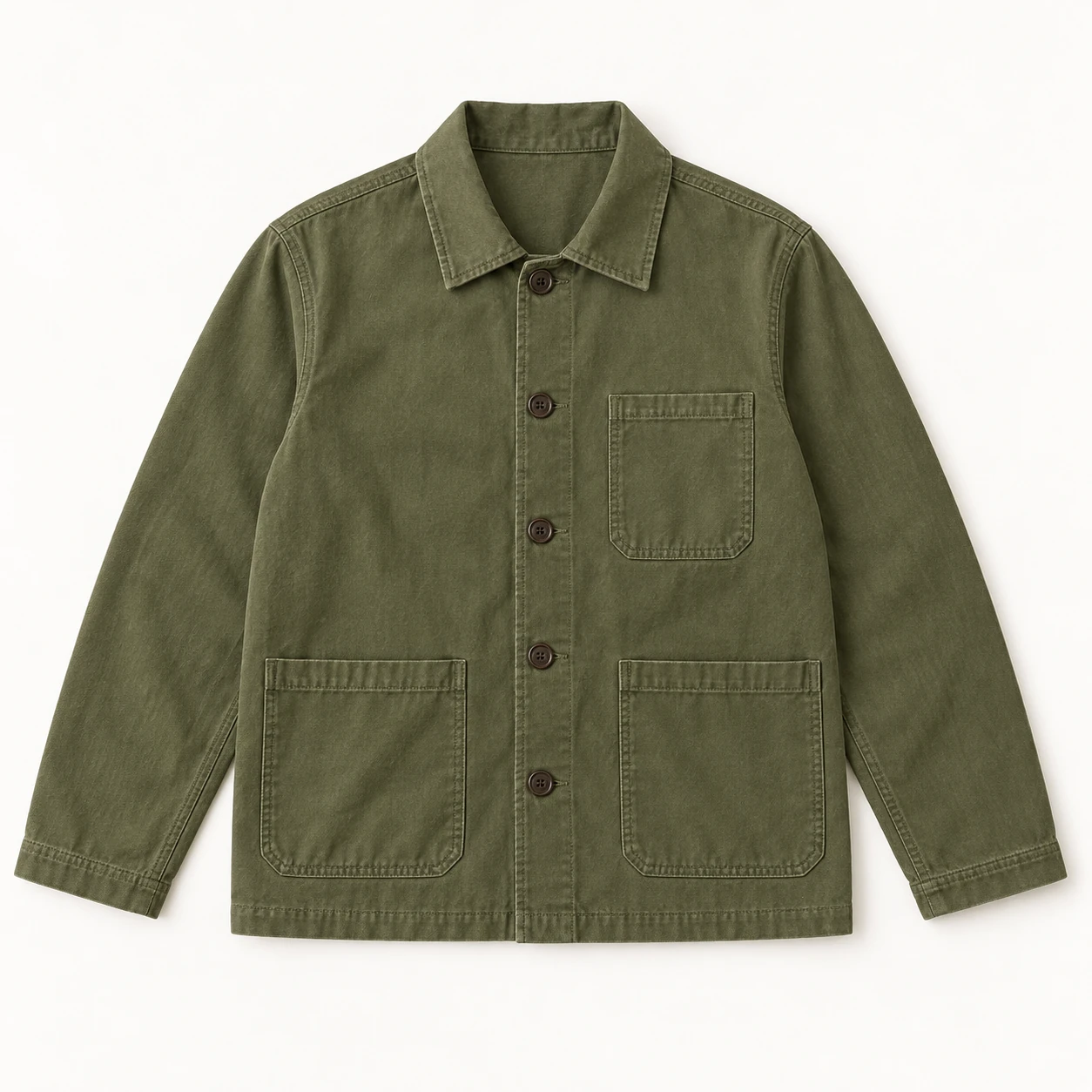
From the product reference
The courtyard frame shows five buttons and three patch pockets. The tighter alternative was rejected for clipped cuffs. Generated model, drape and sunlight do not verify physical fit or exact fabric color.
Plan this product shoot
A jacket collection that needs more than cut-outs
Jacket references
The retained example starts with an olive five-button chore jacket and three patch pockets. The brief is a courtyard wearing scene that shows the full garment, cuffs and hem. Keep a factual front or back photograph for construction the scene cannot reveal.
Three image roles
The displayed courtyard image demonstrates one on-model result. A clean listing view and construction detail are additional planned roles, not three completed frames. A tighter candidate was rejected because the cuffs were clipped.
Garment approval
First check the five buttons, pocket shapes, collar and complete cuffs. Then judge the courtyard light and final crop. Sunlight and generated drape can change apparent fabric color and fit; an attractive scene does not verify either.
Our recommendation for this brief
Choose Fotogenic AI to develop the courtyard direction and review the garment before store use. Keep Photoroom when its Shopify publishing or mobile editing is indispensable.
The WooCommerce image tutorial explains reviewed gallery assignment. Use the manual Shopify workflow for that store, or the clothing catalog walkthrough to inspect a separate satin-jacket source and completed results.
What are you creating next?
A jacket launch needs product and campaign images
Choose Fotogenic AI when the task starts with a jacket reference and ends with reviewed WooCommerce imagery.
Product and campaign views have separate acceptance criteria; the store connection supports their final assignment.
An apparel campaign needs on-model context
Choose Fotogenic AI for a newly directed wearing scene you can refine against the garment.
Choose Photoroom when its explicit model, pose, background and brand-style controls are the requirement. Both create fashion imagery; campaign breadth alone does not decide this purchase.
A Shopify team manages listing imagery
Choose Photoroom when direct Shopify publishing and mobile editing are essential.
Its Max and Ultra plans include that connection. Fotogenic AI uses the manual Shopify gallery and variant route at this review.
From product source to store delivery.
Fotogenic AI
Select the source
Open Studio, select the correct product or variation and choose suitable reference photos.
Configure and estimate
Choose Generate Images or Campaign Set, set the look and output, select Review images first and check the credit estimate.
Review and assign
Inspect saved results against the source, then apply accepted featured or gallery images. Check the actual product page.
Photoroom
Connect the catalog
Connect Photoroom for Shopify and open the synced product in the Shopify Products editor.
Edit the images
Apply templates, placement, backgrounds or AI tools; use the main editor for individual changes.
Review and publish
Review the product changes, then publish them to Shopify on Max or Ultra. Edits are not live until published.
A closer look at Photoroom.
When Fotogenic AI is a useful fit
Choose Fotogenic AI when the merchant needs to create a new jacket presentation, inspect the garment and apply selected WooCommerce image updates. The documented store workflow begins with product or variation references and keeps new files separate from originals.
That connection is useful when several jacket colors look similar: the source, approved result and correct listing must stay together. For editorial images, the WordPress AI image generator guide follows a Media Library-to-page route. Neither route requires treating a good-looking output as automatically approved.
When Photoroom is a useful fit
Photoroom offers a documented Shopify production route. Its Shopify overview covers importing catalog imagery, creating or editing images and publishing changes back to the store. Publishing requires Max or Ultra.
- The catalog editing guide covers templates, positioning, backgrounds and AI tools.
- That guide uses Android; other interfaces have their own instructions.
- Shopify merchants can weigh that connection alongside their mobile editing needs.
Image generation and fashion controls
Both products support more than background removal. Photoroom's AI Fashion Models documentation includes model, background, pose, quality, aspect ratio, brand style and prompt controls, followed by review and further editing.
- Fotogenic AI's product image generator covers studio, lifestyle and on-model directions, with templates, saved looks and model choices in WordPress.
- For a jacket, closures, collar, pockets and fabric remain the acceptance criteria. A strong setting cannot compensate for altered construction.
Batch work and store delivery
The store platform is a meaningful dividing line: Photoroom documents Shopify publishing; Fotogenic AI documents WooCommerce sources and selected updates. Fotogenic AI's public site labels Shopify Coming soon.
- Batch delivery includes product assignment, featured images, gallery order and crop.
- Accepted and rejected results need distinct records, with original photography retained.
- For editorial content, the WordPress AI image generator guide explains the Media Library-to-page workflow.
Pricing: workflow tiers and billing
Fotogenic AI
$20.00 / month
Starter in USD: 220 monthly credits. Weekly: $7.00 with 60 credits. Images only; video plans differ.
Plan allowances and terms
Fotogenic AI offers weekly and monthly billing. Credits refresh with the selected cycle and do not roll over. Its public plan description distinguishes product-image plans from video-enabled plans. Use the current Fotogenic AI plans and the estimate for your selected image workflow rather than comparing a weekly price directly with an annual-billing monthly equivalent.
Photoroom
$7.50 / month
Pro, annual-billing equivalent. Shopify publishing is listed on Max and Ultra.
Plan allowances and terms
Reviewed October 20, 2026, Photoroom's pricing page displayed annual-billing equivalents of $7.50 per month for Pro, $20.99 for Max and $82.50 for Ultra. These are displayed annual-billing rates, not month-to-month quotes. Its plans distinguish AI-credit allowances from export limits, and Shopify integration is listed on Max and Ultra. Check the current Photoroom pricing for the selected platform, currency and billing period.
For a small project, total commitment can matter more than theoretical capacity. For regular production, available operations and review effort may matter more than the entry price. Record the task, the plan required to perform it and the actual accepted output before making a cost claim.
Switching from Photoroom to Fotogenic AI
- Retain original jacket photos, approved exports and the written direction behind each accepted look. Editable Photoroom templates are separate assets; no direct template import is established.
- Recreate one jacket scene from its correct variant reference, then approve construction and crop before expanding to the collection.
- Assign an owner to delivery. Follow the WooCommerce tutorial or retain Photoroom's Shopify publishing until the manual replacement handoff is confirmed.
Sources and review method
Written by Fotogenic AI. Official product and pricing sources were checked October 20, 2026. The retained olive-jacket scene demonstrates one Fotogenic AI portrayal. The cuff-crop rejection and construction checks bound that example; no three-frame collection or competitor test is shown. Recommendations are editorial judgments. No matched competitor generation test or purchase was performed.
- Photoroom Shopify overview
- Photoroom Android catalog workflow
- Photoroom AI Fashion Models controls
- Photoroom pricing
- Fotogenic AI store workflow
- Fotogenic AI review and assignment guide
- Fotogenic AI current plans
For other decisions, read Fotogenic AI vs Pebblely or Fotogenic AI vs VOVV.AI. Return to the comparison guide for the complete evaluation framework.
Continue your comparison.
FAQ
Questions about Fotogenic AI and Photoroom
Yes. Its official AI Fashion Models documentation describes creating on-model imagery from source images with model, pose, background and other controls. Plan access and usage should be checked on its current pricing page.
Create with Fotogenic AI
Give your jacket a new setting.
Direct the scene from your product reference, then inspect the garment before delivery.