AI image generator for WordPress: create apparel page images
Create clothing images with Fotogenic AI. Use them on WordPress pages and posts.
To generate an apparel image in WordPress, open Fotogenic AI → Studio, choose Media source, select your clothing photo and use Generate Images. The new file is saved to your Media Library. Then add it to a page or post with the WordPress Image block.
This route works without WooCommerce. It is useful when a clothing brand needs a new image for an editorial page, a launch announcement or a blog post. If you want to update a WooCommerce product’s featured image or gallery, use the WooCommerce product-image tutorial instead.
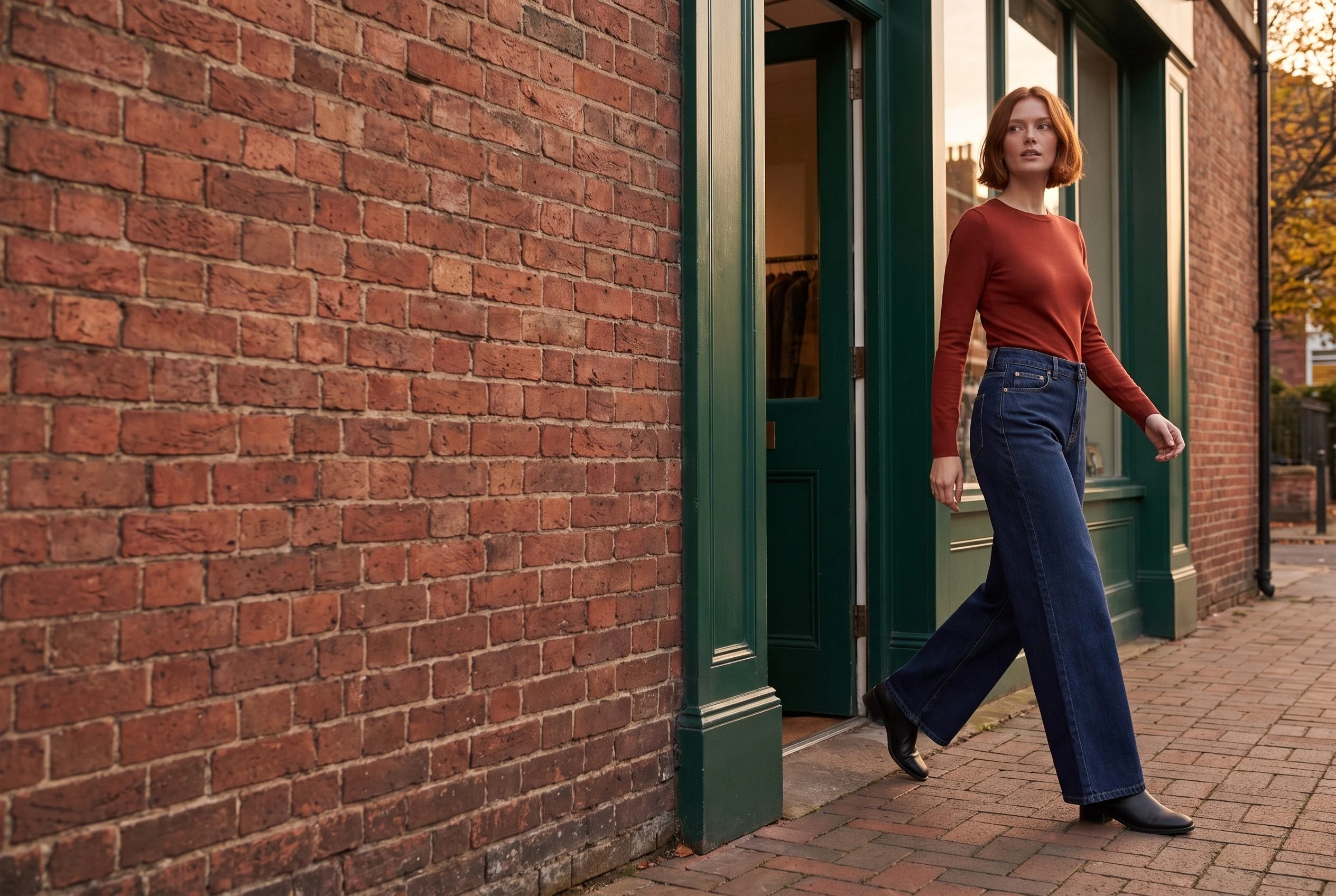
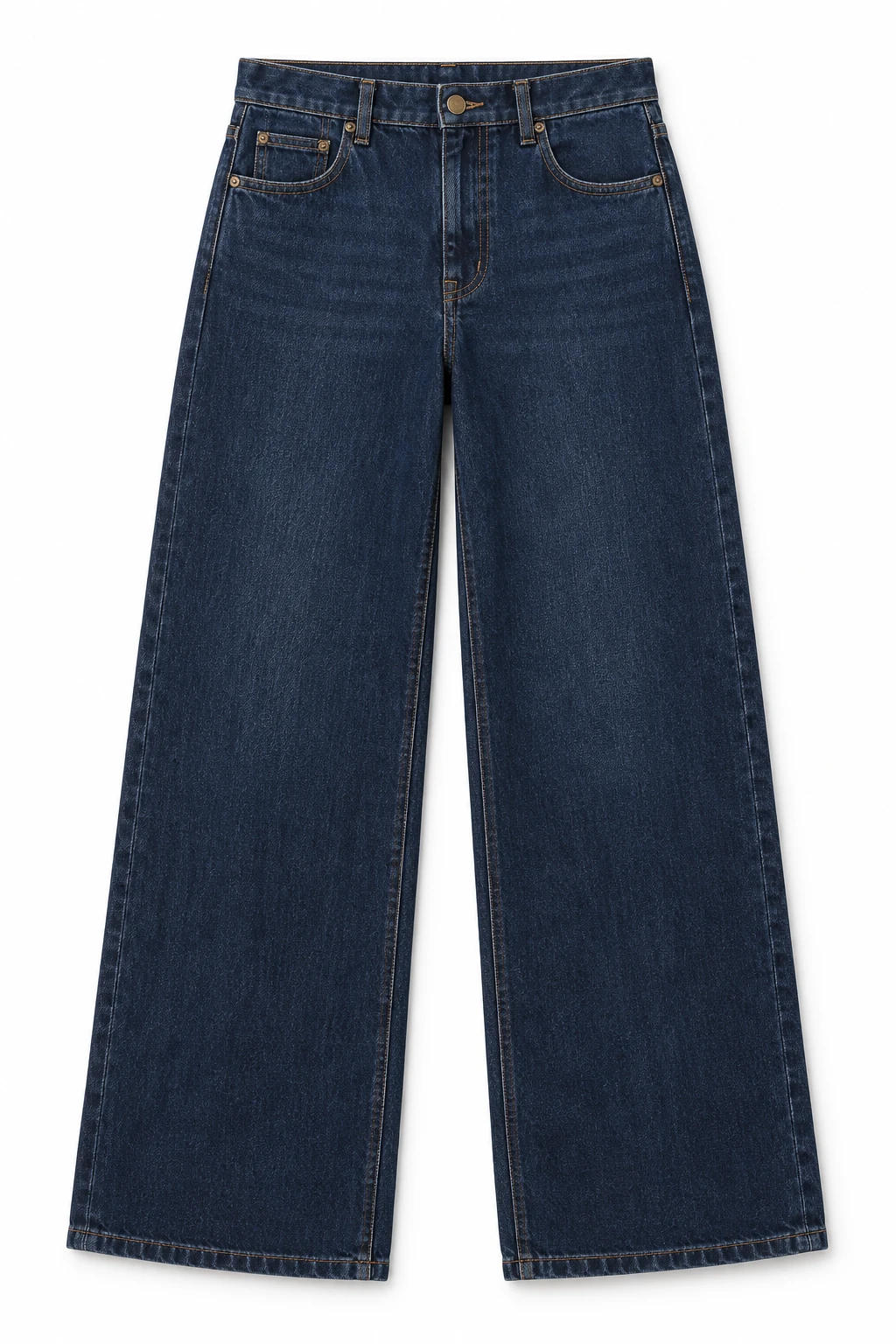
The denim scene above was created in Fotogenic AI from the source below. The walkthrough maps that kind of image brief to the WordPress plugin and shows how to place an accepted image in your content. Your result will vary.
1. Install and connect the WordPress plugin
In WordPress, go to Plugins → Add Plugin, search for Fotogenic AI, then choose Install Now and Activate. Open Fotogenic AI → Settings and sign in to your Fotogenic AI account.
The Fotogenic AI WordPress plugin is free to install; image generation uses account credits. Check the allowance and estimate shown in your account rather than assuming every image is free. Media Library, Post and Page workflows do not require WooCommerce.
2. Select the clothing photo, not the destination page
Upload your garment photo through Media → Add Media File if it is not already in WordPress. For this example, use one clear front view of the jeans. Keep the waistband, pockets and both hems visible.
Open Fotogenic AI → Studio. In Select, open Source type and choose Media source. Search for the filename, select its thumbnail, then click Continue and choose Generate Images in the workflow chooser.
Media source chooses the photograph that guides the new image. It does not choose where the result will appear. Post source and Page source are alternatives for using images associated with existing content; they do not mean that the plugin will rebuild that post or page.
3. Set the image brief in Configure
For a custom scene, leave Explore templates unused. Under Subject & model, leave Model on Automatic for this brief, which explicitly asks for a person wearing the jeans. Choose No model when you want a product-only scene instead.
Open Camera & composition and set Aspect ratio to 3:2 Landscape. In the bottom run settings, choose Images per item: 1 and Quality: 2K. The landscape format suits an image within a page; your theme still controls its displayed width.
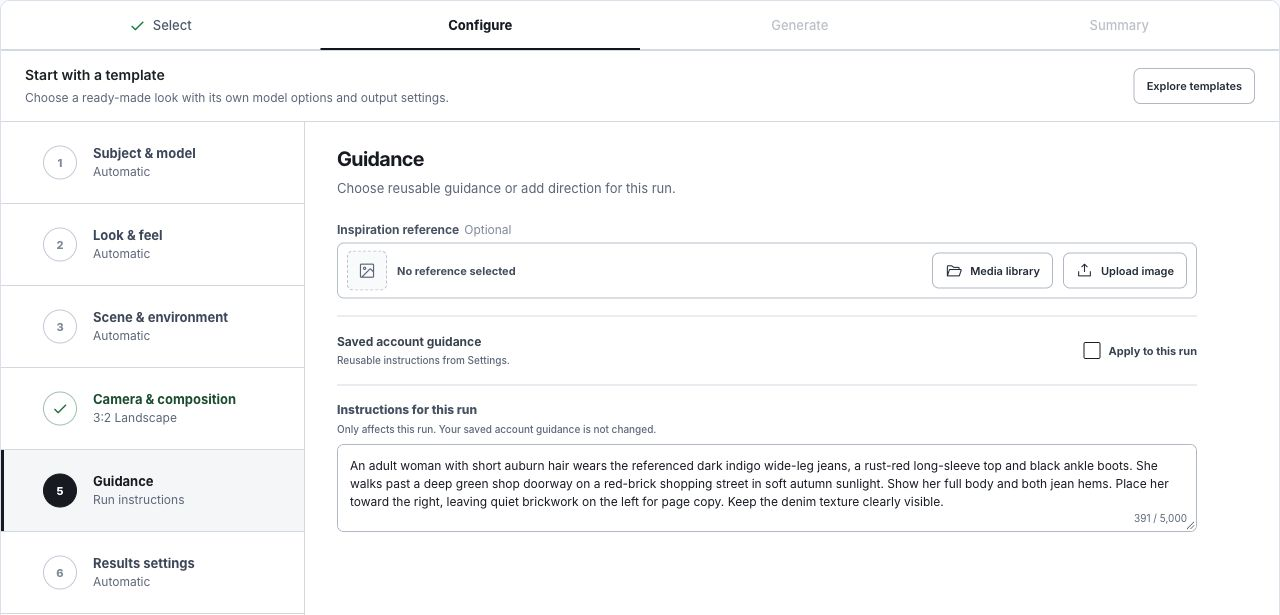
Open Guidance and paste the brief below into Instructions for this run. Keep the other optional creative controls on Automatic for this starting point, and leave Saved account guidance off unless you intend to include your saved instructions.
An adult woman with short auburn hair wears the referenced dark indigo wide-leg jeans, a rust-red long-sleeve top and black ankle boots. She walks past a deep green shop doorway on a red-brick shopping street in soft autumn sunlight. Show her full body and both jean hems. Place her toward the right, leaving quiet brickwork on the left for page copy. Keep the denim texture clearly visible.
The brick, green doorway and warm top give the blue denim a clear everyday setting. The full-length view keeps the garment readable. For a product-only shop image, choose No model and describe the jeans hanging from a trouser hanger beside a shop window. Avoid mixing that instruction with a request for a person wearing them.
4. Generate and find the saved image
Open Results settings. For a Media source, the destination is New Media Library attachments: new images are saved for review, while the original files and their existing uses stay unchanged.
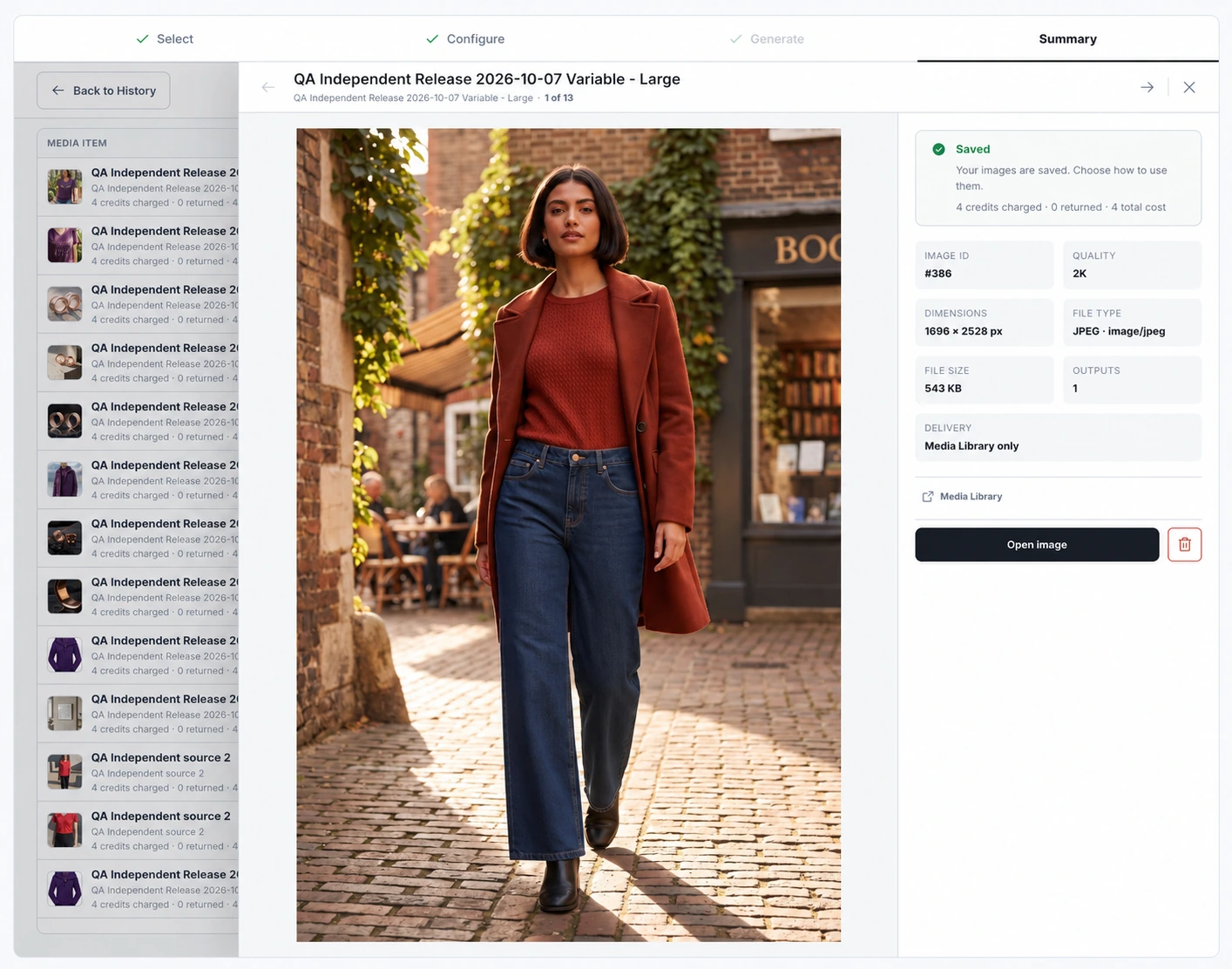
Click Continue to generate, inspect the source, output count, quality and credit estimate, then click Generate 1 image. When the run completes, review its result in Summary. Use History to return to the run later.
Compare the generated jeans with the source before placing the image on your site. Check the wash, pocket shapes, fly, stitching and leg shape. A convincing street scene is still unsuitable if the garment has changed. Keep an actual product photograph for details or fit claims that the generated image cannot verify.
Open Media → Library to find the new attachment. You can inspect the file there before using it in your content. Generating from a Media source does not automatically replace a WooCommerce product image or a page’s featured image.
5. Add the image to a WordPress page or post
Open the page or post you want to edit. Add an Image block with the block inserter, or type /image in an empty paragraph and select Image. Click Media Library, choose the accepted generated file and click Select.
In the block’s settings, enter meaningful Alternative text describing what the image contributes. For example: “Woman wearing dark indigo wide-leg jeans outside a green shopfront.” Use the normal image proportions and check the page preview before saving or publishing.
An Image block places the image within the content. A featured image is a separate page or post setting, and its position depends on your theme. Set it separately only when that is the placement you need.
The plugin creates image files; your WordPress editor and theme control their presentation. See the WordPress Image block guide for the native block options.
Choose the next tool for the next image job
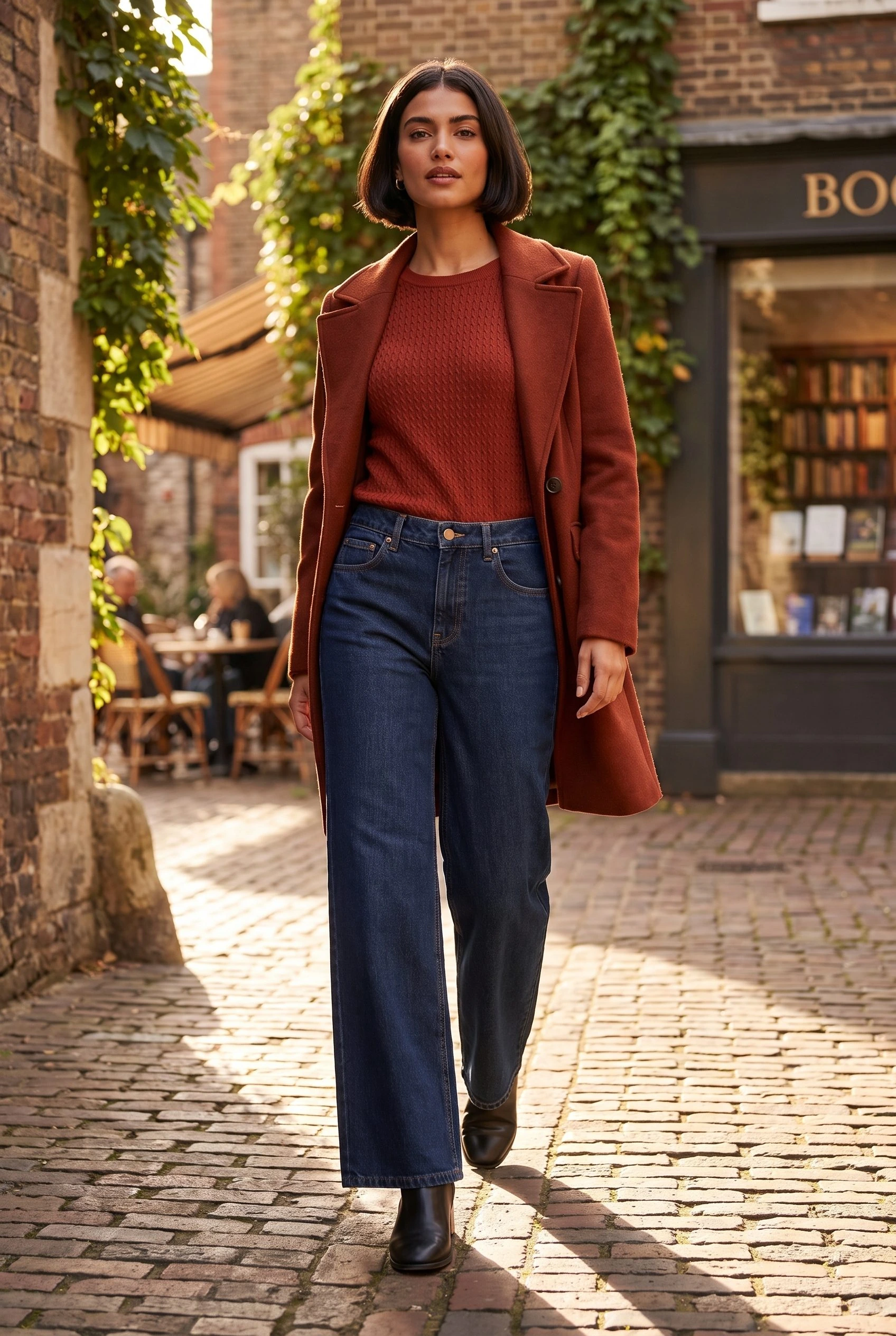
Need several related images for a promotion? In Fotogenic AI Studio, choose Campaign Set, select Media source and choose the same clothing reference. Click Continue. Set Campaign images to 3 and Quality to 2K. Under Camera & composition, choose a 2:3 Aspect ratio.
Open Guidance and paste this into Instructions for this run:
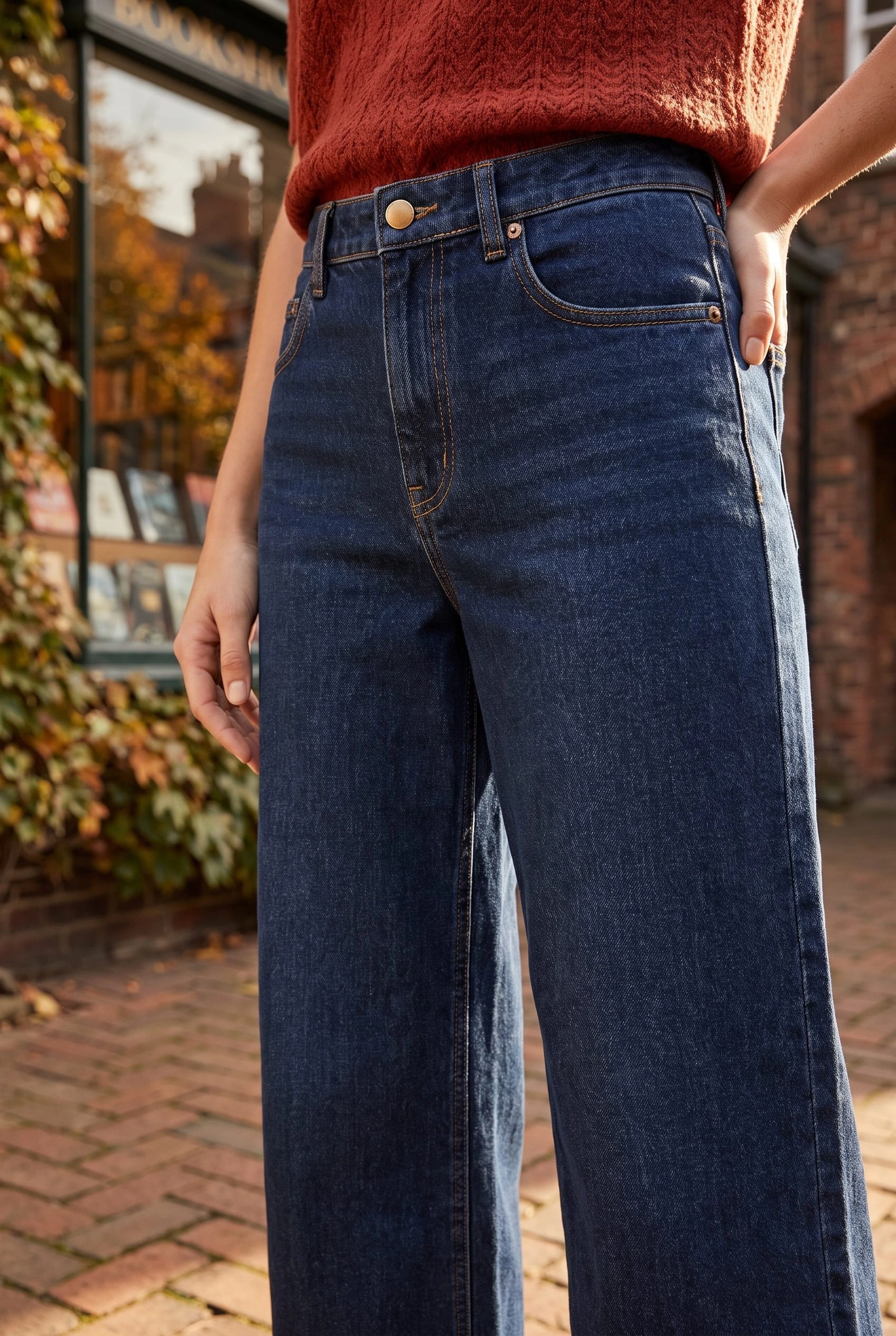
A polished autumn denim campaign for a clothing brand, one coherent adult wearer with a short dark bob, rust-red knit top and black boots. Believable neighborhood locations: a sunlit café terrace, a warm bookshop and a brick courtyard. Directional natural light, rich indigo, warm brick and deep green palette, tactile denim and confident editorial styling. Distinct full-length, seated and close-detail compositions with the jeans clearly visible; cohesive campaign, no graphic overlays.
Continue to review the credit estimate before starting. Keep only the images that match your garment. The full-length scene and detail below were selected from one Fotogenic AI Campaign Set. Add the accepted files to your page with the same Media Library steps above. A coordinated set does not assemble or publish a WordPress page for you.
Already have a suitable image that needs a larger file? In the Studio workflow chooser, select Increase Resolution for one Media Library image. It saves a new higher-resolution attachment while preserving the original. Review the credit estimate before starting, then inspect the enhanced detail before using it.
If you need to apply generated images to clothing products and galleries, switch to the Fotogenic AI WooCommerce workflow. For this page-image task, the Media Library and native Image block are enough.
Your denim campaign
The jeans, ready for a campaign.
One pair of jeans. Two campaign views.