Ecommerce Product Photo Workflow
For store teams building the complete product-page image set before moving into campaigns: prioritize the images that answer buying questions instead of starting with decorative campaign scenes. Follow the input, pilot, review, and publishing gates before scaling.
- One clear source
- Review before publishing
- No credit card required
How it works
Ecommerce Product Photo Workflow
a clean source, the product-page shot list, shopper questions, variants, and details that require documented evidence. The first batch is a pilot, not an automatic approval.
-
Step 1
Start with shopper questions
List what buyers need to see about shape, scale, material, fit, contents, or use.
-
Step 2
Build the product-page core
Create the hero and supporting images before producing campaign-only variations.
-
Step 3
Review the gallery as a set
Remove duplicates and confirm that every image answers a different question.
-
Step 4
Extend approved assets
Reuse the accepted product treatment for catalogs, ads, email, and seasonal crops.
Workflow outputs
Inspect the set, not only the strongest image.
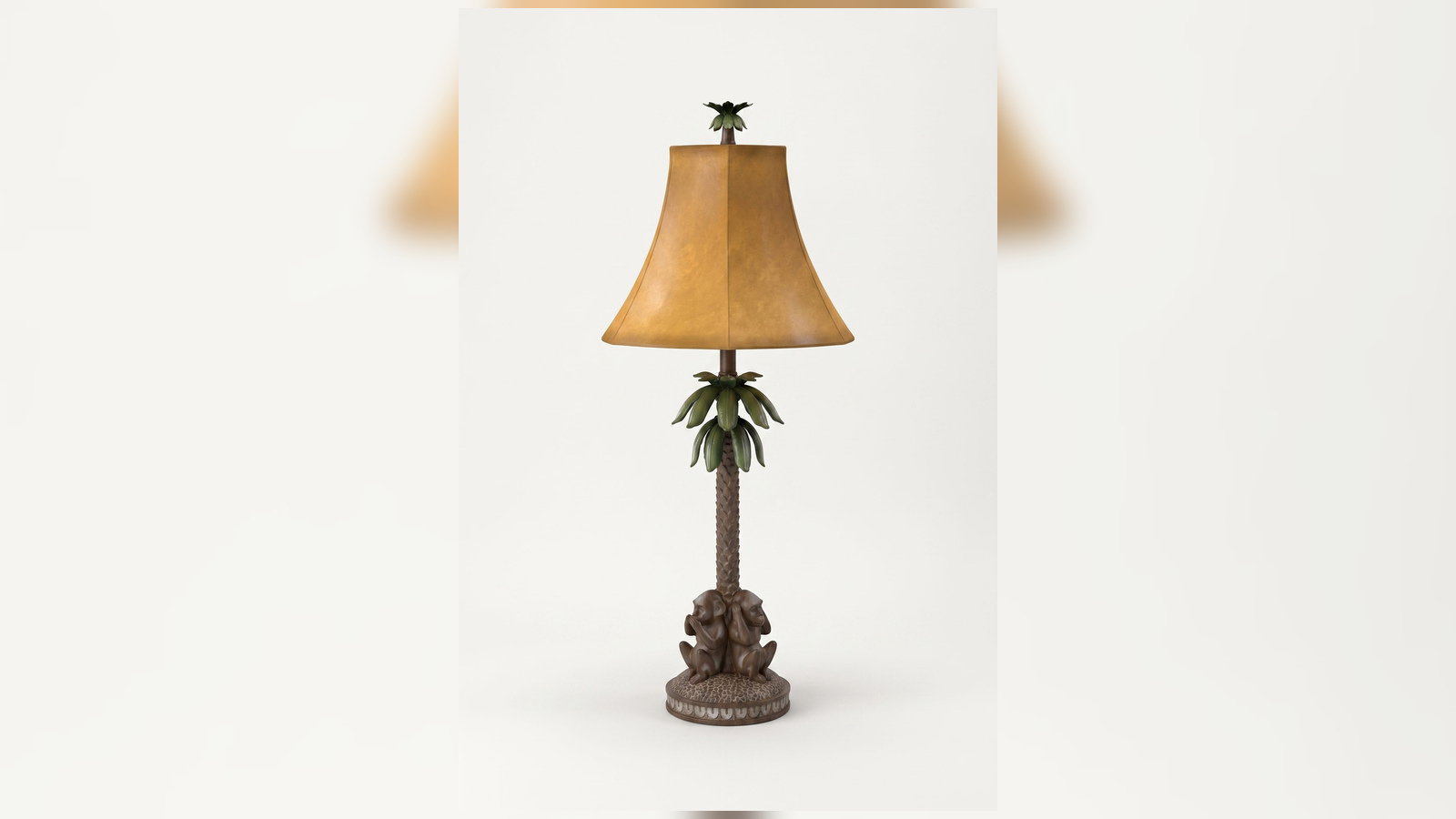
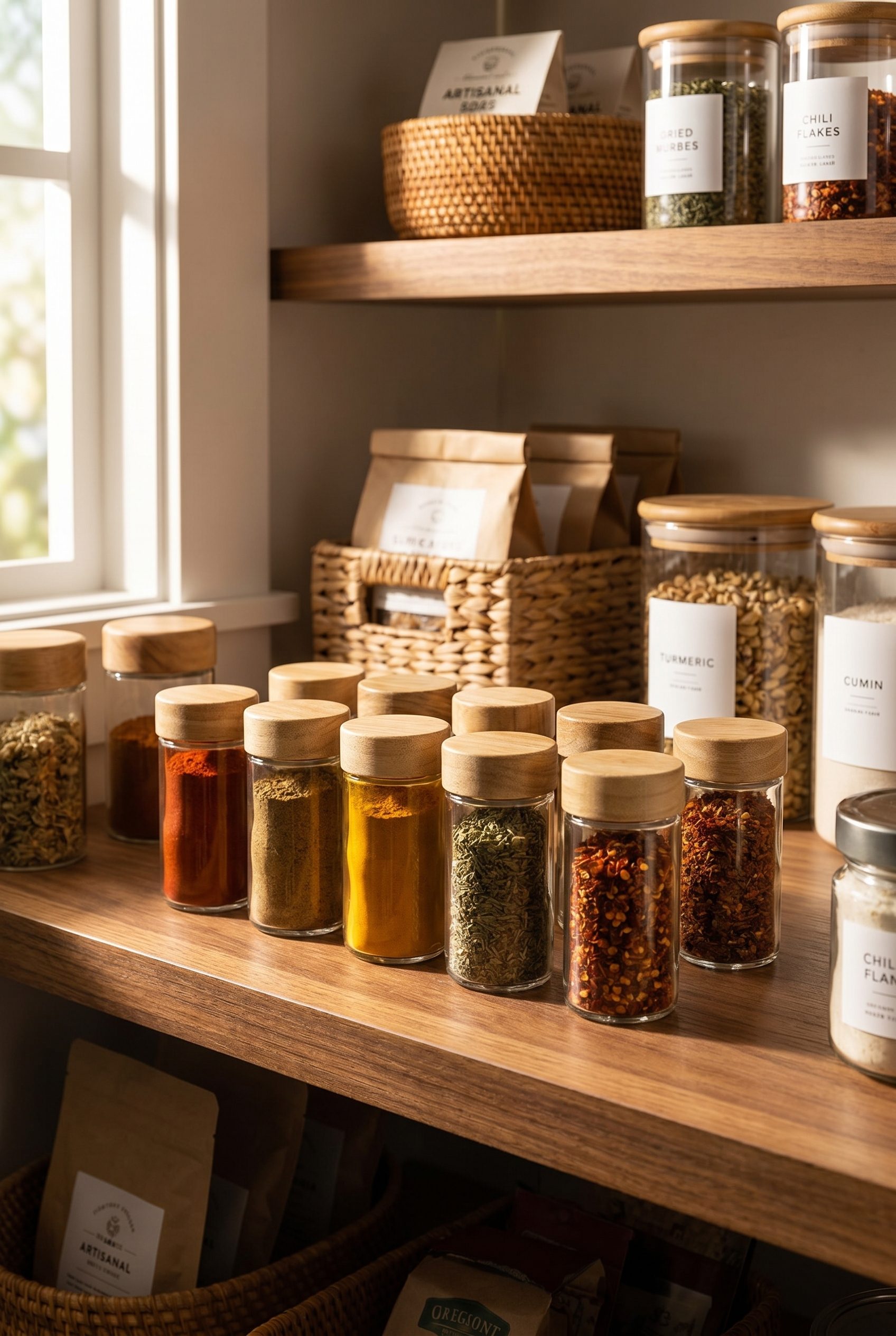
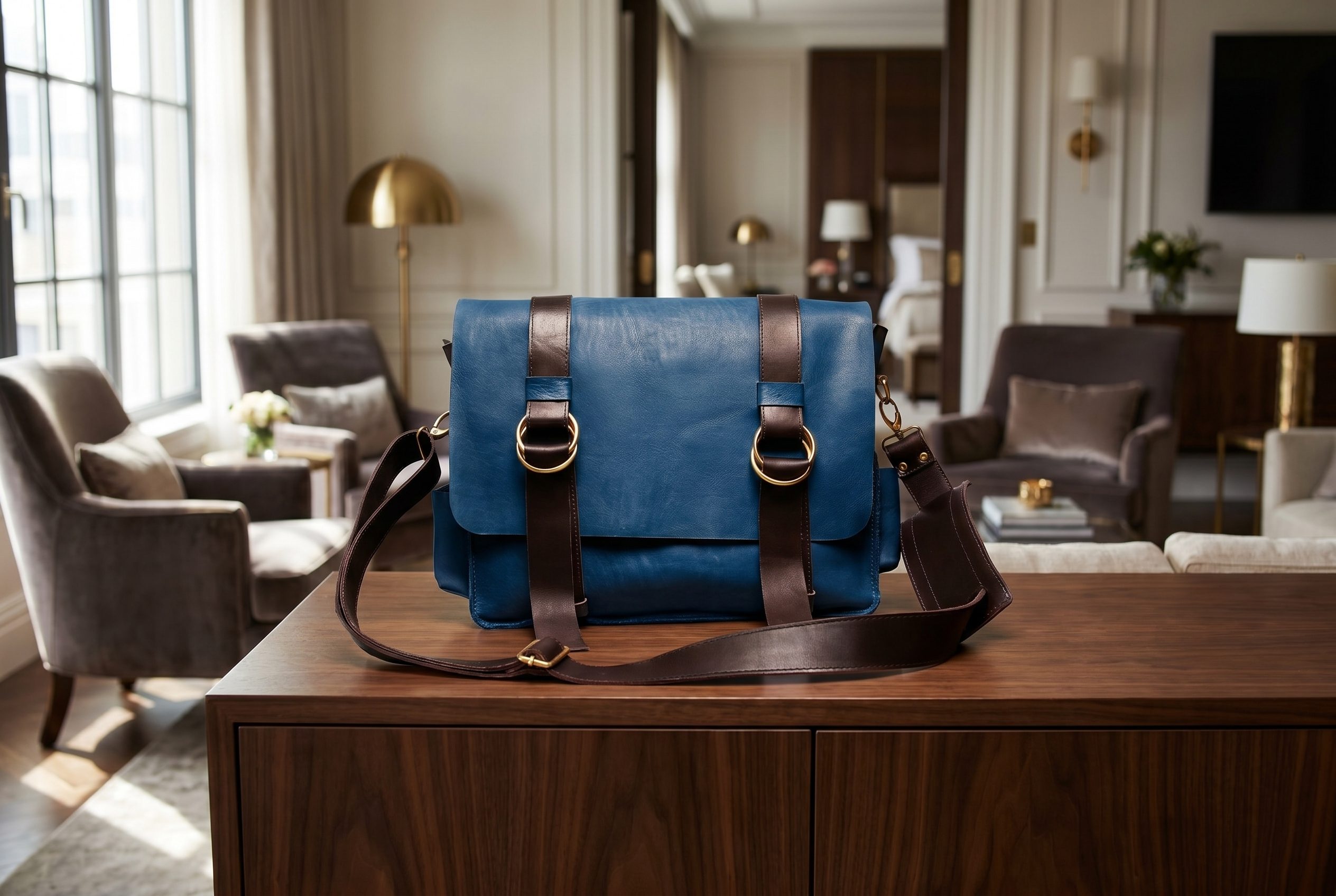
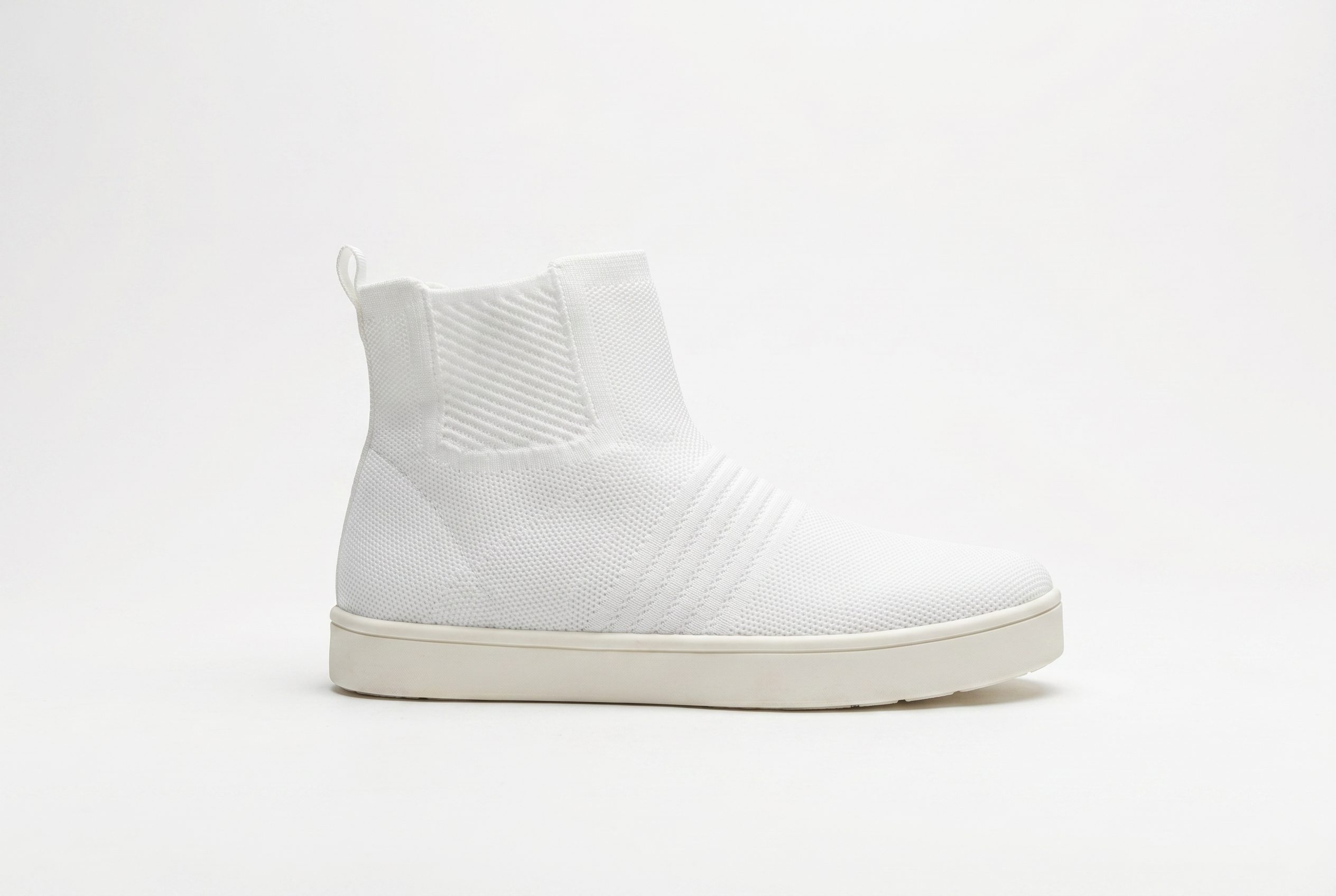
a product-first hero, supporting angles or details, scale or use context, then optional campaign assets. Review the full set for consistency, missing assets, and exceptions.







Choose the next surface
Choose your next workflow.
Find the product tool, category, or use case that matches what you want to create.
Planning and review
Ecommerce Product Photo Workflow FAQs
It is for store teams building the complete product-page image set before moving into campaigns.
Test the workflow
Test this workflow on one product before scaling it.
Start with a clean source, the product-page shot list, shopper questions, variants, and details that require documented evidence. Generate a focused pilot and publish only after checking product completeness, variant accuracy, gallery order, crop, detail visibility, scene logic, and claims.
- Use your own product
- Review every output
- No credit card required