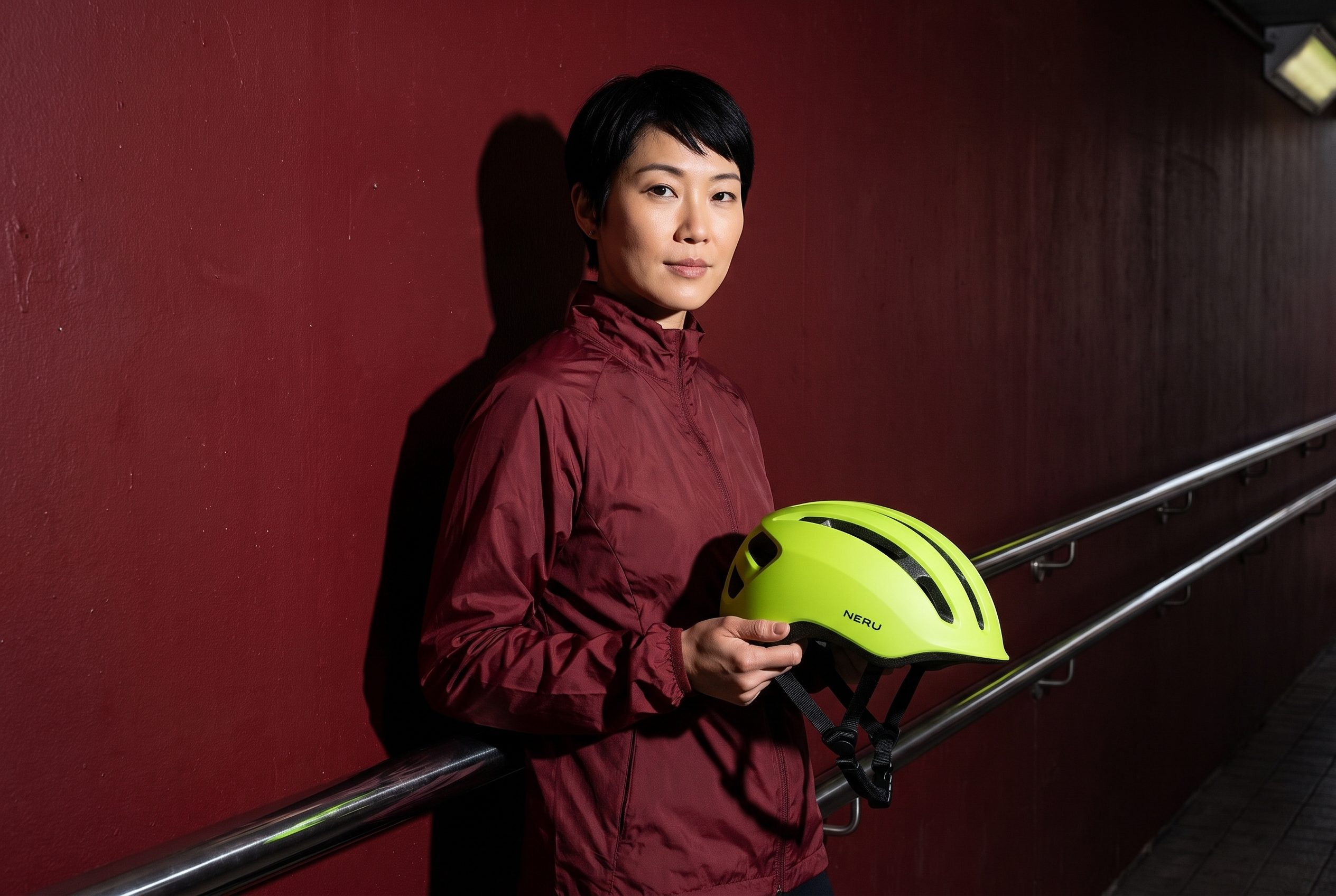
AI image variations for a bolder product campaign
See what Composition, Lighting and Perspective change when they start from the same campaign image.
A campaign image can have the right visual direction and still need a different arrangement or mood. Fotogenic AI's Image Variations gives you separate controls for those changes. The useful question is which part of the shot needs to move.
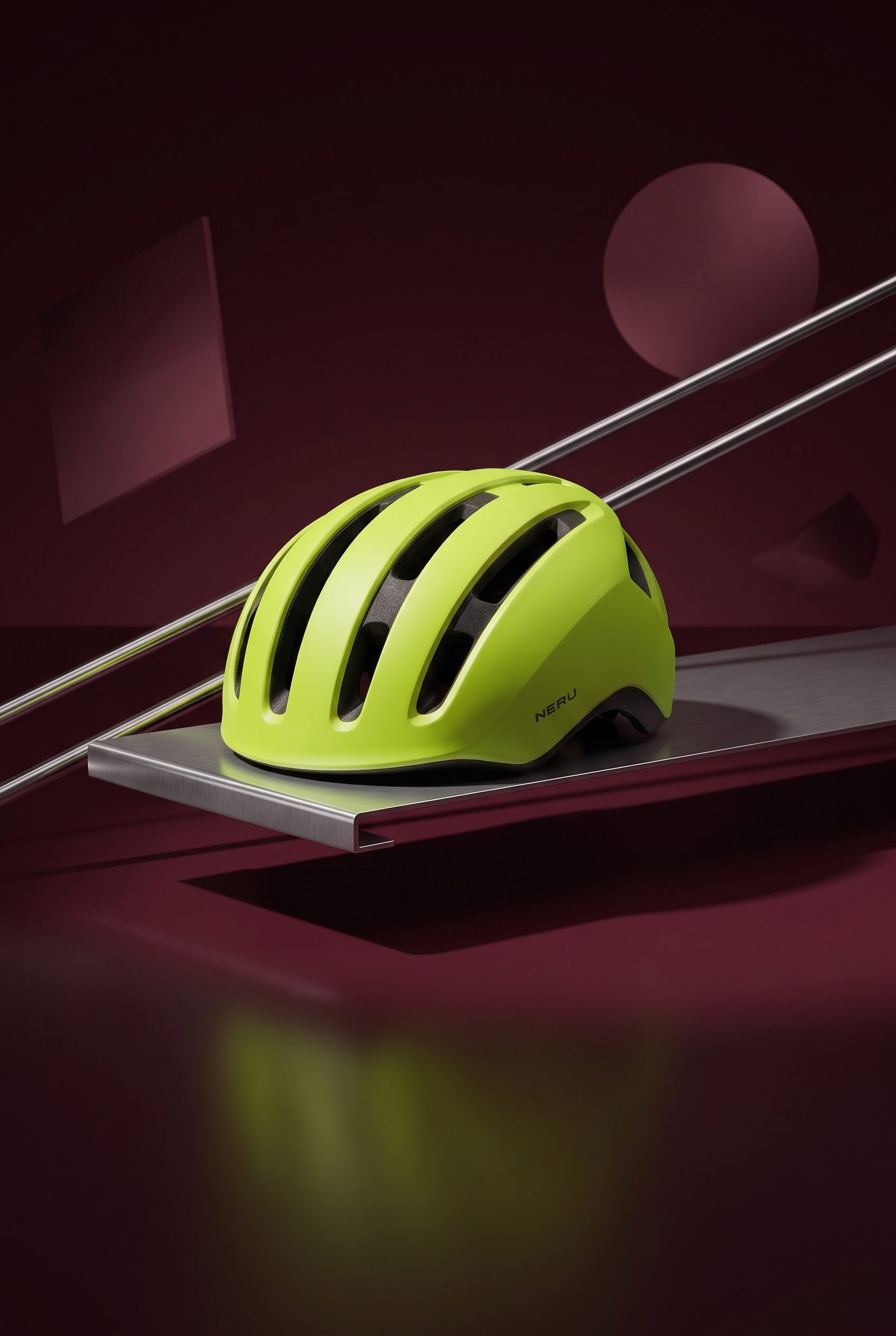
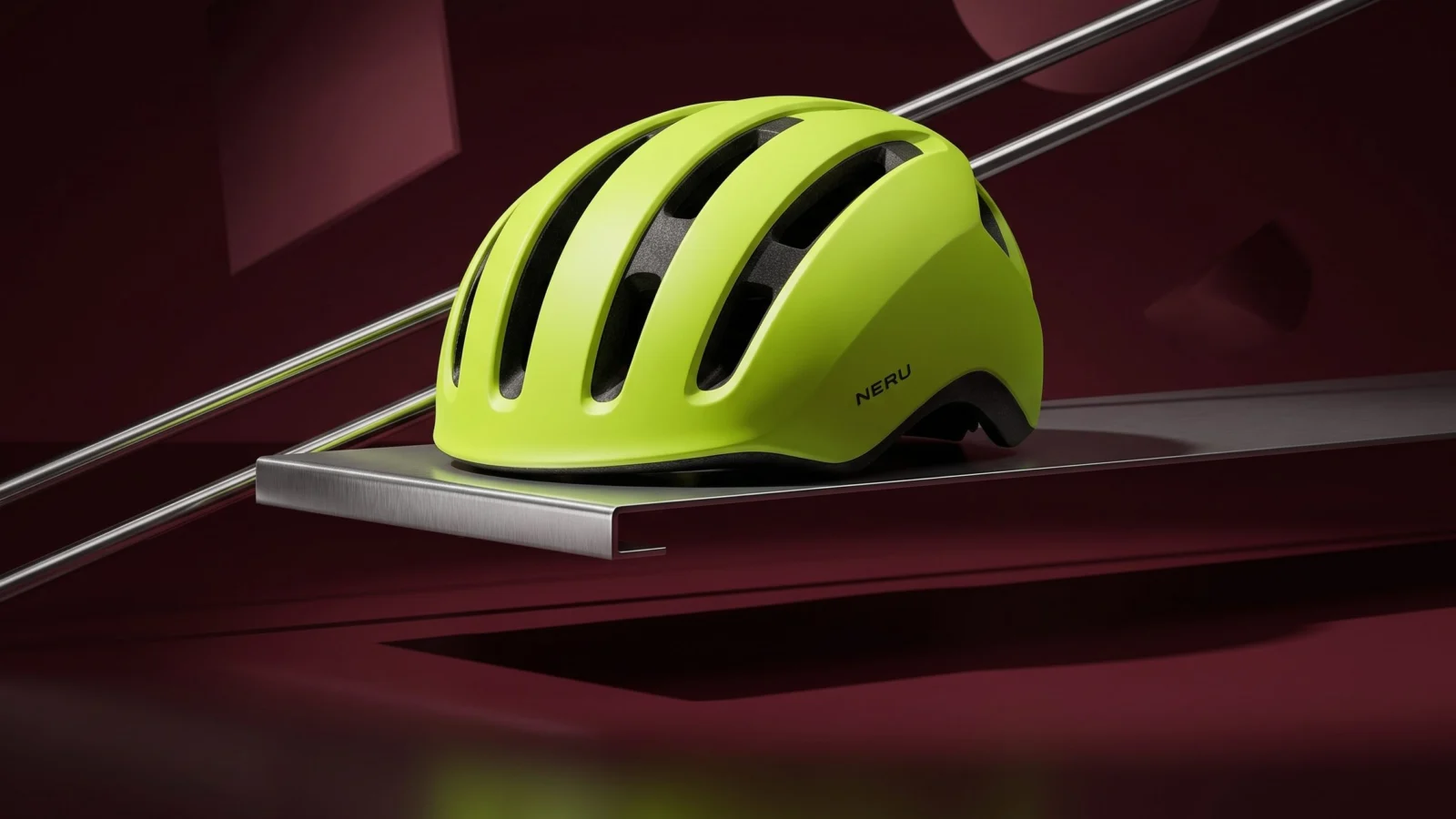
For this worked example, we started with a NERU helmet concept, built the lead scene shown above in Fotogenic AI, then made three variations from that scene. Each run selected one change. The results show both the creative possibilities and the limits of treating a control as a lock.
Start from the scene you want to develop
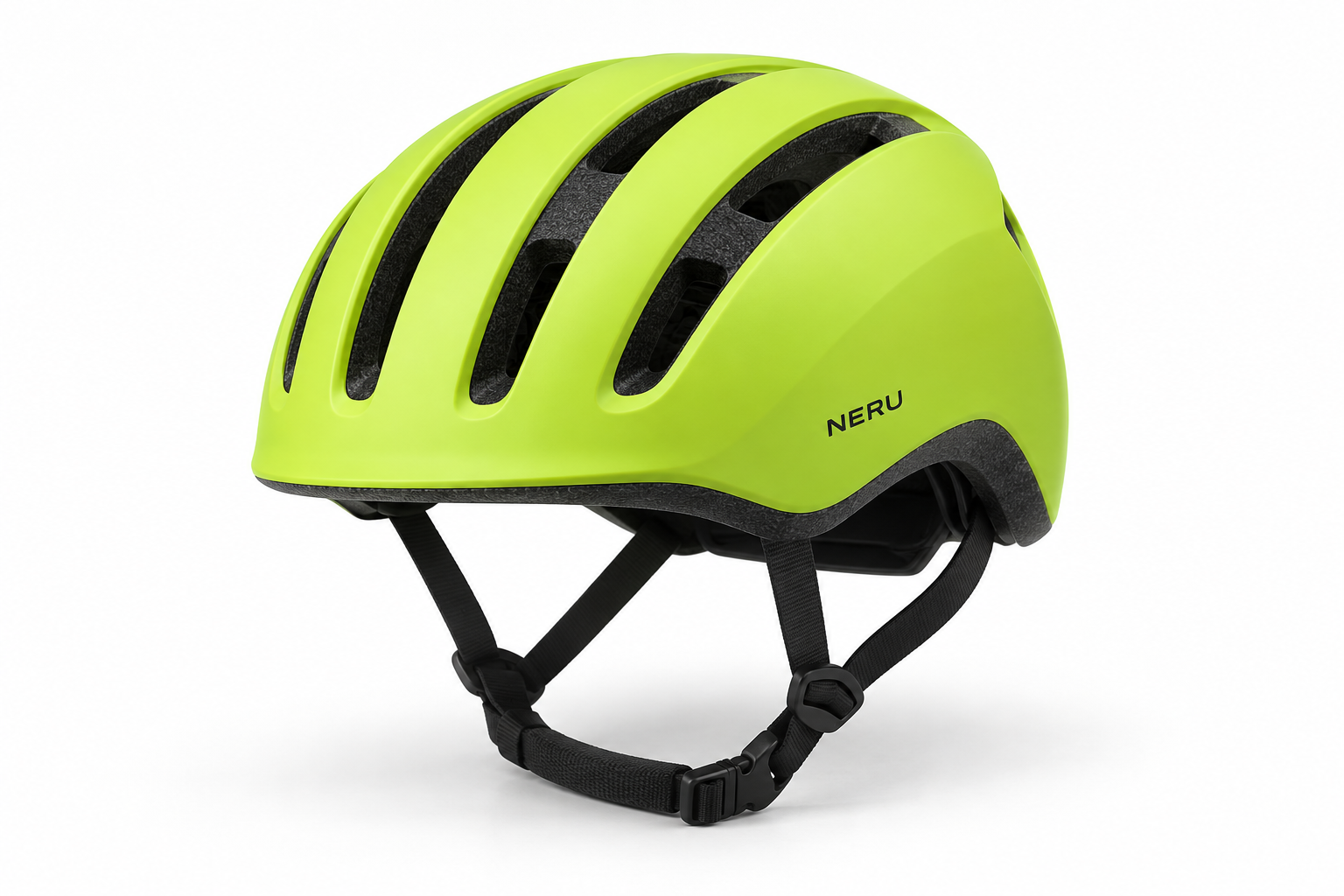
The clean helmet reference establishes the product. The campaign image adds a visual system: a lime focal point, a dark red setting and diagonal chrome rails that suggest movement without putting the helmet in motion.
Use that campaign image as the Source image in Image Variations when you want to develop its direction. Starting from the clean reference would give the tool a different foundation. If you still need your first scene, use the Create Photos guide before this step.
Choose the control for the problem
- Change Composition when the arrangement needs more room, a different balance or another emphasis.
- Change Lighting when the scene needs a different mood, highlight or shadow treatment.
- Change Perspective when you want to explore the camera's view of the scene. A new view can reveal invented details, so it needs closer judgment.
Image Variations also offers Change Style and Change Setting. Leave them off for this comparison: a new environment would make it harder to judge the composition or light on its own.
Set up Image Variations in Fotogenic AI
Open Workflows and choose Image Variations. Add the campaign image under Source image. Leave the optional Photographic style empty when the existing direction already works.
Open Variation changes and select one control. Start with Images set to 1 and choose Quality. Our starting choice is High. Read the displayed credit estimate before pressing Generate. Variation guidance is optional; use it for a specific request rather than another full description of the scene.
The examples here used one change per request with no additional guidance. Each started from the original lead scene, so the lighting result did not inherit the composition result. Use the same approach when you want to understand what a control contributes.
Composition: make room above the product
The Composition result shifts the scene into a tall arrangement. The helmet sits lower, with more oxblood space above it. The rails still connect the product to the setting, but the upper area now has a different job: it could hold a short launch headline.
That makes this candidate worth trying in a portrait campaign layout. It does not make the empty area automatically useful. Place your actual headline there and check its size against the helmet; a large wordmark or several lines could overwhelm the product.
To direct your own version, adapt this in Variation guidance:
Move the helmet lower in the composition and leave calm space above it for a short headline. Keep the lime, oxblood and chrome direction recognizable.
This is a suggested instruction to adapt, not the request used for the result below. Keep final lettering in your layout tool where you can edit it precisely.
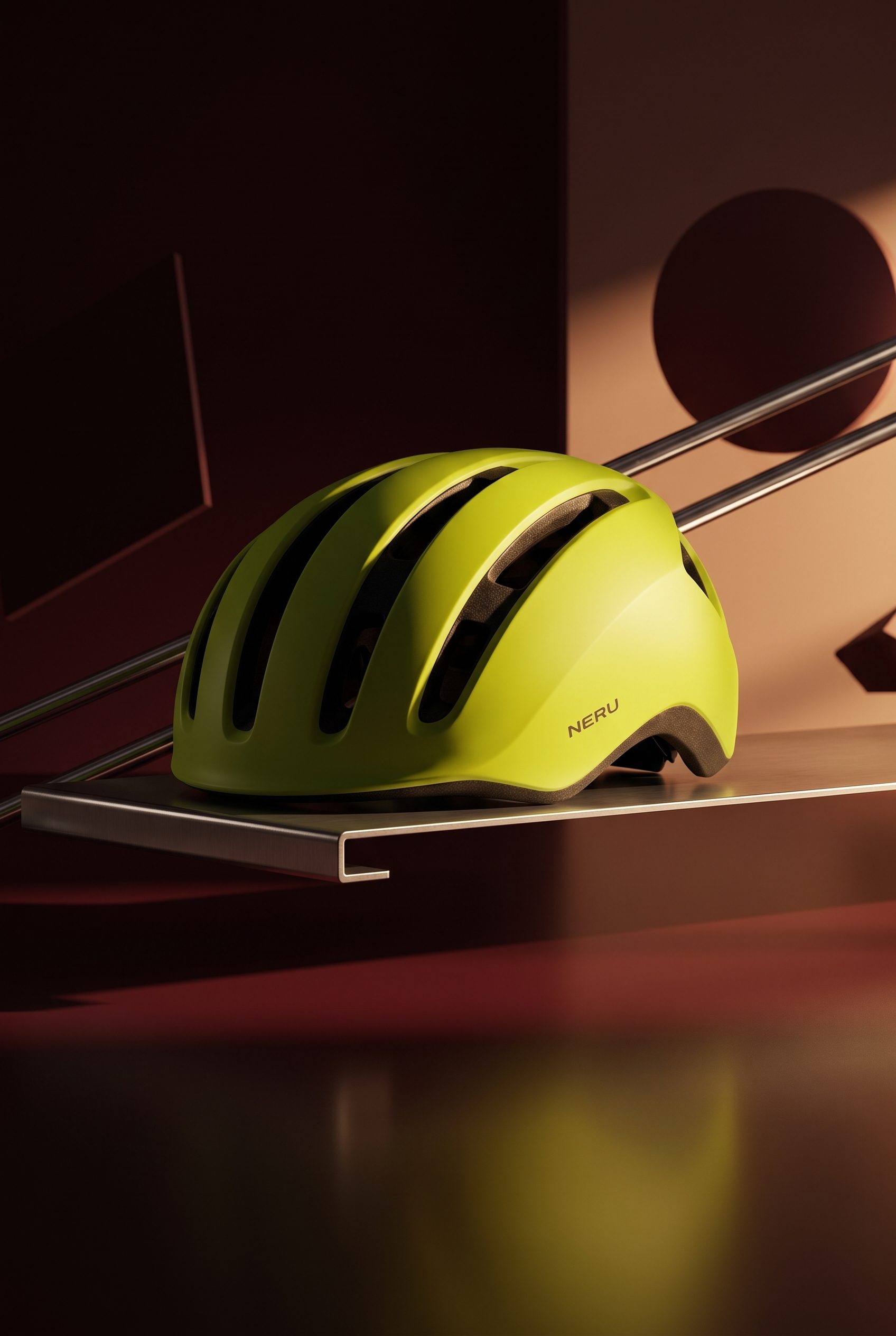
Lighting: change the mood, watch the colour
The Lighting result puts a warmer, harder beam across the right side of the scene. The helmet's lit side becomes brighter and more yellow, while its left side falls into deeper shadow. The chrome edge picks up a stronger highlight.
This version feels more theatrical than the lead image. It is a possible supporting campaign treatment when that contrast suits the story. It is less useful as a reference for the exact green shade: the light changes how the shell reads.
Try a direction such as:
Strong side light, a darker unlit side and a clear highlight on the chrome shelf. Keep the wordmark readable and avoid washing out the lime shell.
Our Lighting run also returned a portrait frame. Selecting only Lighting did not preserve the lead image's format or exact framing. Check the returned shape before designing the placement around it.
Perspective: a new angle can add new details
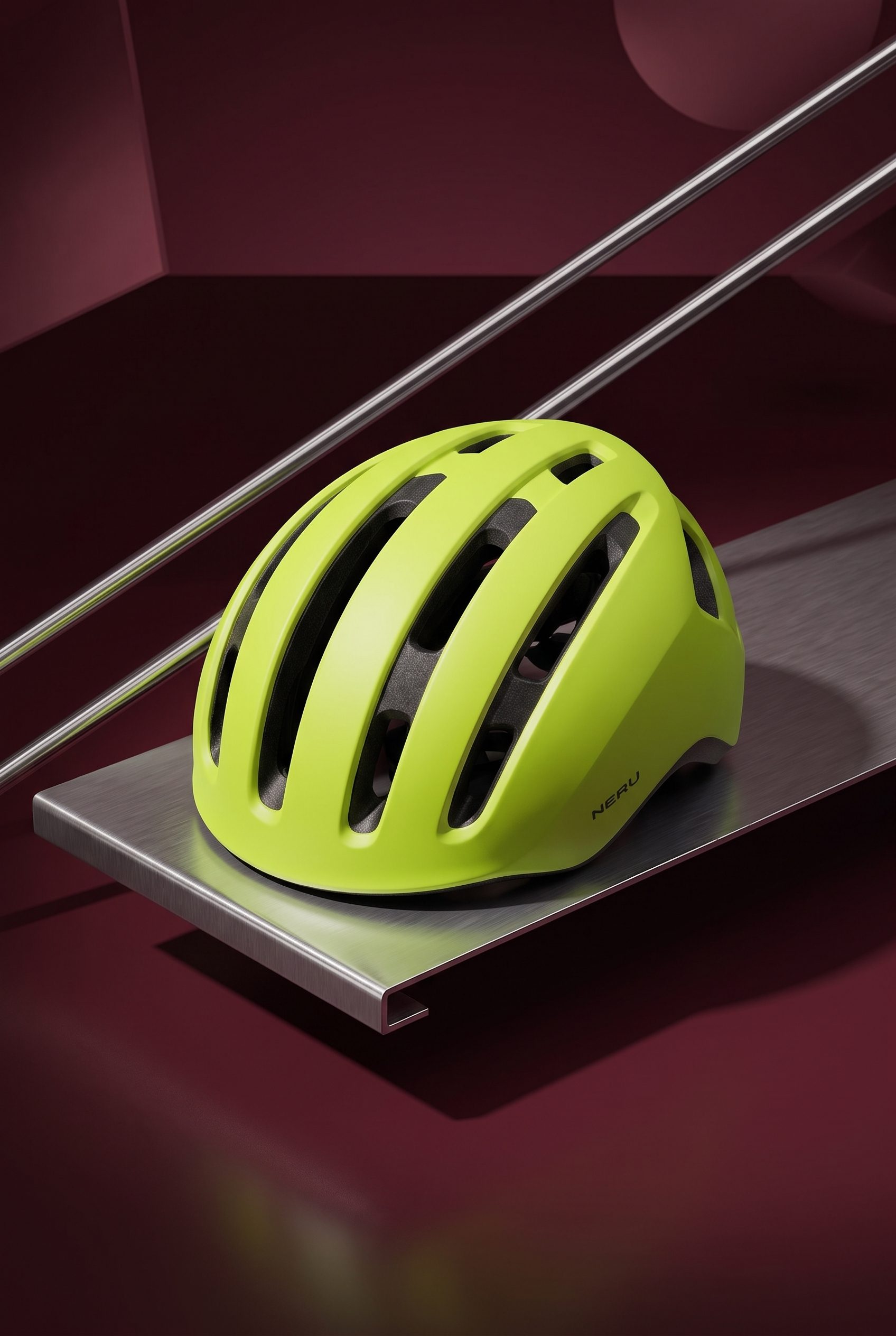
The Perspective result looks down more steeply at the helmet and shelf. That view makes the curve of the shell more prominent, but it also introduces top openings that differ from the starting image.
That is a reason to hold this candidate as a creative exploration rather than use it to document construction. A generated viewpoint cannot establish a hidden part of a real product. If a listing needs an exact top or rear view, photograph that view and work from it.
The lead scene also conceals the straps beneath the helmet. None of these variations establishes how the straps attach or fit. Keep the clean reference and factual product photographs available for those questions.
Turn a variation into a useful placement
For this direction, the Composition candidate is the clearest starting point for a headline-led portrait layout. The Lighting candidate is an alternative mood treatment. The Perspective candidate stays in the exploration folder until its new details can be verified.
Choose the result because it resolves a specific visual problem. If you need the original light with a new arrangement, return to the lead scene and choose Composition again rather than building from an already relit output. This keeps the next decision understandable.
Explore Fotogenic AI's Image Variations for the feature. If you need several separately planned image roles instead, the Campaign Set guide explains that starting point.
Your next product image
Give your campaign a fresh view
Change the composition. Explore a different mood.