Google Shopping Product Image Guide
Prepare Google Shopping images around the current Merchant Center image policy, the exact product, and a review step before feed submission.
- One clear source
- Review before publishing
- No credit card required
Pre-generation checklist
Check the source, feed role, and current Google policy before generating.
Use generated options only when they accurately represent the listed product. Requirements can change, so validate the current policy and Merchant Center diagnostics.
Review examples
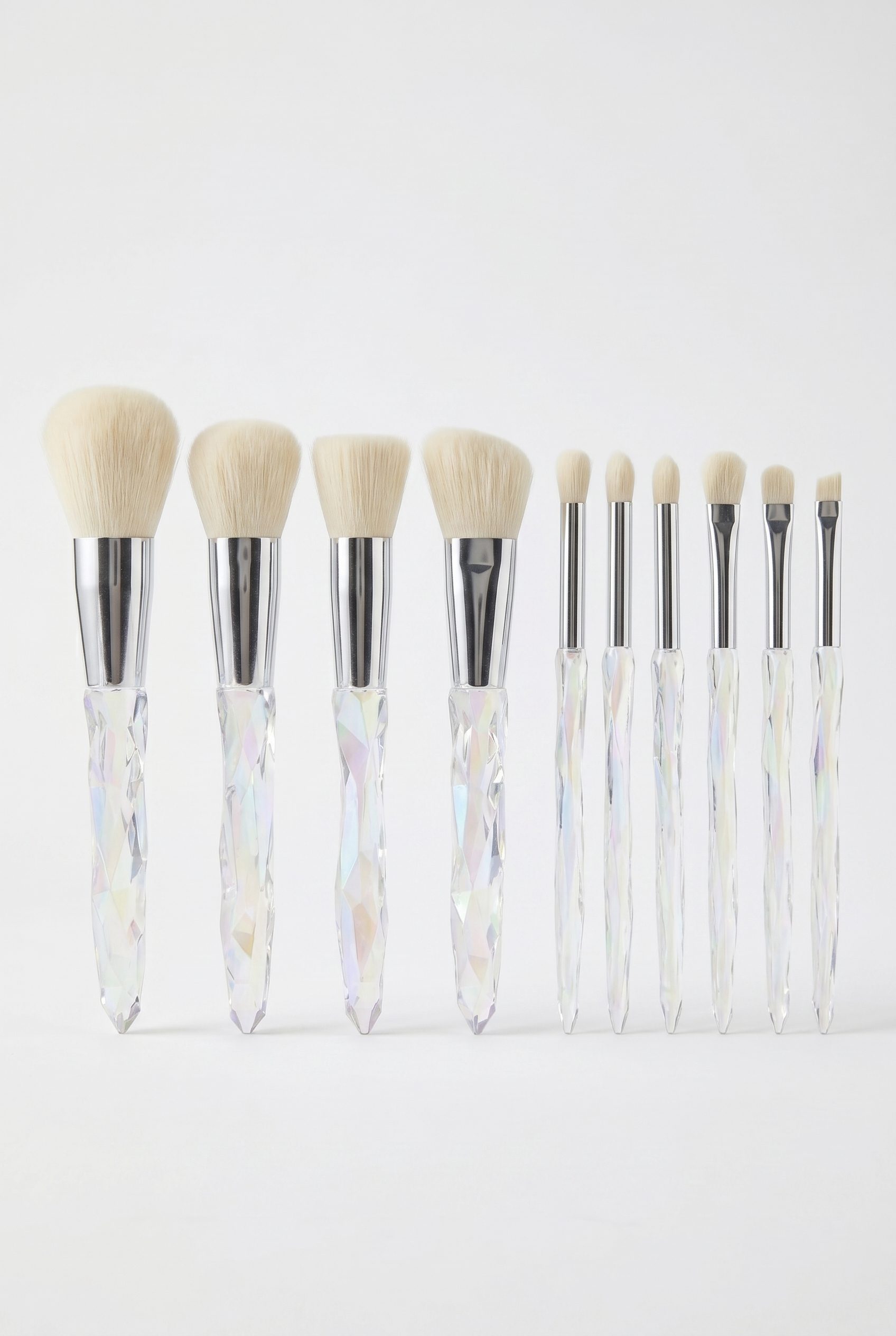
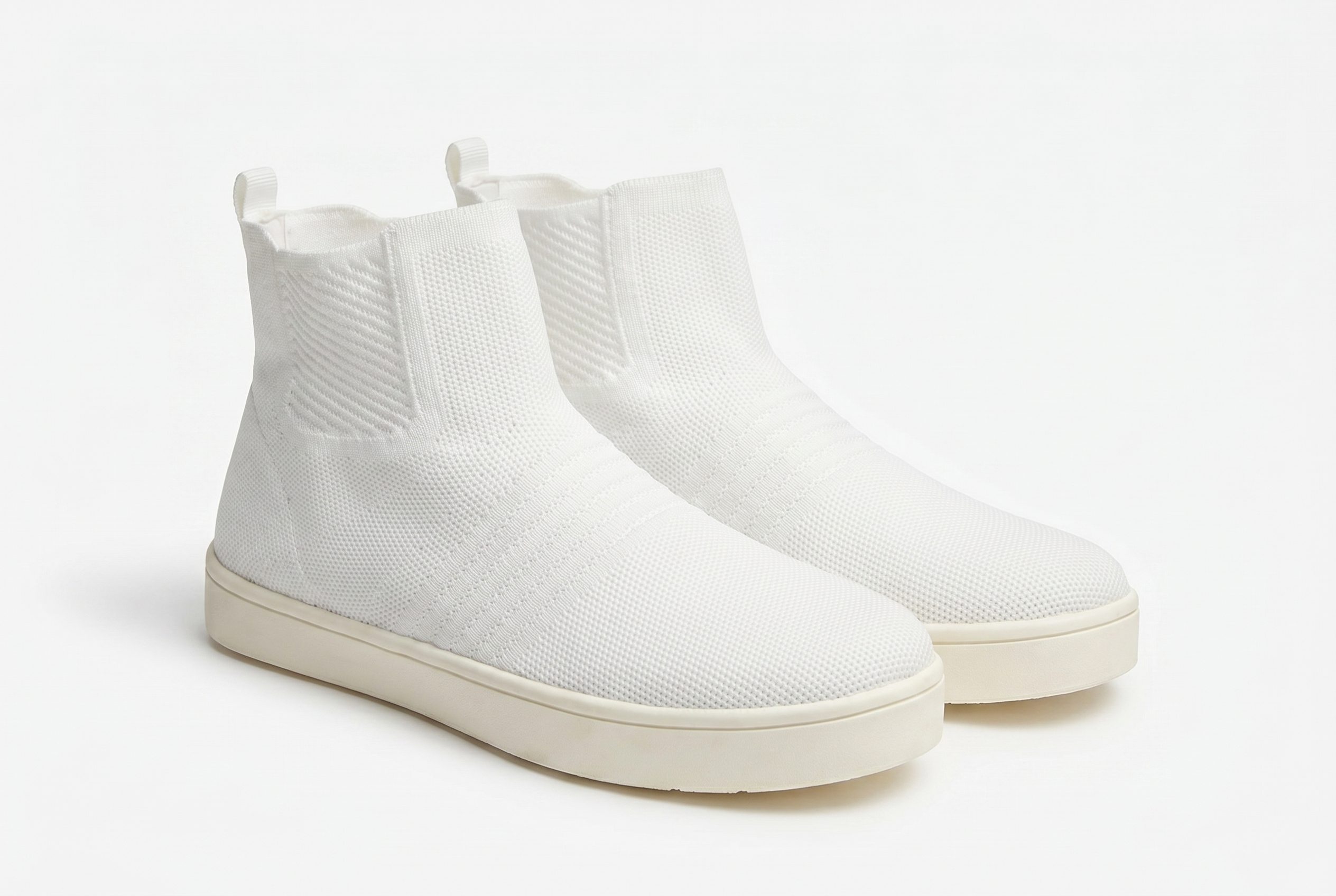
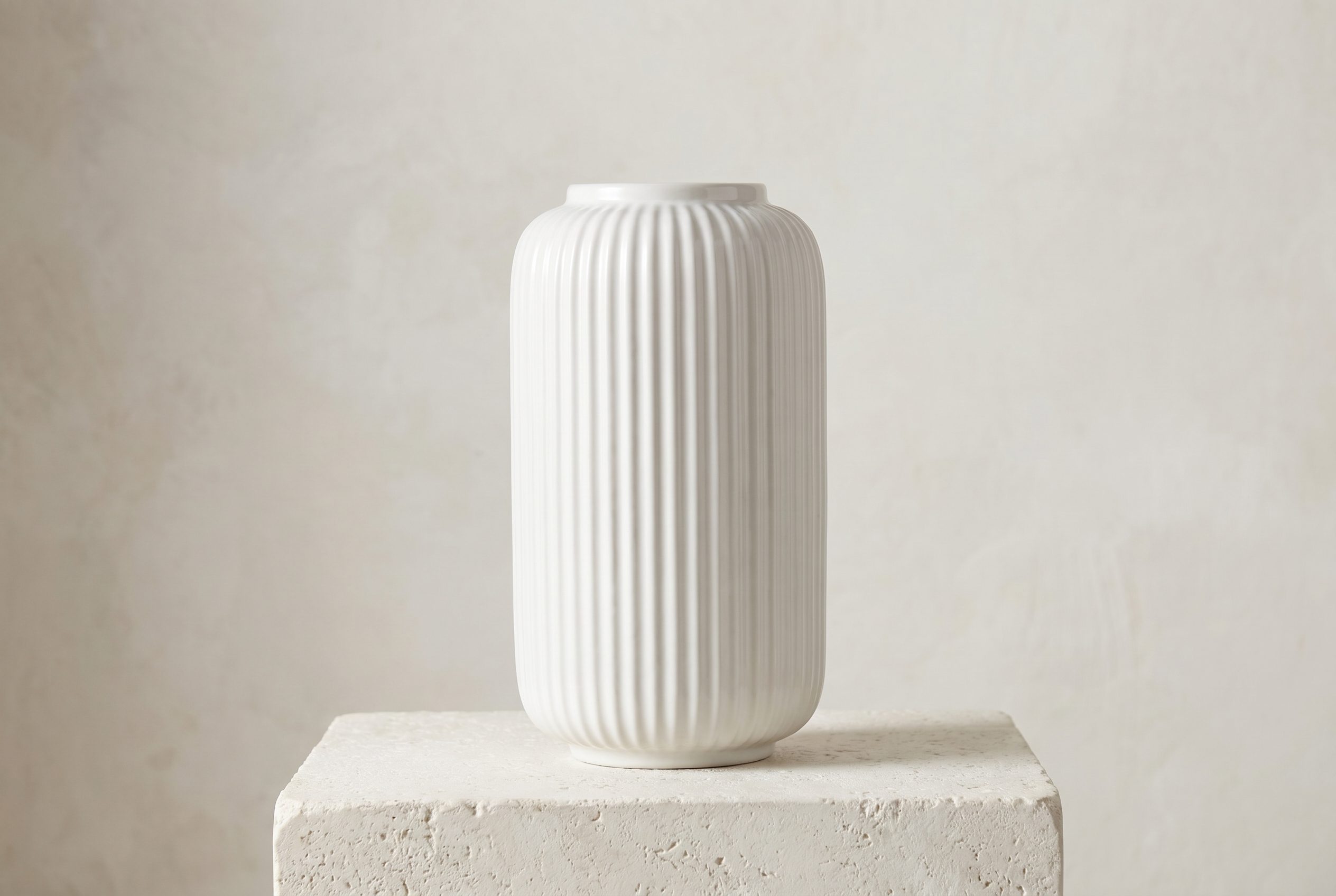
Compare product clarity, crop, and scene role.
Use the examples to build a review checklist for the source product and intended destination.










Choose the next surface
Choose your next workflow.
Find the product tool, category, or use case that matches what you want to create.
Planning and review
Google Shopping Product Image Guide FAQs
Check Google’s current image-link policy and identify whether the asset is the main product image or an additional image.
Test the workflow
Create a Google Shopping image set, then check current policy.
Try Fotogenic on the exact product, compare every output with the source, and check Merchant Center requirements before feed submission.
- Use your own product
- Review every output
- No credit card required