Fotogenic AI vs OnModel
Start with your source: a supplier model photo or a garment. Compare conversion, creative control and store assignment.
Our pick
New wearing scenes from garments
OnModelSpecialist fit
Person changes in supplier photographs
Choose OnModel to change a person or add a missing face in supplier images. Flat-lay conversion has separate source, pose and pricing requirements.
The differences that change your choice.
Decide whether your supplier photo needs a different person or your garment needs a new wearing scene.
Existing person or garment
Both tools Source decides
- Fotogenic AI
- Create a new wearing portrayal from a garment reference.
- OnModel
- Swap an existing person, or use separate clothing conversion.
Store destination
Both tools Platform decides
- Fotogenic AI
- Review WooCommerce updates; deliver Shopify images manually.
- OnModel
- Use a released Shopify model-swap app.
Conversion boundaries
Choose by task Confirm the operation
- Fotogenic AI
- Use a clear garment source and inspect its newly created portrayal.
- OnModel
- FAQ describes front-only clothing conversion and broader swap poses.
Cropped supplier photos
OnModel
- Fotogenic AI
- Create a new wearing scene from the garment reference.
- OnModel
- Generate missing faces for otherwise useful headless supplier photos.
New scene review
Fotogenic AI
- Fotogenic AI
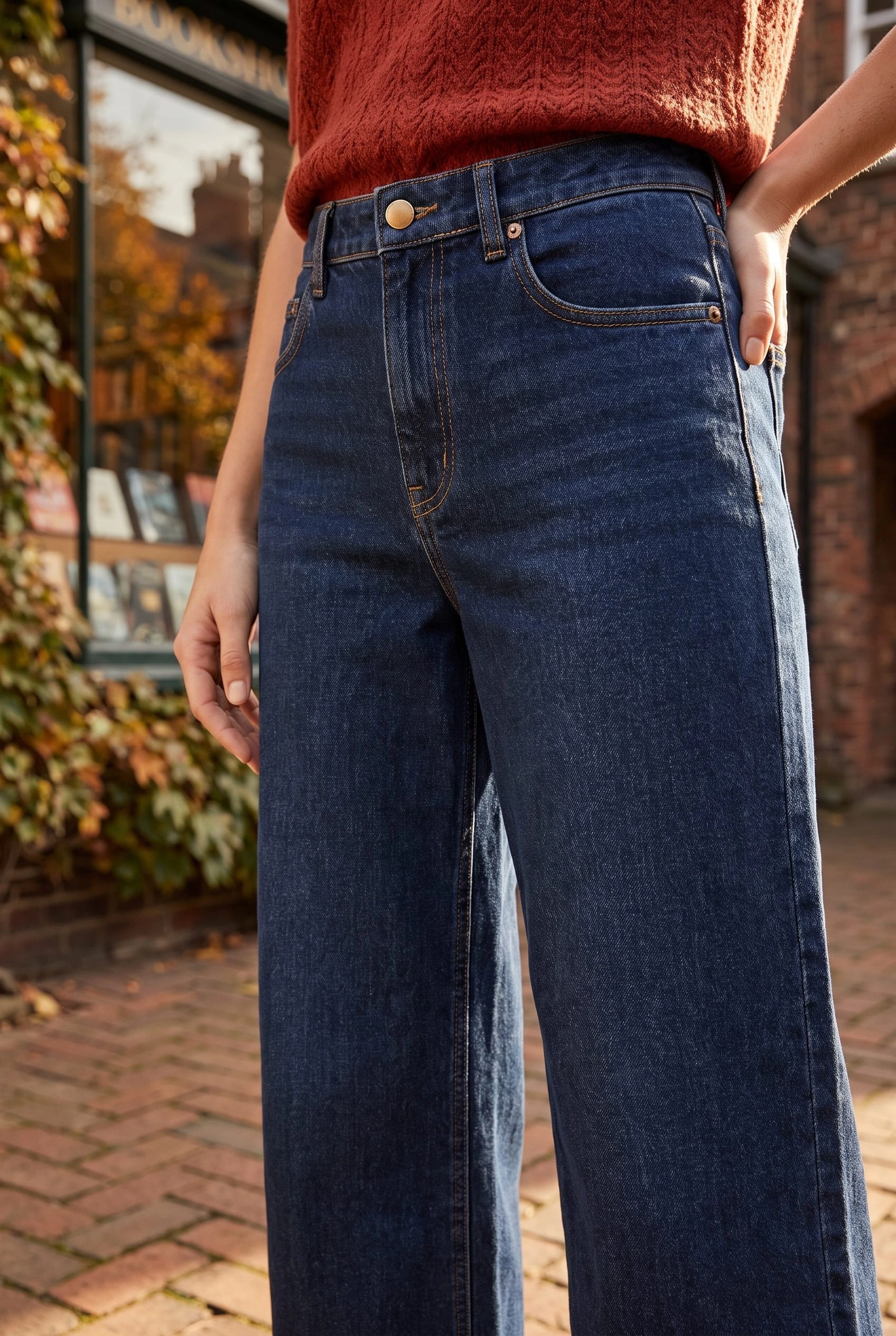
- Inspect the complete jeans, waistband and final crop in a new context.
- OnModel
- Review changes to an existing model photograph against its own source.
Batch record
Choose by task
- Fotogenic AI
- Retain SKU sources, image roles and accepted exports.
- OnModel
- Keep source-to-output records and approvals across the chosen operation.
A garment source becomes a new wearing scene
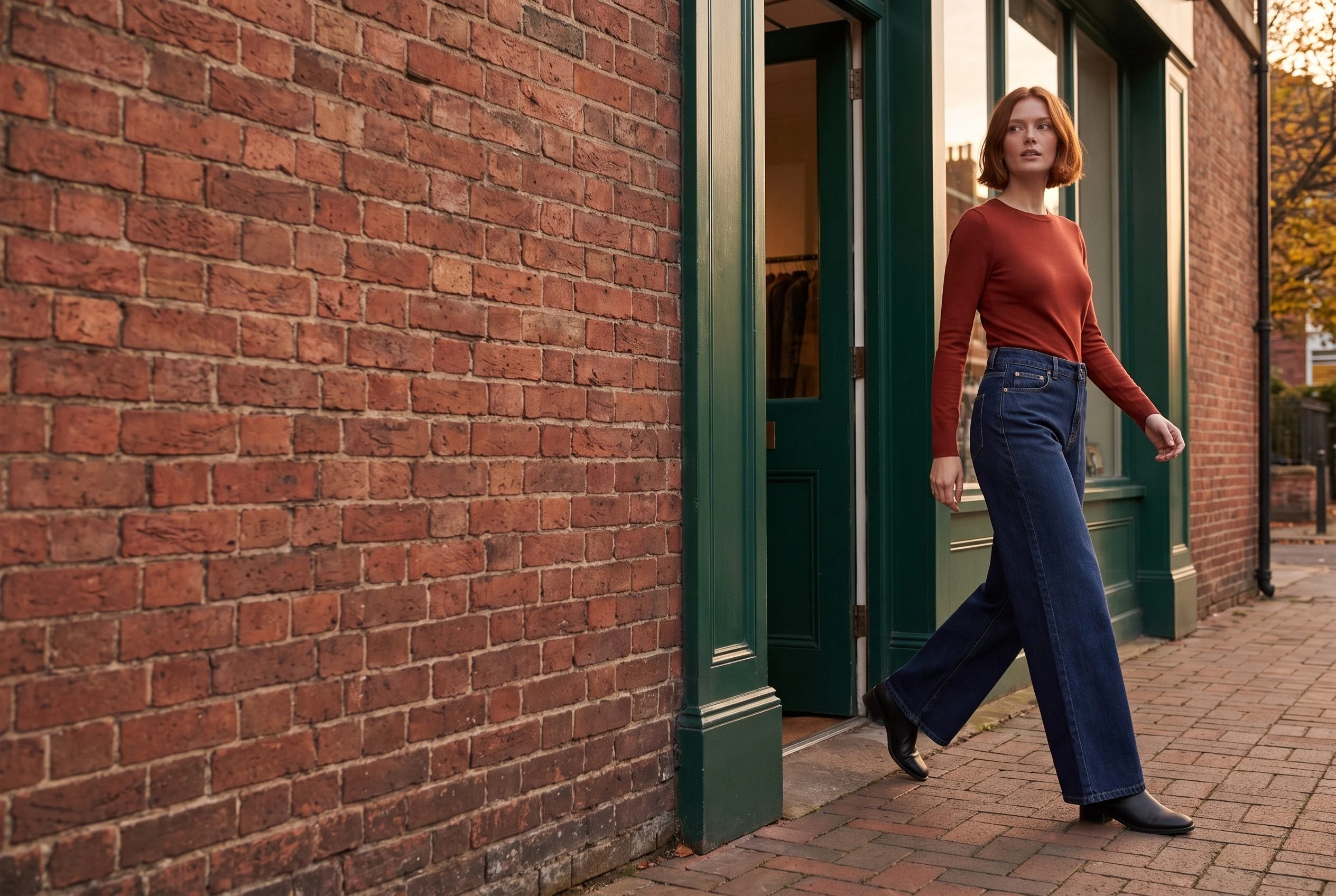
One jeans reference becomes a street scene, adding a wearing context instead of swapping an existing model.
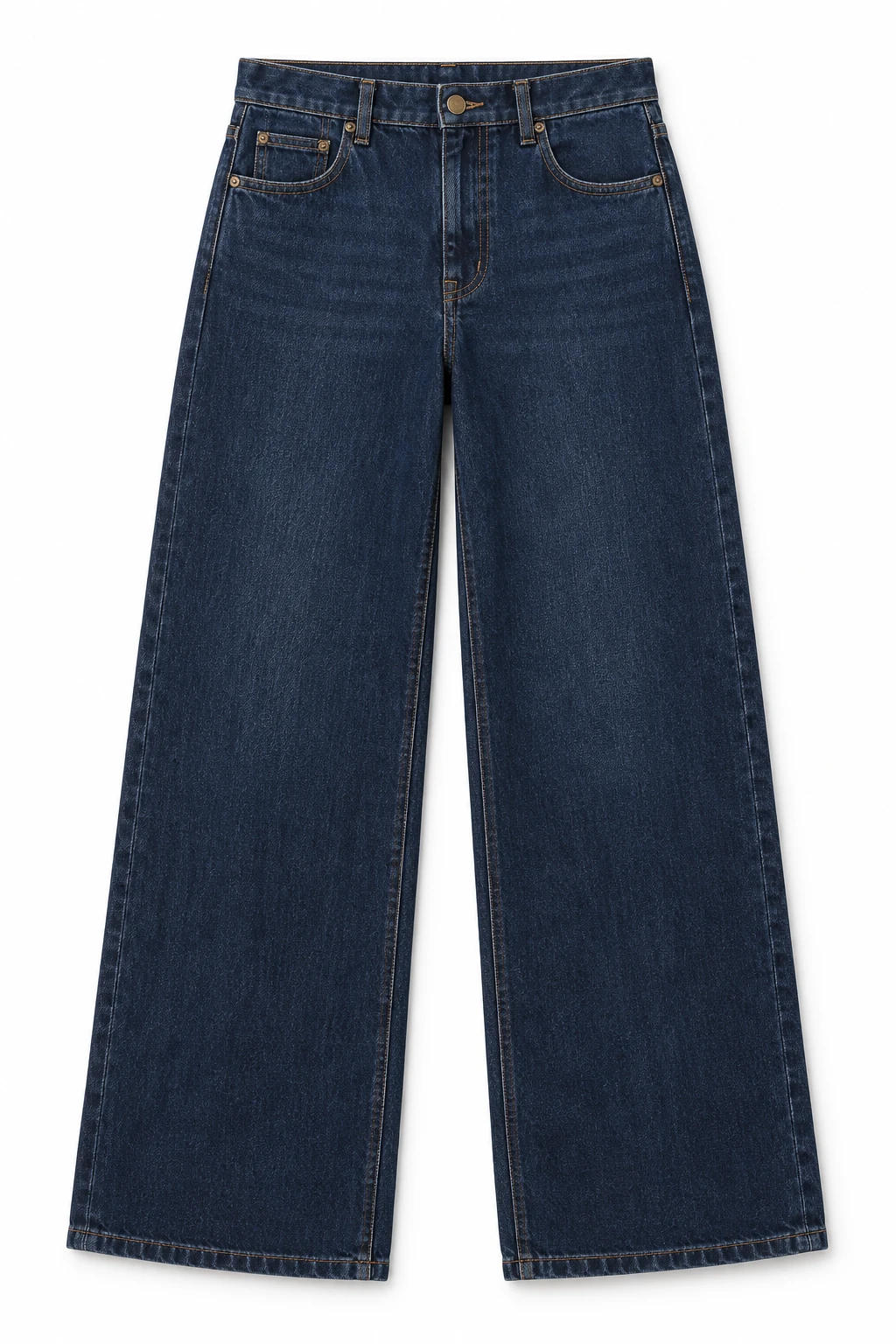
From the product reference
The landscape frame keeps the full model and jeans visible. Waistband, pocket positions, seams and wash still need comparison with the source; the generated pose does not establish physical fit.
The detail reveals the button, fly and seams, but cannot verify physical fit, fabric performance or the garment’s unseen back.
Plan this product shoot
A jeans launch needs more than a new model
Gallery wearing view
The retained dark indigo jeans reference becomes a complete street scene beside a green shopfront. It is a new wearing portrayal, not an existing-person swap. Check waistband, fly, pockets, wash and full leg shape against the source.
Collection campaign frame
The linked closer detail exposes button, fly and seams at a different scale. It cannot reveal the unseen back or establish physical fit. Use a factual detail photograph when shoppers need reliable construction evidence.
The Shopify guide records the retained jeans creation and manual gallery or variant handoff. Campaign Set supports related roles for one product; any separately sold accessory needs its own source and approval.
Our recommendation for this brief
Choose Fotogenic AI when you need to direct the wearing context from the garment itself. Choose OnModel when the existing pose and photograph already work and a focused person change completes the job. The displayed Fotogenic AI scenes establish no matched swap or conversion winner.
What are you creating next?
Direct a new wearing scene
Choose Fotogenic AI when the garment source needs new context.
Inspect the full jeans, separate detail and intended crop before delivery. The retained images are not a matched OnModel test.
Change a supplier model
Choose OnModel when the existing garment and pose already work.
A person swap keeps the source photograph as the basis. A new wearing composition asks for a different operation.
Convert a supplier flat lay
Confirm OnModel conversion access and charge first.
The FAQ describes front-only clothing conversion. Advertised swap quotas and the older Plus batch label do not establish current conversion pricing.
From garment reference or supplier photo.
Fotogenic AI
Prepare the garment source
Start with a garment reference and the wearing scene the listing needs.
Create and inspect the portrayal
Generate the scene and compare waistband, seams and wash with the supplied photograph.
Deliver to the actual store
Download approved files for Shopify assignment, or use the documented reviewed WooCommerce route.
OnModel
Open a compatible source
For Shopify, open a product with an existing-person photo. Flat-lay and ghost-mannequin conversion is a separate route.
Run the chosen change
Choose a model swap or the supported clothing conversion and confirm its allowance before processing.
Approve and hand off
Review generated candidates or batch results. Keep accepted files tied to the product and confirm the app’s actual store-update controls.
A closer look at OnModel.
Choose around the photograph you have
Choose Fotogenic AI when a garment reference needs a new wearing scene and creative direction. The product-image workflow covers creation, while WooCommerce review and updates support the store handoff.
Choose OnModel when an existing supplier image already has a useful garment and pose but needs another person or a missing face. Its released Shopify listing documents those operations. A model swap, a flat-lay conversion and a new directed portrayal begin with different information.
Existing-person swaps and clothing-to-model conversion
OnModel's official FAQ separates model swaps from clothing-to-model conversion. Swaps start with a person wearing the garment; conversion starts with a flat lay or ghost-mannequin photo.
- The reviewed FAQ describes front poses for conversion and broader pose support for swaps.
- A plausible back view cannot verify a back print absent from the reference.
- Fotogenic AI's apparel examples show directed creation from garment references, relevant when the launch also needs accessory or campaign imagery.
Cropped faces and garment details need different review
OnModel's face generation can make headless supplier crops more useful. The complete head, neck transition and garment details still determine whether the image fits its placement; a generated face establishes neither identity nor physical fit.
- Jeans require accurate waistbands, fly, pockets, seams, wash and leg shape.
- Printed apparel needs artwork review beyond its silhouette.
- The retained Fotogenic AI jeans example illustrates a new setting from a product reference, rather than a matched OnModel swap or evidence of better conversion.
Shopify access and image assignment
OnModel has a released Shopify app. The exact gallery-update controls and permissions need to match the store's review process, with original supplier files retained and approved outputs associated with the correct product and variant.
Fotogenic AI's native Shopify integration is publicly Coming soon at this review. Its Shopify image guide documents a manual workflow: create images, download the approved selection and assign them through the store. That guide also includes the genuine jeans examples used here.
For WooCommerce, Fotogenic AI has a documented native route for product references and reviewed updates. The WordPress workflow explains that handoff. This supports delivery after the wider launch imagery is approved.
Batch work needs a product-to-file record
A batch is useful only if the team can identify the right output for the right item. Retain the original filename, SKU, source route, intended image role and approved result together. Separate changes to an existing model photo from new flat-lay conversions so an exception does not disappear inside a large mixed batch.
Check the hardest garment before scaling: reflective fabric, thin straps, a complex print or a hand overlapping a pocket. If the source does not reveal a detail, keep a real photograph for that detail rather than asking the generation to supply factual information it never received.
The bulk image guide covers SKU organization and image roles. It complements this purchase decision without turning a comparison into a second setup manual.
Pricing: swaps and clothing conversion
Fotogenic AI
$20.00 / month
Starter in USD: 220 monthly credits. Weekly: $7.00 with 60 credits. Images only; video plans differ.
Plan allowances and terms
Fotogenic AI's current plans use weekly and monthly workflow credits. Compare the launch period and operations you need, including supporting campaign images. Choose Fotogenic AI when the source needs a newly directed wearing scene. A model-swap allowance prices a different operation.
OnModel
US$9 / month
Basic lists 300 model swaps. Flat-lay conversion is a separate quota question.
Plan allowances and terms
The Shopify listing displays Free with 25 model swaps, Basic at US$9 per month with 300, Growth at US$19 with 1,000 and Advanced at US$49 with 5,000. The listing says charges are in USD and recurring charges are billed every 30 days. These are advertised swap allowances, not accepted-image totals.
Do not turn those quotas into a price for flat-lay conversion. The reviewed FAQ also uses the label Plus when discussing batches, while the current Shopify plans use Basic, Growth and Advanced. That naming difference means a buyer should confirm current batch access and clothing-conversion charges for the selected plan before relying on them.
For a job needing 300 approved images, a 300-swap allowance leaves no margin if rejected outputs consume the same allowance. The practical calculation is the number of attempts required by the chosen route, plus any correction or background work. This is capacity planning, not a claim about OnModel's actual rejection rate.
Moving from OnModel to Fotogenic AI
- Retain original supplier photos, approved downloads, SKU or variant associations and permitted model references. Do not assume a generated identity transfers as a reusable setting.
- Rebuild one garment scene and approve the product before expanding the collection. Use the apparel examples for source and detail decisions.
- Assign the delivery owner. Fotogenic AI uses manual Shopify upload and variant assignment at this review; its native reviewed route is WooCommerce. Retain any OnModel app task the replacement has not yet covered.
Sources and review method
Written by Fotogenic AI. Official product and pricing sources were checked October 20, 2026. The AI-created jeans reference and genuine Fotogenic AI results are retained from our published Shopify workflow. No OnModel generation, installation, conversion-price verification or store update was performed. Recommendations are editorial judgments. No matched competitor generation test or purchase was performed.
- OnModel Shopify listing and swap plans
- OnModel source, pose and batch FAQ
- Fotogenic AI store workflow
- Fotogenic AI review and assignment guide
- Fotogenic AI current plans
Read Fotogenic AI vs Botika for apparel production and correction support, or Fotogenic AI vs Photoroom for editing and store workflows. Return to the comparison hub for the full library.
Continue your comparison.
FAQ
Questions about Fotogenic AI and OnModel
OnModel.ai from Trendage, Inc., linked to the Shopify app at model-swap. The similarly named on-model.com is a different service, so its offers and euro pricing are not used here.
Create with Fotogenic AI
Create a new wearing scene.
Direct the garment presentation from its source, then review the details and destination.