Create lifestyle clothing photos without a studio
Choose a believable setting. Keep the garment in charge.
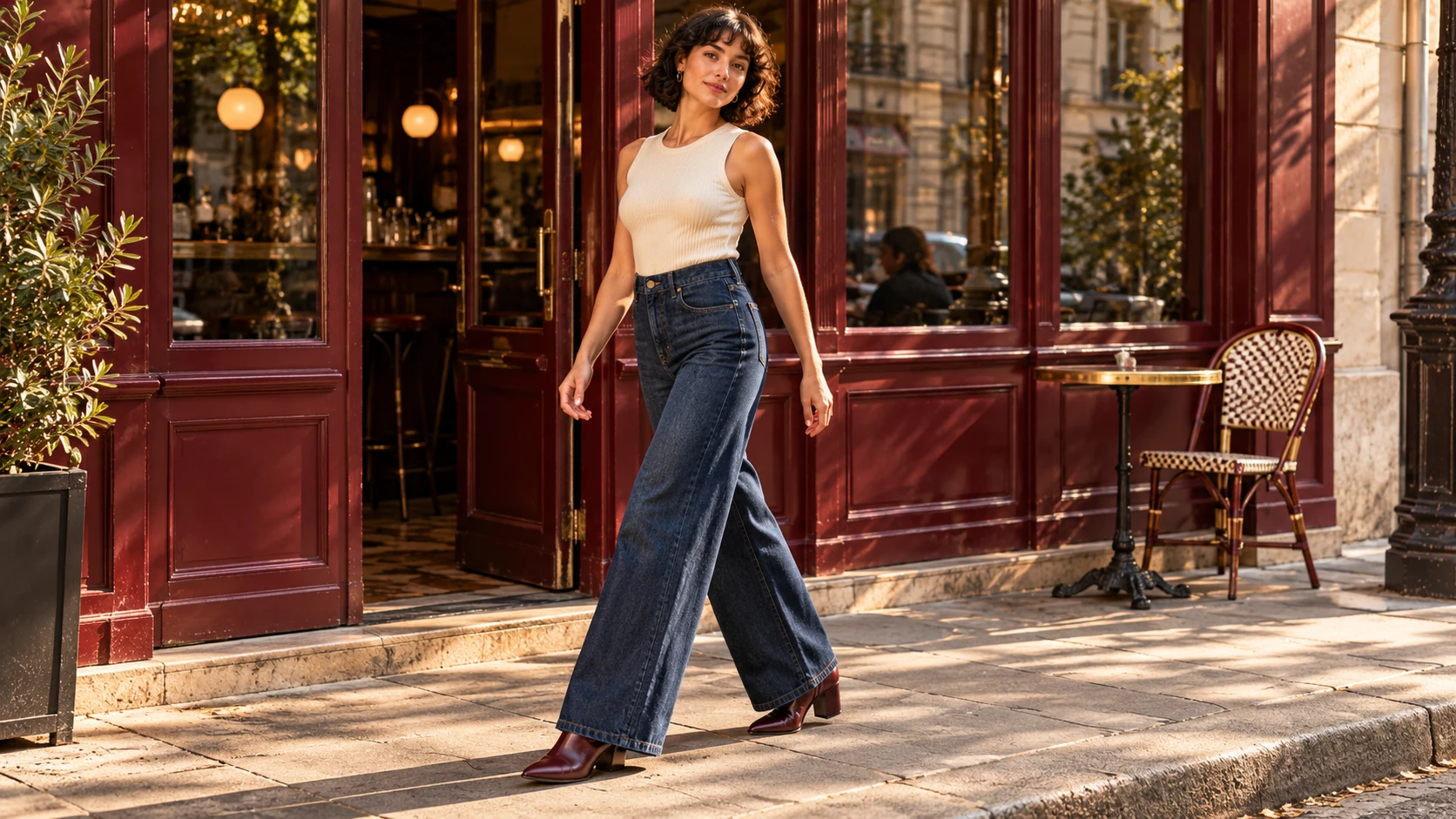
To create lifestyle clothing photos from an existing garment image, open Create Photos in Fotogenic AI and add the garment under Product photos. Choose a person under Model, then describe an everyday location and outfit in Custom Instructions. Fine-tune > Environment > Setting helps establish the place. Start with one image and review the result before building the rest of the set.
The useful question is where a buyer would wear the garment. A recognizable street, cafe or home can answer that without a new location shoot. The setting should explain the clothing, rather than compete with it.
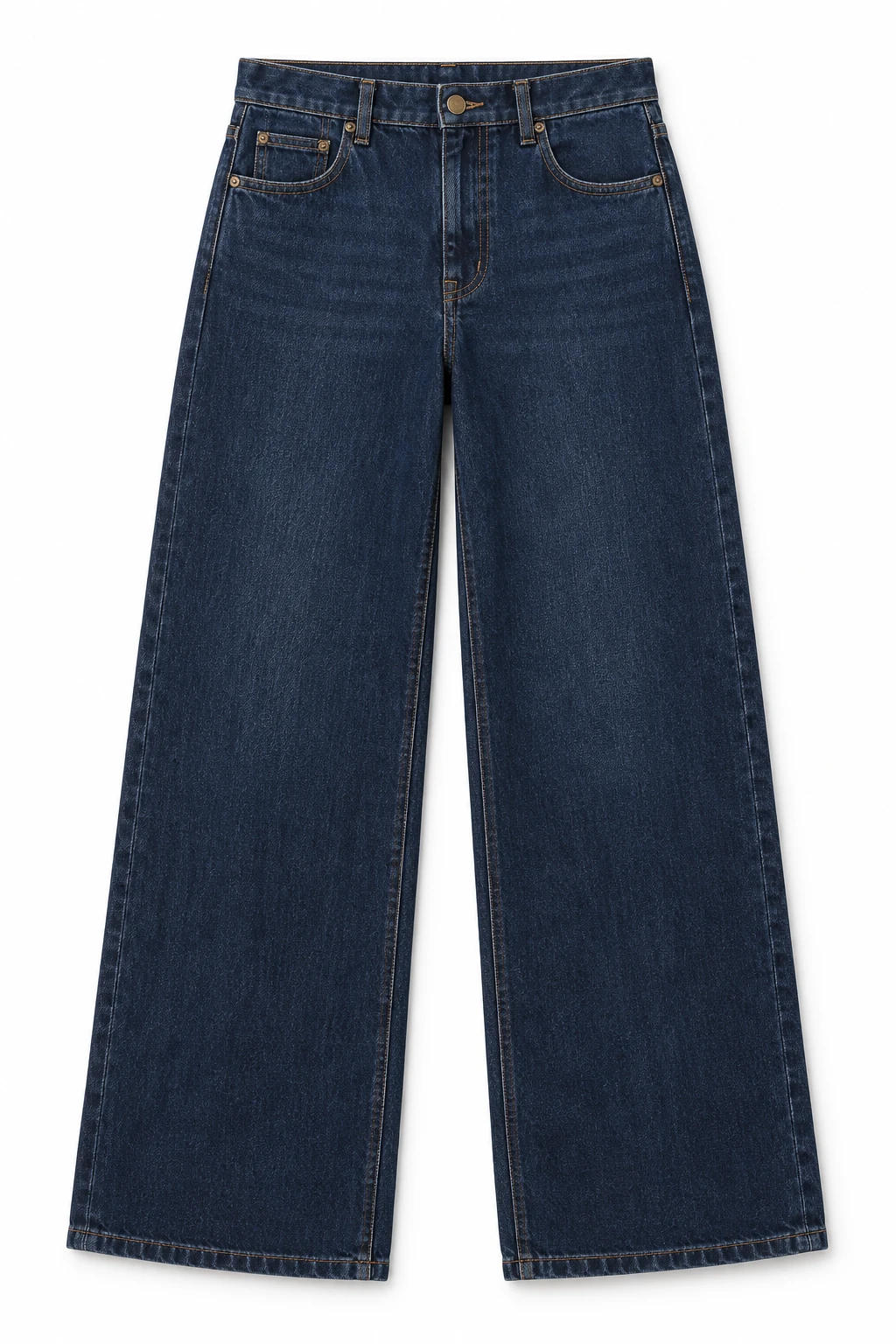
The input garment
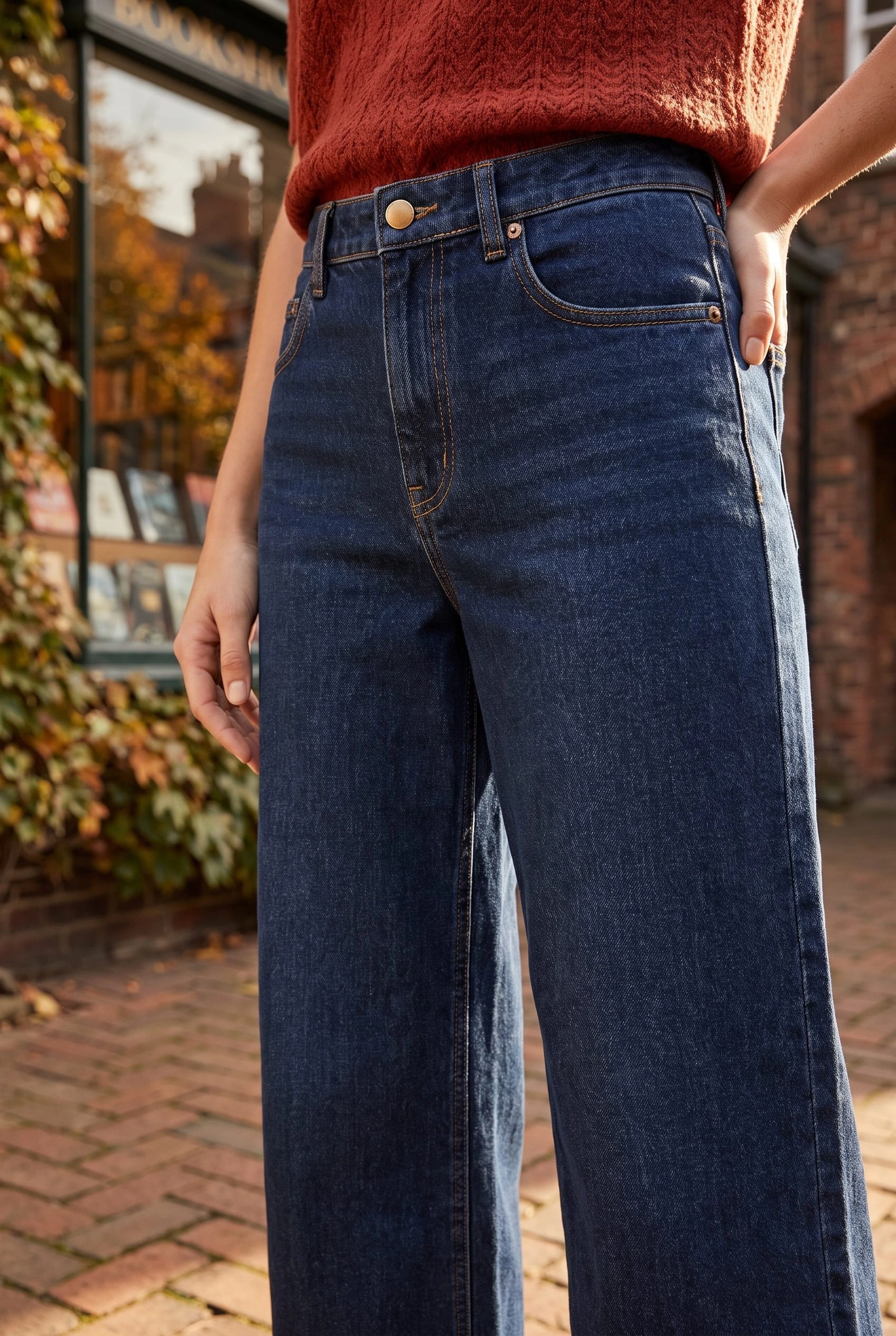
These dark indigo jeans are the reference for the street images in this guide. The wide leg, contrast stitching and simple front closure give the scene a clear subject. The final pair shows a wearing view and a closer garment view from the same reference.
Choose the occasion before the location
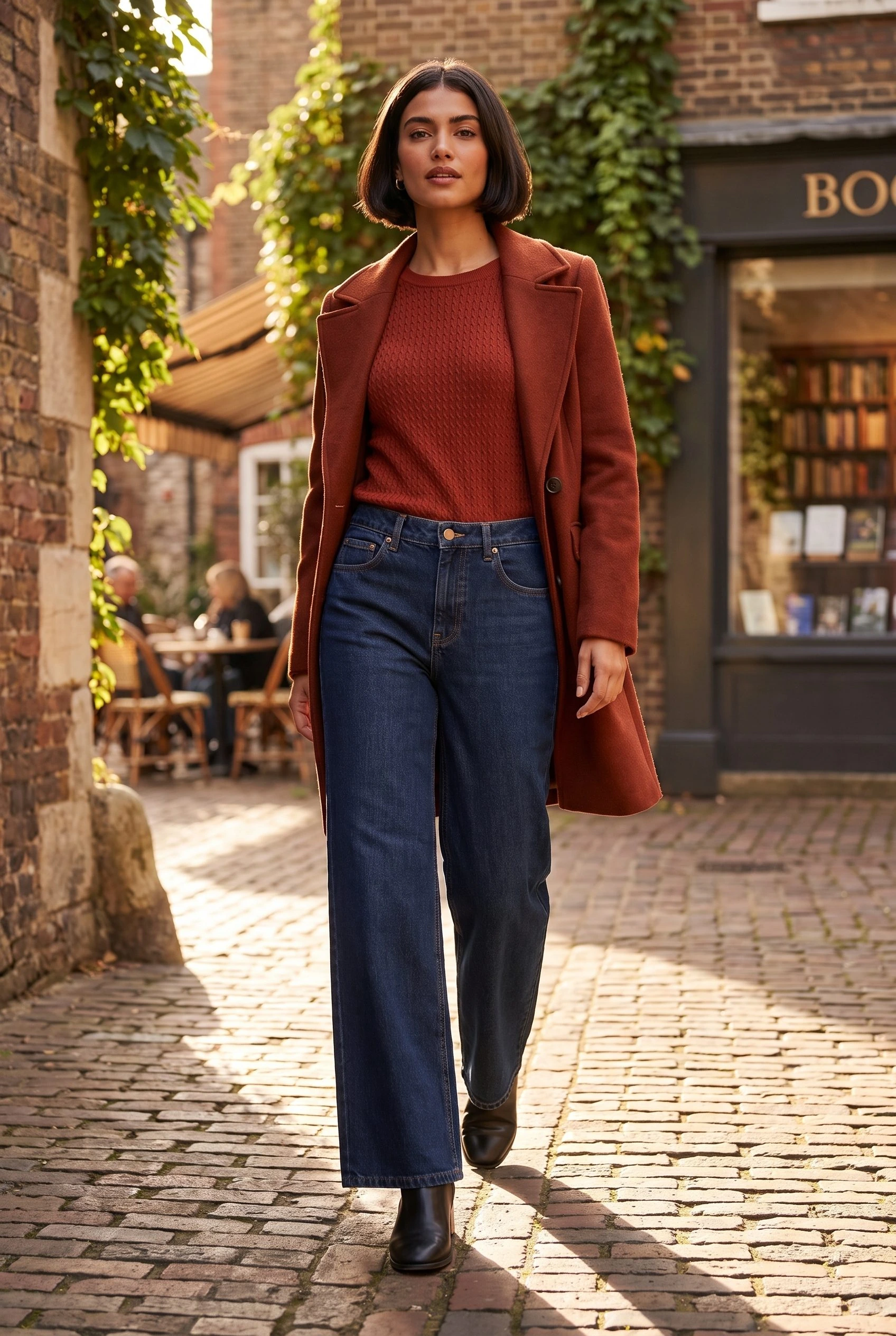
For everyday denim, a neighborhood shopping street supports a familiar use. A rust knit and boots make the autumn styling readable while leaving the jeans visible. Brick and green shopfronts provide colour without inventing a new function for the garment.
Reject a setting when it suggests something you cannot support. A climbing wall can imply technical movement or durability. A wet mountain trail can suggest weather protection. Those may suit a different product, but an ordinary denim reference does not establish those claims.
Use this scene decision: name the everyday occasion, choose a plausible place, then remove anything that hides the part of the garment you need to show. For jeans, a coat can frame the waist; a closed long coat would conceal the product.
Set up the scene in Fotogenic AI
- From Explore, click Create Photos. Open Product photos, choose Add product photos and upload the garment reference.
- Open Model. Choose a suitable person from the library, or click Upload model image to use a reference you have permission to use. A reference guides appearance; it does not prove how the garment fits a real person.
- Open Photographic style and choose None to keep the separate scene controls available. Under Fine-tune > Environment > Setting, choose Urban for a neighborhood street. Home or Cafe may suit a different everyday occasion.
- Close Fine-tune and put the specific location, companion clothes and visible garment area in Custom Instructions. A broad Setting choice alone cannot describe all of those decisions.
- Set Aspect ratio to 2:3 Portrait for a full-length vertical image. Choose Quality > High and Images > 1 while establishing the direction. Review the estimate and click Generate.
- Open the finished image and decide whether the setting serves the clothing. If the coat hides the waistband or a prop blocks the leg, revise that part of the brief before adding more images.
Studio supplies a plain setting and its own lighting direction, so it is a different starting point. For a believable street scene, keep the setting and written location aligned instead of combining conflicting directions.
Copy a context brief
Adapt this starting brief to your garment. It describes the purpose of the surroundings, rather than listing fashionable props.
Everyday autumn errands on a quiet neighborhood shopping street. An adult woman wears the supplied dark indigo jeans with a tucked rust knit and simple black ankle boots. An open coat frames the outfit without covering the waistband. Brick shopfronts and natural late-afternoon light establish the place. Show the jeans from waist to hem with clear separation between the legs; keep bags and hands away from their front.
For another garment, replace the occasion and companion pieces first. A relaxed cotton shirt might belong at a cafe; an office trouser might belong near a workplace entrance. Keep the location ordinary enough that the clothing remains the main reason to look.
The two results below show complementary roles. The full-length view establishes the outfit and place. The closer view brings the waistband and stitching forward while the same kind of street remains behind it. They are useful together because they answer different visual questions.
Keep fit and product facts separate
A generated wearing image can communicate styling, but it cannot establish exact sizing, stretch, comfort or fit on the shopper. Keep real measurements and reliable product photographs available. Do not invent a back view, lining or construction detail that the reference does not show.
The context brief is a direction to adapt, not a promise of the same person, pose or background on every run. Inspect the visible garment against your reference. In these examples, the single-button zip closure matters more than an attractive extra accessory.
Choose the next image job
For a collection launch with several coordinated scenes, use the separate fashion campaign brief. If your scene already works and needs another composition, the Image Variations guide covers that next step.
To place the finished file in a store, follow the WordPress image workflow or the Shopify product-image handoff. For broader use cases, explore lifestyle product photography.
Show where your clothing belongs
Choose a real setting. Show your garment.
Your next product image starts here.
Turn a product photo into a new scene for your store.