Best AI product photography tools for Shopify
Create product-page images and campaign scenes for your Shopify catalog.
The short answer
Choose Fotogenic AI to create product-page, collection, lifestyle and campaign image options from your existing photos. Generate in Fotogenic AI Studio, download your chosen files and upload them to Shopify. It suits merchants who want store and marketing visuals from one product source.
Try Fotogenic AIOur pick for Shopify visuals

Fotogenic AI
Create product-page visuals and campaign scenes, then download them for Shopify.
Plans and buying checks
Starter includes product images and campaign sets for $20/month, with 220 credits.
Why choose Fotogenic AI
Fotogenic AI provides the image-creation tools. You choose which files to upload and where they appear in Shopify; native integration is Coming soon.
Start with your product
Create a product view and a campaign scene, download your choices, then upload and assign them in Shopify.
Simple edits before another subscription

Shopify file editor
Try the native file editor before another image subscription.
Plans and buying checks
Shopify currently offers file-editor media generation at no additional charge for a limited time. Tinker is a free mobile app with monthly limits.
The tradeoff
Use the admin editor for an existing file or Tinker for mobile experiments. Compare paid tools if you need more control, detail or volume.
What to check
Check plan eligibility, resolution and the final variant image.
A custom production pipeline

Claid
Connect image processing to your catalog through a separate API plan.
Plans and buying checks
Claid API pricing is separate from its $15/month Essentials web plan; Fotogenic AI Starter is $20/month for app credits.
The tradeoff
A web subscription does not include a complete Shopify connection. Budget API access, store permissions and image assignment separately.
What to check
Test retries for duplicate images and require approval before publishing.





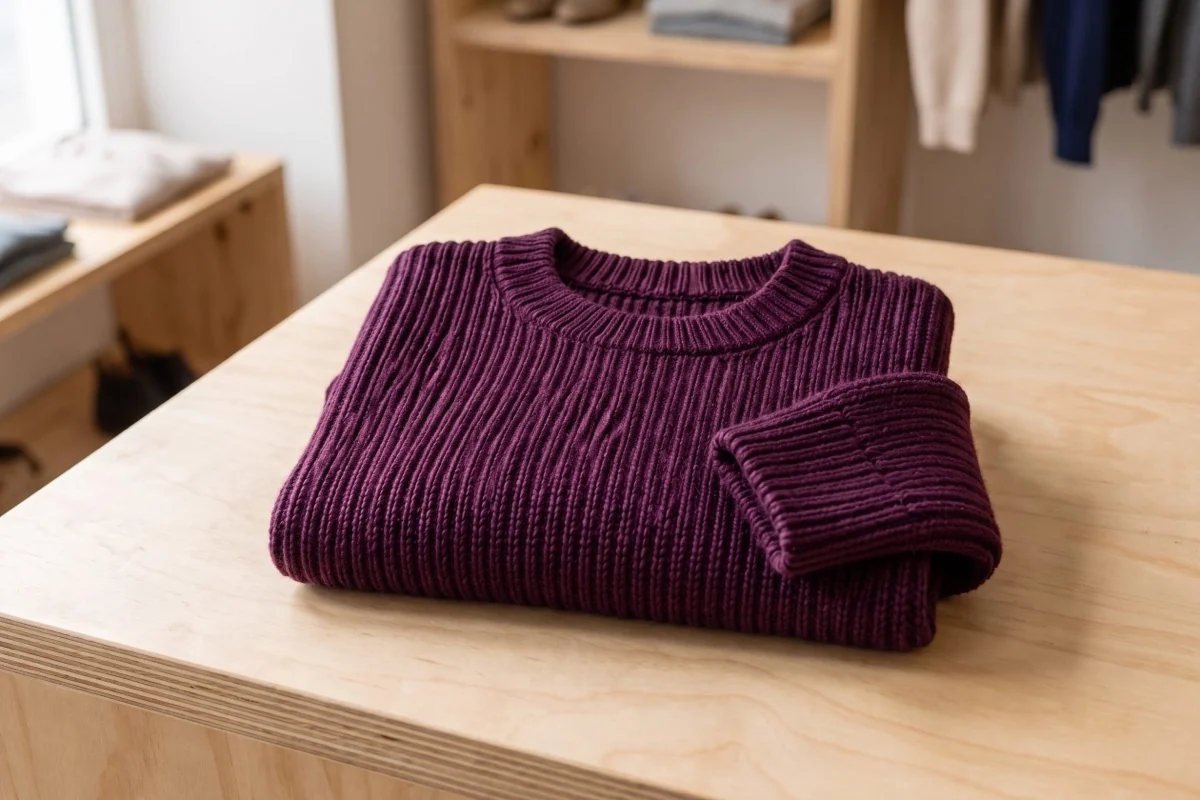
Approve the knit before the upload
Compare the fictional reference below with the Fotogenic AI scene at the top of this guide.
Check the collar, rib direction and folded cuff. The source cannot show the sweater’s full length or fit; this example also does not test Shopify variant updates.

Choose an app, manual uploads or an API
A connected app reduces file transfers but needs permission to read or change store data. Manual uploads keep image assignment with your team. A custom API can automate repeated tasks, with development and maintenance costs.
Manual uploads may be enough for a few seasonal products. For frequent catalog updates, prioritize correct product mapping and approval over small differences in generation speed.
Three checks before you choose
Connect
Choose app, export or API
Associate
Keep variants tied to images
Verify
Inspect the actual storefront
Fotogenic AI
Product-page visuals and Shopify campaigns
Fotogenic AI turns existing product photos into image options for Shopify pages, collections and campaigns. Choose a scene or preset, create related views and download the files you want to use. It suits merchants preparing both storefront images and marketing assets from one product source.
Strengths
- Create product-page, collection, lifestyle and campaign image options.
- Explore different scenes, crops and styling from a clear product source.
- Build related campaign views around your product and brief.
- Download selected images for Shopify galleries, ads and seasonal updates.
$20/month, Starter
220 monthly credits. Creator includes 520 credits for $40/month; Pro includes 1,200 for $80/month.
Product images and campaign sets are included on Starter. Video and ad-ready visuals start on Creator. Costs vary by operation; credits do not roll over.
Plan and billing detailsBefore you start
Upload approved files to Shopify manually; native Shopify integration is Coming soon.
Prepare the final crop and file dimensions for your store theme.
Try Fotogenic AIShopify file editor
Native editing before another subscription
Shopify’s file editor replaces background colors and transforms images from prompts inside the admin. It suits merchants making simple scene or cleanup changes to existing product photos. Try the built-in tools before adding another image subscription.
Strengths
- Edit existing files inside Shopify admin.
- Replace background colors or transform a photo from a prompt.
Limitations
- Plan notes conflict with the promotional paragraph; confirm eligibility in your admin.
- Default generated output is 1MP. Check it at storefront size.
No additional editor charge, limited-time offer
Shopify documents media generation for Basic, Grow, Advanced and Plus. Image generation is subject to shared store and short-term limits.
Plan and billing detailsBuying details
The no-additional-charge offer is temporary, with store-level generation limits. Shopify subscription costs remain separate.
Plan guidance conflicts with a promotional paragraph saying all plans. Confirm eligibility in admin. Default generated output is 1MP.
Tinker by Shopify
Free mobile product-scene exploration
Tinker is Shopify’s free mobile creative app, with product-studio, lifestyle and editorial tools, background removal and virtual try-on. It suits small creative experiments before a paid scene subscription. It is separate from editing store files in Shopify admin.
Strengths
- Create product imagery on mobile.
- Free access has automatically resetting monthly limits.
Limitations
- AI-provider commercial-use terms also apply.
- Shopify’s content license permits service development and possible public display. Consider this before uploading an unreleased collection.
Free mobile app
Shopify documents monthly usage limits that reset automatically, without a numeric allowance on the reviewed help page.
Plan and billing detailsBuying details
Monthly limits reset automatically; the reviewed help page gives no numeric allowance.
Requires an account and iOS15.1+ or Android7.0+. AI-provider terms apply. Shopify’s license covers service development and possible public display. The reviewed documentation does not confirm automatic store sync.
Photoroom
Connected catalog editing
Photoroom’s Shopify app imports products, edits catalog images and exports them back to the store. It suits merchants who want fewer manual file transfers. The reviewed web offer places Shopify integration on Max or higher; check variant assignments during your trial.
Strengths
- Import, edit and export catalog images back to Shopify.
- Bulk editing supports repeated catalog updates.
Limitations
- Confirm Max-or-higher access and requested permissions.
- Check variant destinations, image order and crops before bulk changes.
$7.50/month, Pro, annual billing
8,000 AI credits and 1,000 exports per month. Max is $20.99/month with annual billing, 25,000 credits, 3,000 exports and Shopify integration. Ultra starts at $82.50/month with annual billing.
Plan and billing detailsBuying details
Shopify integration starts on Max; Pro’s lower price excludes the connection.
Editor, batch and Shopify saves share the export allowance. API usage is priced separately. Shopify integration requires Max or higher.
Pebblely
External product scenes with manual upload
Pebblely creates product scenes from existing photos for manual upload to Shopify. It suits smaller batches where creative output matters more than a store connection. Keep each exported file tied to its product and intended placement.
Strengths
- Generate new scenes around product photos.
- Basic adds bulk generation for repeated batches.
Limitations
- Budget manual uploads and product assignment.
- Wide campaign scenes may need a separate square product crop.
$9/month, Lite
30 images per month. Basic is $19/month for 200 images and bulk generation; Pro is $39/month for 500.
Plan and billing detailsBuying details
Bulk generation requires Basic or higher. Budget manual upload and product assignment. Allowances cover attempts, not guaranteed usable images.
Flair
Art-directed assets for store and campaigns
Flair creates composed product and campaign images using a visual canvas. It suits Shopify teams making coordinated assets for product pages, email and ads. Plan each crop before composing, then upload and assign the approved files separately.
Strengths
- Direct product placement, props and lighting.
- Reuse templates across campaign assets.
Limitations
- Store uploads and product assignment are separate tasks.
- A saved composition may need adjustment for a new product shape.
$10/month, Pro
Pro+ is $35/month with 80 generated images and three videos; Scale starts at $55/month with 150 images.
Plan and billing detailsBuying details
Budget catalog assignment separately from image creation.
Pro does not specify an image allowance. Instant image and ad generation use four times the image quota.
Claid
A developer-owned image pipeline
Claid offers image-processing APIs for technical teams connecting repeated photo tasks to Shopify catalog data. It suits stores with developers who can own the connection. Image generation, review and the final product update remain separate steps in that build.
Strengths
- Automate repeated image processing through an API.
- Background removal, enhancement and scene-generation APIs.
Limitations
- API and web plans are separate purchases.
- Developers must handle Shopify access, mapping, retries and recovery.
$15/month, Essentials
500 credits per month; 2K output. Pro is $49/month for 2,000 credits with premium models and 4K options.
Plan and billing detailsBuying details
A custom connection needs a separate API plan and product-media mapping; web credits are not the whole budget.
The $9 and $35 rates require yearly billing. Standard Photoshoot and AI Fashion use four credits; Studio uses ten.
Adobe Photoshop
Selective editing before store delivery
Photoshop provides selective retouching and layered composition before files are uploaded to Shopify. It suits merchants who need close control over labels and product geometry. Keep an editable master, then export a version matched to the theme and placement.
Strengths
- Layers support selective product and background edits.
- An editable master supports later corrections and crops.
Limitations
- Manual export, upload and product assignment are required.
- Compression and theme crops can change the uploaded result.
$22.99/month, annual commitment
Photoshop on desktop, web and mobile, with 100GB cloud storage. Annual plan, billed monthly.
Plan and billing detailsBuying details
Check existing editing access before committing annually for occasional corrections.
CreatorKit
Shopify creative templates and branded assets
CreatorKit’s Shopify app offers product photography, background removal and video templates. It suits store teams producing branded stills and promotional video together. Pro includes Brand Kit, templates and storage; verify how finished assets reach the right product before bulk use.
Strengths
- Brand Kit and templates support recurring creative assets.
- Still-image and video tools are available in one app.
Limitations
- Variant writeback, review gates and recovery need a store-specific trial.
- Check installation permissions and each asset’s destination.
$39 per 30 days, Pro
Shopify listing includes Brand Kit, templates and 10GB storage. Business is $99 per 30 days.
Plan and billing detailsBuying details
Annual alternatives are $384 and $984. Storage and Brand Kit are included creative features.
Confirm product and variant image assignment before bulk changes.
Check one product from source to storefront
Follow one approved source photo into the tool and back to Shopify. Check whether it adds an image, replaces one or changes image order. Keep the original for recovery.
Repeat with a variant product. Select each color or style on the storefront and confirm its assigned image appears.
Our Shopify clothing-image guide covers manual uploads and variant assignment. The Fotogenic AI Shopify photography page explains image creation; the integration remains separate.
Review app permissions
Read the app’s requested permissions. Image tools may ask for other store data, so confirm the scope matches the job. Assign someone to manage and remove the connection when needed.
For a custom integration, limit access and product writes to the required tasks. Check that the supported permissions fit how your team manages the store.
Check the final theme crop
Check the collection grid, product page and mobile gallery in your actual theme. Keep the product clear in the first image, with important details inside the crop.
Use Shopify’s current format and upload requirements. Choose export size around source quality, theme behavior and zoom needs rather than treating one resolution as universal.
Approve images before publishing
Approve product details and variant assignments before images go live. If an app can publish immediately, choose whether that action should require review.
Start with a small batch. Keep the previous media and a list of changed products so you can restore the intended images without overwriting unrelated work.
Write useful image names and alt text
Use descriptive product filenames and useful alt text. Describe what the image shows without stuffing category or tool keywords. Keep factual product details in readable page text.
AI imagery and app image scores do not guarantee better Google rankings. Measure search and store results alongside image quality, delivery and crawlable product content.
Match Shopify’s image and media requirements
Shopify accepts product images up to 5000 × 5000 pixels or 25 megapixels, in files smaller than 20 MB. It recommends 2048 × 2048 for square images. Use a consistent main-image ratio and check the theme crop.
Videos and 3D models need a supporting theme and cannot be variant media. Choose a tool for the media type you need; a generated still scene is not a 3D model.
Include uploads and image assignment in the cost
Include generation, review, exports, uploads, image assignment and storefront checks. Add engineering and maintenance for custom APIs. Compare the cost of approved images correctly displayed to customers.
Photoroom Max is $20.99/month with annual billing, 3,000 exports and Shopify integration. Pro excludes that integration. CreatorKit Pro is $39 per 30 days, with Brand Kit, templates and 10GB storage.
FAQ
Questions before you choose
No. Shopify’s editor works in admin; Photoroom and CreatorKit have Shopify listings. Other entries use external tools or custom APIs unless stated otherwise.
Put your next idea to work
Your next product image starts here.
Turn a product photo into a new scene for your store.