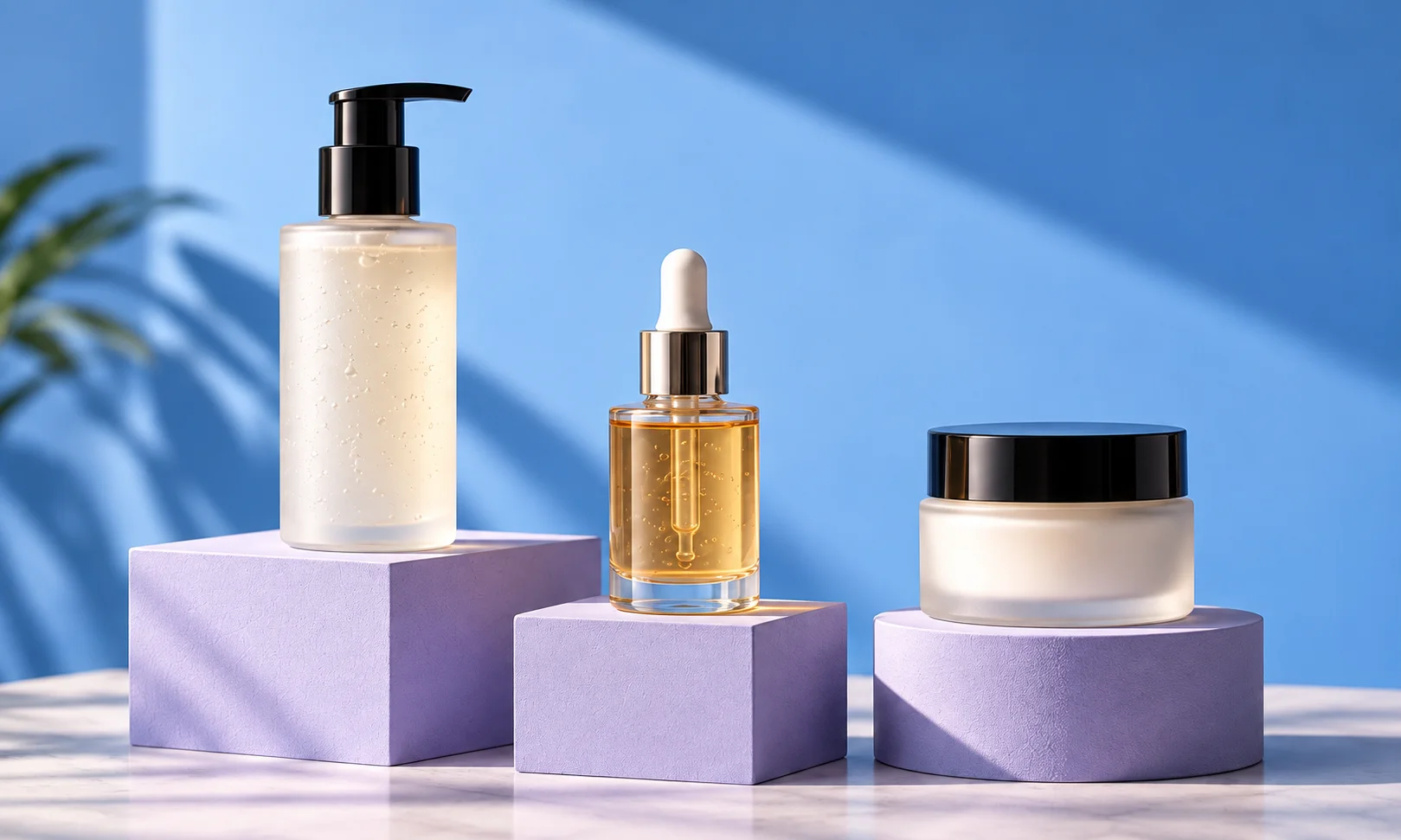
Best AI tools for food and beverage photography
Create food and beverage scenes for product pages and seasonal campaigns.
The short answer
Start with Fotogenic AI to turn existing food and beverage photos into product scenes and seasonal campaigns. Choose a setting, create related views and carry one visual direction across the range.
Try Fotogenic AIOur pick for food campaigns

Fotogenic AI
Create food and beverage settings and related seasonal campaign images.
Plans and buying checks
Starter includes product images and campaign sets for $20/month, with 220 credits.
Why choose Fotogenic AI
Build campaign scenes from accurate product references. Use a packaging mockup for artwork before samples arrive, or selective retouching when the actual dish must stay fixed.
Start with your product
Reject invented ingredients, extra portions and impossible serving vessels.
Packaged-food listings

Photoroom
Clean up backgrounds around the existing package photo.
Plans and buying checks
Photoroom Pro is $7.50/month with annual billing; Photoshop is $22.99/month with an annual commitment.
The tradeoff
Use background editing for cleanup and precise retouching for labels or container details.
What to check
Read product names and quantities; inspect caps and seals.
Packaging before the shoot

Pacdora
Place approved label artwork on a packaging mockup.
Plans and buying checks
Pacdora Business includes commercial use and 10,000 monthly AI credits.
The tradeoff
Use a matching model for package artwork. A render cannot establish the prepared food inside.
What to check
Check panels, seals and artwork against the design; verify the physical package separately.



Keep serving expectations factual
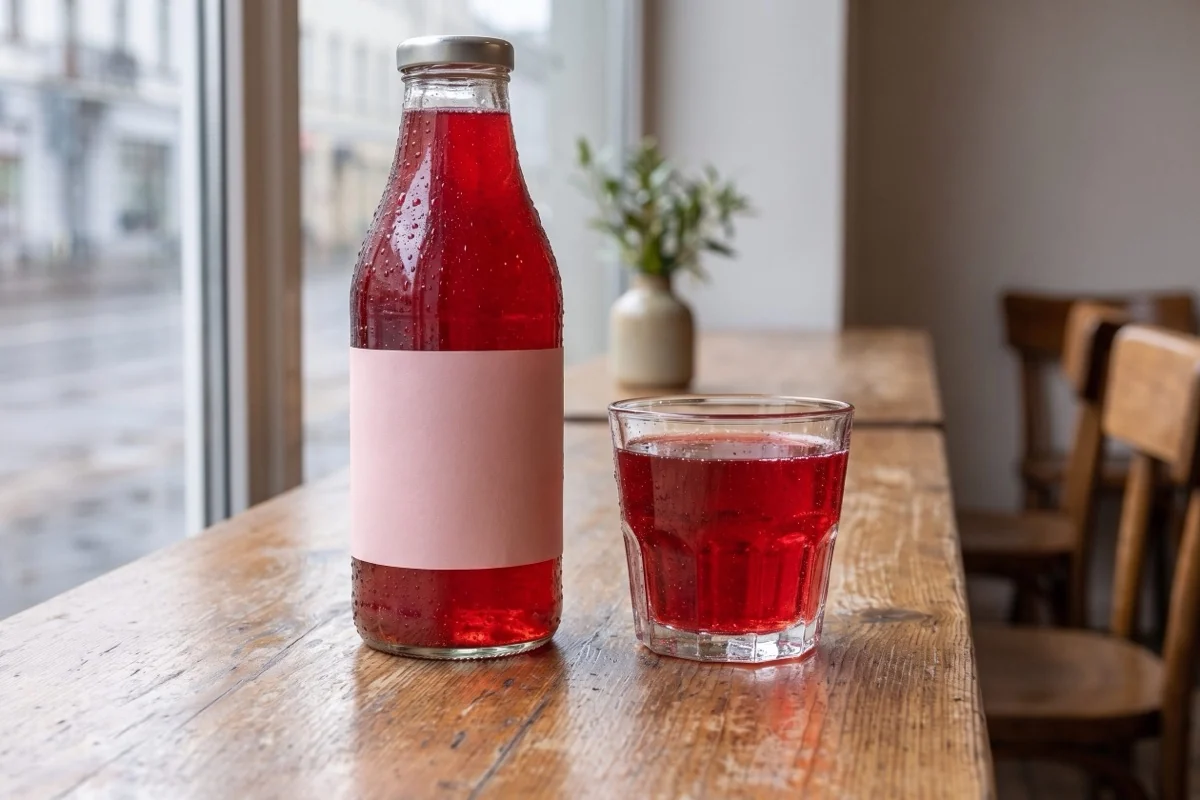
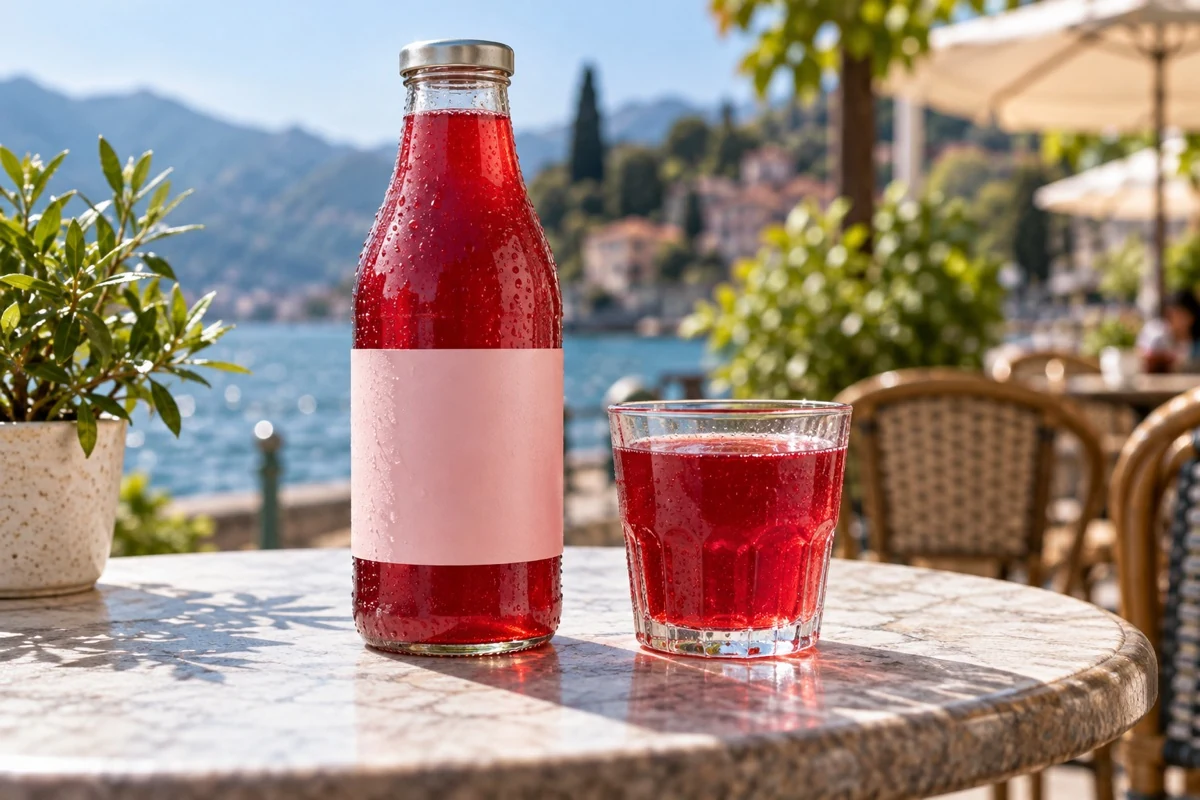
Compare the fictional reference below with the Fotogenic AI-generated scene at the top of this guide.
Check the container, cap and liquid level. The blank label cannot show ingredient or nutrition-text accuracy; the scene cannot verify taste or portion claims.
Choose a package, serving or menu image
A package photo shows what is sold. A serving suggestion shows a way to use it. A menu photo shows the dish a customer expects to receive.
Name that role in the brief. Keep added bowls, garnishes and glasses from suggesting they are included in the purchase.
Three checks before you choose
Identity
Package, recipe and ingredients
Quantity
Portion and included contents
Serving
A credible use context
Fotogenic AI
Food and beverage scenes and campaigns
Fotogenic AI creates new settings and campaign images from your existing food and beverage photos. Start here for package-led launches, serving-context ideas and seasonal promotions, with a shared direction across product-page and marketing views.
Strengths
- Product scenes from existing food and beverage photos.
- Studio, lifestyle and campaign directions.
- Related campaign images for launches and seasonal promotions.
- Reuse approved scene and lighting choices across selected products.
$20/month, Starter
220 monthly credits. Creator includes 520 credits for $40/month; Pro includes 1,200 for $80/month.
Product images and campaign sets are included on Starter. Video and ad-ready visuals start on Creator. Costs vary by operation; credits do not roll over.
Plan and billing detailsBefore you start
Use actual package, recipe and serving references.
Review ingredients, portions, fill levels and labels before publishing.
Try Fotogenic AIPhotoroom
Food catalog cleanup
Photoroom cleans up backgrounds, adjusts food imagery and standardizes catalog framing. It suits recurring package or menu-image preparation, with clean listings and contextual scenes from the same source photos.
Strengths
- Background cleanup and consistent positioning.
- Batch edits and reusable image templates.
Limitations
- Dishes need separate portion and ingredient review.
- Cleanup must not add toppings or change packaging.
$7.50/month, Pro, annual billing
8,000 AI credits and 1,000 exports per month. Max is $20.99/month with annual billing, 25,000 credits, 3,000 exports and Shopify integration. Ultra starts at $82.50/month with annual billing.
Plan and billing detailsBuying details
Export capacity counts deliveries, not a fixed number of generated menu photos.
Editor, batch and Shopify saves share the export allowance. API usage is priced separately. Shopify integration requires Max or higher.
Flair
Composed food campaigns
Flair offers a scene canvas for arranging products and supporting props. The canvas suits food and beverage campaigns that need deliberate package placement, serving elements and copy space.
Strengths
- Drag-and-drop arrangement before generation.
- Reusable layouts for campaign variations.
Limitations
- Added ingredients can imply the wrong recipe.
- Props and extra units may suggest an unintended bundle.
$10/month, Pro
Pro+ is $35/month with 80 generated images and three videos; Scale starts at $55/month with 150 images.
Plan and billing detailsBuying details
A 20-dish menu with four ordinary attempts per dish uses 80 images before further rejections or higher-cost modes.
The rendered Pro card does not specify an image allowance. Instant image and ad generation consume four times the image quota. Do not price every action as one image.
Pebblely
Packaged-food background scenes
Pebblely creates scenes around an existing product photo using templates. It suits packaged-food and beverage brands exploring kitchen, cafe or studio settings from a clean container image. Prepared dishes need separate portion and ingredient checks.
Strengths
- Templates for new product settings.
- Bulk generation available from Basic.
Limitations
- Labels, liquid color and package shape need inspection.
- Glasses and plates must not obscure purchase contents.
$9/month, Lite
30 images per month. Basic is $19/month for 200 images and bulk generation; Pro is $39/month for 500.
Plan and billing detailsBuying details
Use Lite for occasional bottle scenes or Basic for a packaged-food batch.
Bulk generation is a Basic-or-higher purchase. These are attempt allowances, not a promise that every image is publishable.
Adobe Photoshop
Selective edits around real food
Photoshop lets an editor change selected areas while retaining the original food photo. It suits menu layouts or package campaigns where the dish, portion and label need precise control and someone can finish the composite.
Strengths
- Selections and layers keep edits reviewable.
- Change surroundings while retaining source photography.
Limitations
- Needs skilled selection, masking and finishing.
- Added steam, garnish or texture can change expectations.
$22.99/month, annual commitment
Photoshop on desktop, web and mobile, with 100GB cloud storage. Annual plan, billed monthly.
Plan and billing detailsBuying details
Existing subscribers can compare editing time; new subscribers should include the annual commitment.
Pacdora
Food packaging mockups
Pacdora turns approved packaging artwork into mockups of cartons, pouches, tins and other containers. Use it before samples exist to compare artwork placement on a matching model for a package launch.
Strengths
- Preview approved artwork on packaging models.
- Compare layouts before producing physical samples.
Limitations
- Does not show or verify the prepared food inside.
- Check printed material, seals, size and dielines against real samples.
Business commercial-use plan
Business includes commercial use, 10,000 monthly AI credits and up to 8K mockup-image exports. Lite and Pro are personal-use plans. Credits reset each billing cycle.
View Business planBuying details
Supply matching package artwork and a suitable mockup model. Use photographs of the manufactured product or actual food when the buying decision depends on its physical details.
Keep ingredients accurate
Check every garnish and ingredient against the recipe. Attractive additions such as nuts, berries or sauces can misrepresent the product.
Have the product owner review the image. Use verified records and approved packaging for ingredient, nutrition and allergen claims.
Show the right portion and quantity
Compare the portion with the actual dish. Extra toppings, a fuller bowl or a smaller plate can make the serving look larger.
For packaged goods, check container size and unit count. If the listing sells one bottle, a scene with several should not imply a bundle.
Preserve labels and container details
Read labels and check seals, necks, caps, proportions and fill levels. A polished bottle can still show the wrong wording or shape.
Keep a verified package photo in the image sequence, especially when scene lighting changes the color of the contents.
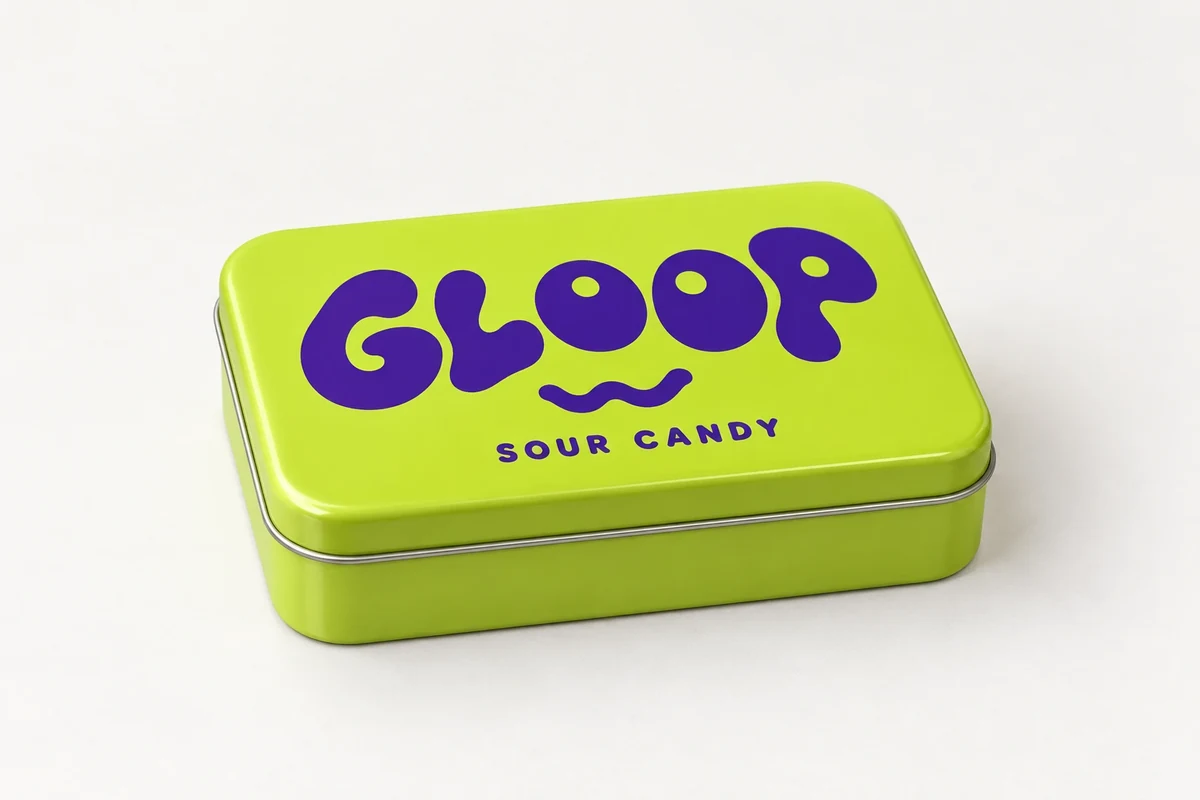
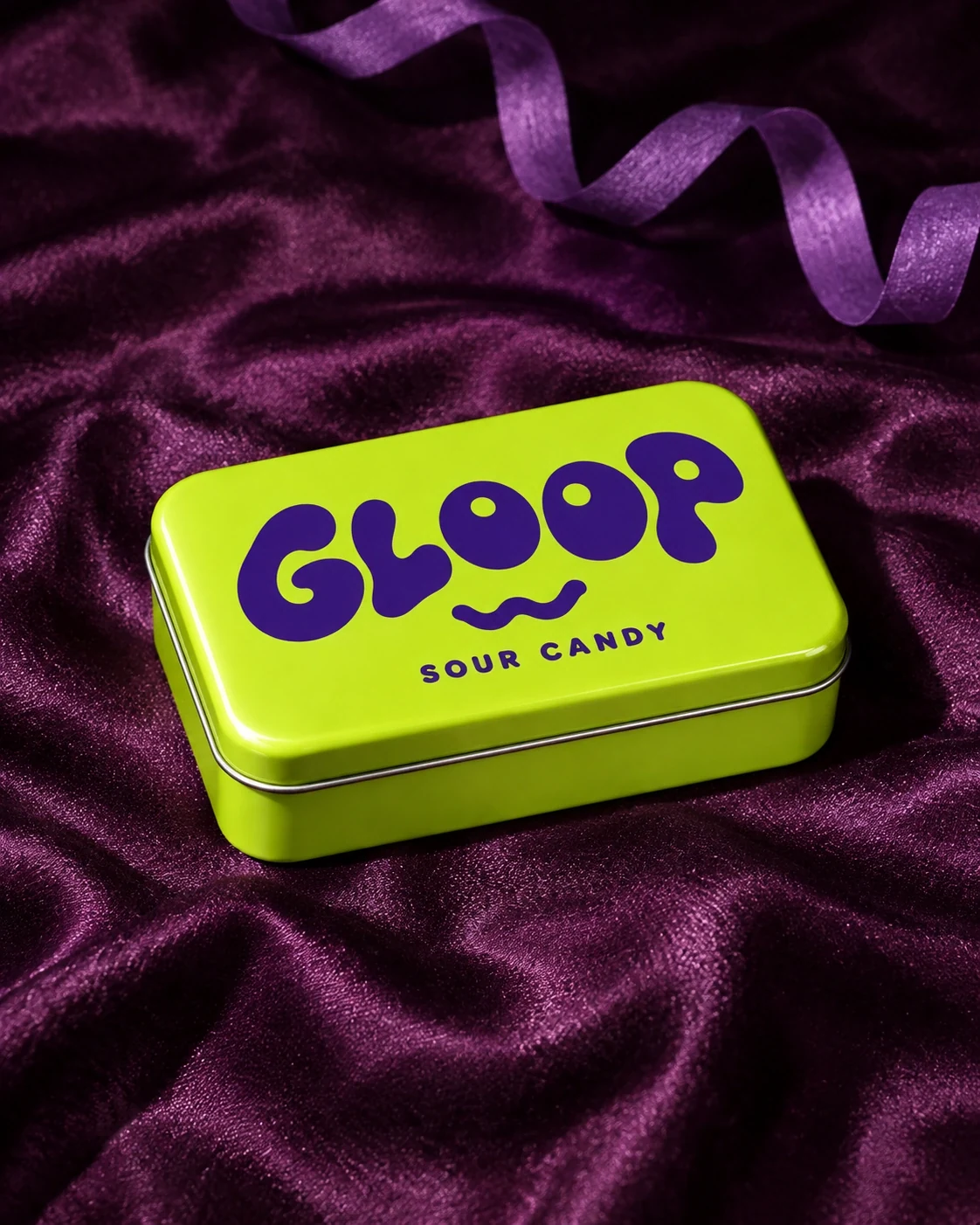
On the illustrated GLOOP tin, compare the lid seam, wordmark and SOUR CANDY text. The closed package cannot show candy shape, recipe or serving quantity. These fictional illustrations explain packaging review; they are not a vendor accuracy test.
Use steam and texture deliberately
Steam, condensation, melting and gloss suggest temperature or freshness. Use them only when they match the product and serving context.
Keep real dish photography when the menu image must establish the recipe, cooking result or portion.
Our food photography lighting guide compares hard light and flash for packaged candy. Explore Fotogenic AI food photography for package-led campaigns; dishes still need recipe and portion references.
Keep the serving scene believable
Choose a setting that fits how the product is used. Check pours, utensils and containers for floating objects or intersections.
Keep props secondary. Simplify the scene if customers cannot easily tell what is sold and what is decoration.
Test packages and dishes separately
Use an opaque package, clear drink and prepared dish with a documented recipe. Keep serving weight, vessel and ingredients fixed. Request a listing view and serving scene; reject changed fill levels, extra toppings and misleading portions.
Include food review in the budget
Add product review, generation, correction and delivery. Compare approved images for the same placement, not the number of attempts alone.
Pebblely Lite includes 30 images for $9/month without bulk generation. Basic includes 200 images and bulk generation for $19/month. A 20-item menu with three scenes per item needs 60 attempts before rejections, so check both capacity and dish accuracy.
FAQ
Questions before you choose
Use real menu photography when the image must establish the dish. Any generated version must match the actual recipe, portion and ingredients.
Put your next idea to work
Your next product image starts here.
Turn a product photo into a new scene for your store.