Product photo to video: three motion prompts
Choose one clear move. Start with the right photo.
Choose what should move
To turn a product photo into video in Fotogenic AI, open Create a Video, choose Animate an image and upload the finished photo under Image to animate. Put one camera move or background action in Video guidance. Choose the format and duration before reviewing the estimate and selecting Generate video.
A useful motion prompt answers what changes over time: the camera, the background or the product. Choose one main action so the item you sell remains easy to understand.
This guide prepares still starting photos and motion briefs. The yellow pepper mill appears throughout; the final pair gives you two compositions to adapt before animation.
Read the first frame
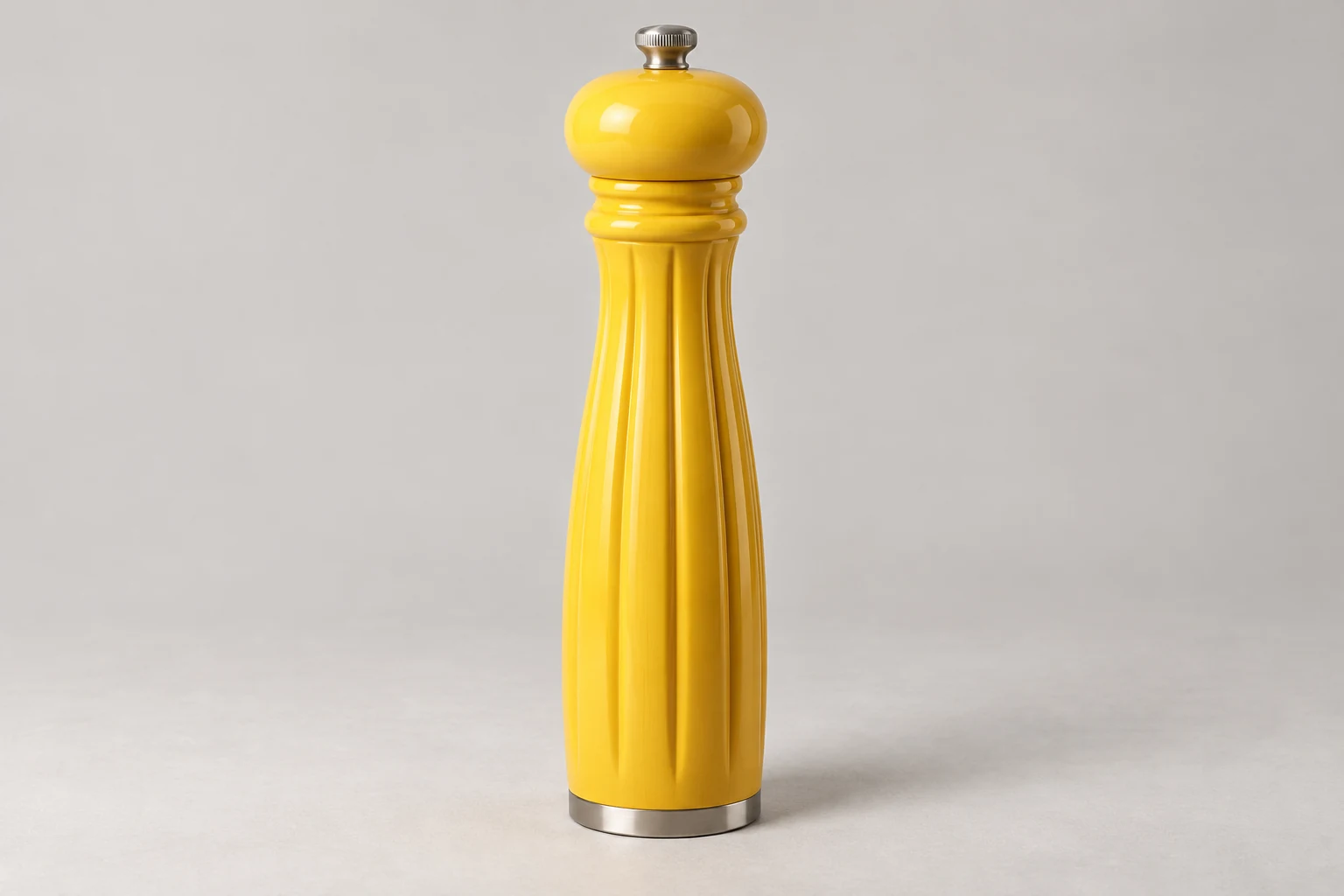
This simple source shows the mill’s full outline, fluted surface and metal ends. It supports a restrained push-in because the detail is already visible. It gives little information about the hidden side, so a dramatic orbit would ask the model to invent much more.
For your source, identify the feature that should stay readable through the shot. A label needs a gentler move than an abstract surface. Leave room around the product in the starting composition so a small camera move does not immediately cut it off.
Set up Animate an image in Fotogenic AI
- From Explore, click Create a Video, then Animate an image. Create a story is a separate starting mode.
- Open Image to animate, click Upload image and select the finished photo. Use the scene you want the clip to begin with, rather than a different product reference.
- Leave Motion templates at Custom motion. Paste one brief below into Video guidance. Keep the written movement consistent with the source photo.
- Keep Visual style at Realistic for an everyday setting. Under Aspect ratio, choose 9:16 Portrait for a vertical source or 16:9 Horizontal for a wide source. Prepare the photo for that shape first.
- Set Duration to 5 seconds for a short initial direction. The current menu offers 5 through 30 seconds. Choose Quality separately and review the displayed credit estimate and account eligibility.
- When the source and brief are ready, choose Generate video. Review the complete returned clip before placing it on a product page or in a campaign.
The source supplies the product, light and composition. Spend Video guidance on the movement and ending. A motion template is an alternative direction, so avoid combining it with an unrelated written move.
1. Push in when surface is the story
Choose a gentle push-in when the appeal is a visible finish: fluted lacquer, woven fabric or embossed packaging. The move brings the viewer closer without needing a new angle.
Begin on the supplied composition. Make a slow, small camera push toward the product, keeping its full outline inside the frame. The product stays still while the surface highlights remain natural. Ease to a stop and hold a clear view at the end.
For the pepper mill, the flutes give the move something to reveal. On a flat printed label, use an even smaller move so the text remains easy to inspect. Do not ask the product to rotate at the same time.
If the product leaves the frame, reduce the push and add more room in the starting still. If the outline bends or the finish crawls, simplify the movement and compare the middle frames with the source before using the clip.
2. Hold the product still and move the atmosphere
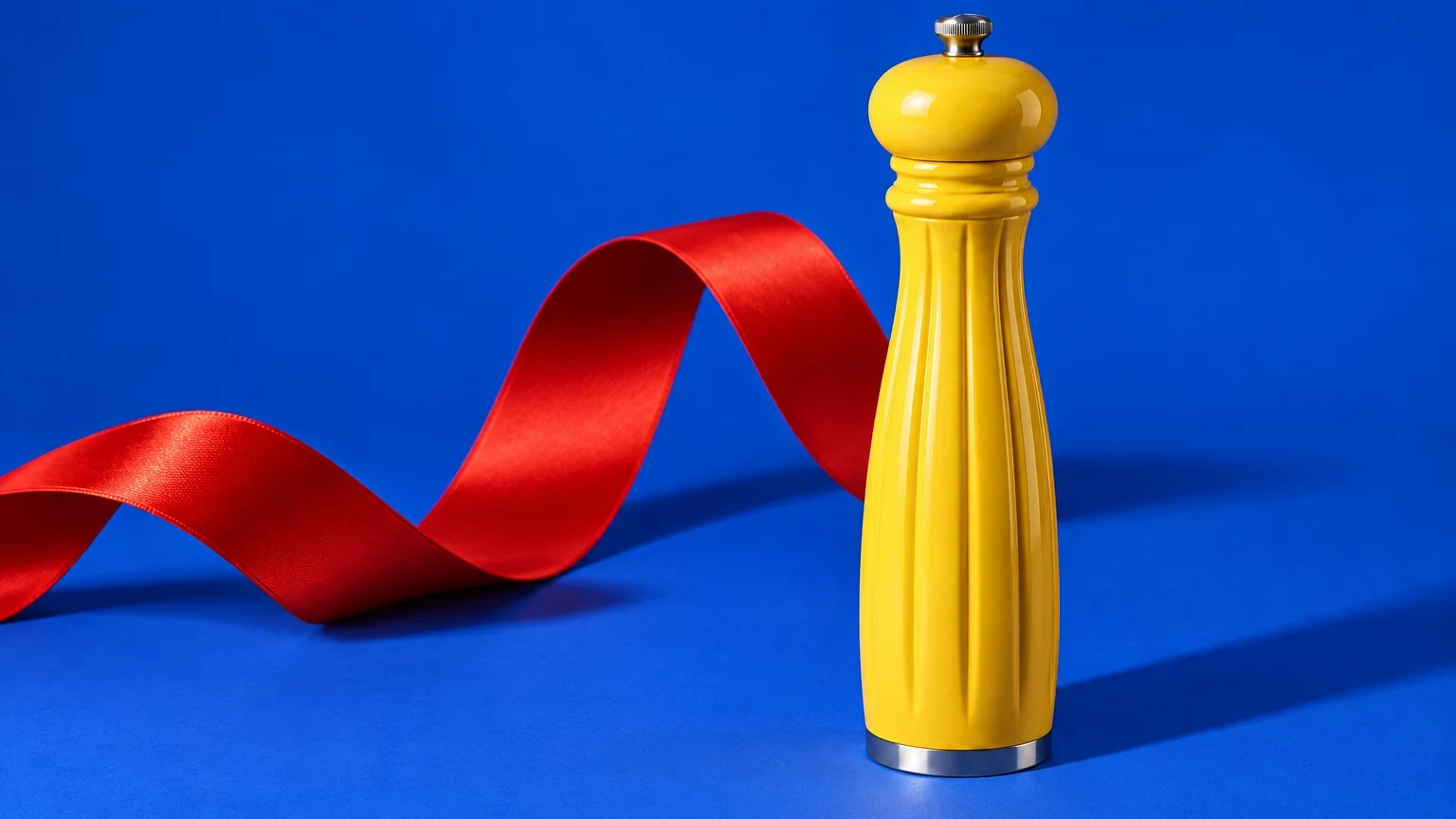
Choose background motion when the product outline should stay steady. The opening blue illustration uses a red ribbon as the separate moving element. In a real kitchen scene, a curtain already behind the product can serve the same purpose.
Keep the camera locked on the supplied composition and the product stationary. A light breeze gently lifts and settles the red ribbon behind the product once. Keep the ribbon behind the object and clear of its outline. Let the movement settle, ending on a calm product view.
Use an element already present in the source, such as a curtain, ribbon or leaf. Asking a new prop to appear halfway through the shot adds a separate invention and can distract from the item you sell.
If the moving prop crosses the product, change the starting arrangement to give it its own space. If the whole scene drifts, make the locked camera and stationary product the main instructions. Use one environmental action at a time.
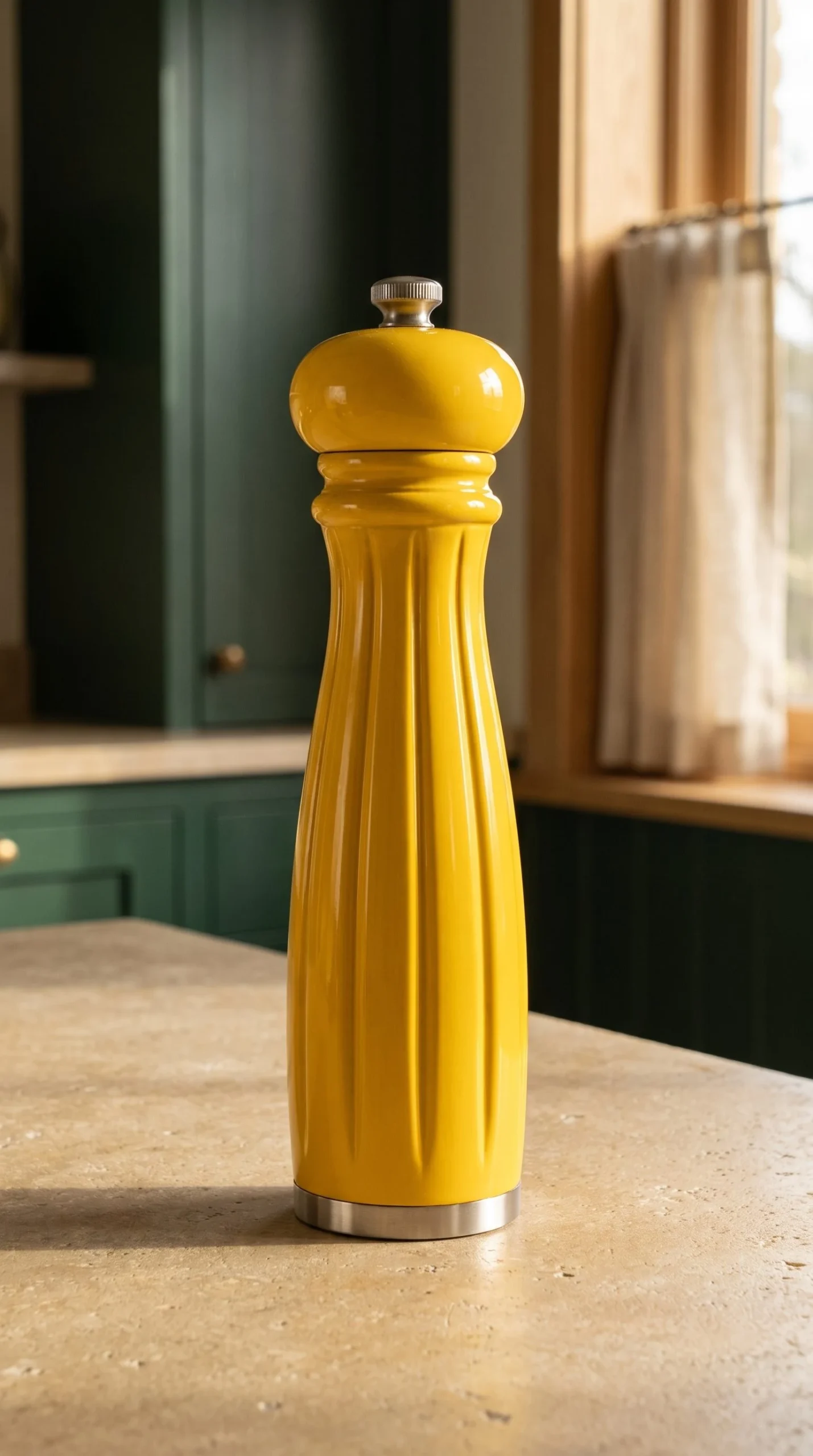
For the first kitchen photo in the final pair, replace the ribbon sentence with: A light breeze gently moves the linen curtain behind the product once. Keep the camera locked and let the movement settle.
3. Slide slightly when the scene has depth
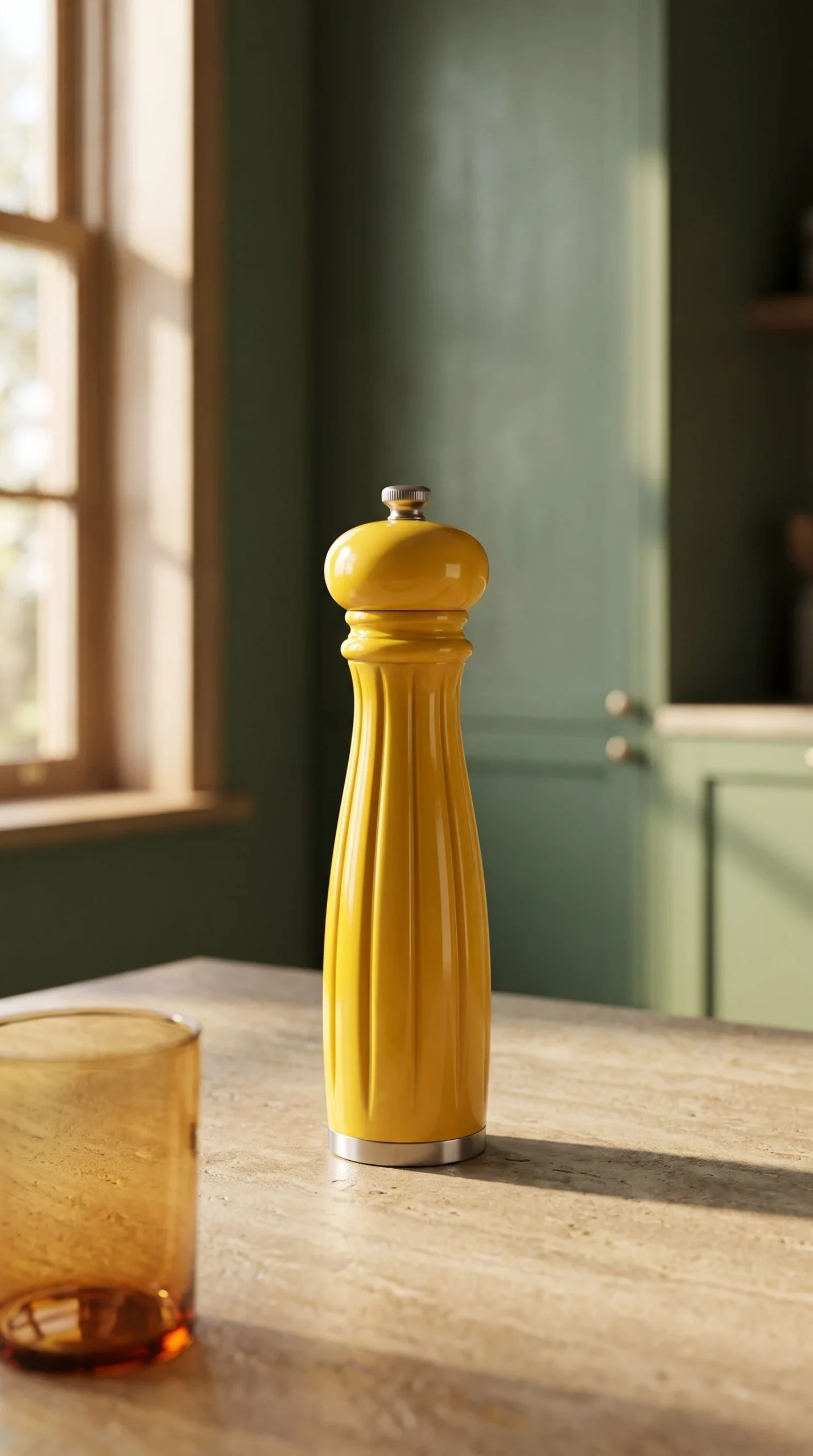
Choose a small lateral move when the photo has separate foreground, product and background layers. The second kitchen photo below puts an amber glass nearer the camera and the mill farther back. Their separation gives a sideways move a purpose.
Begin on the supplied composition. Move the camera a short distance to the right, with subtle parallax between the foreground glass, stationary product and distant wall. Keep the full product visible and upright. Ease to a stop without orbiting around the object.
A flat cutout on a plain background has little depth to reveal. Use a push-in for that source, or prepare a layered still first. A large sideways move can expose areas the photo never shows; keep the request modest.
If the product looks as though it is turning, reduce the camera travel and remove orbit language. If the foreground hides the object, give the layers more separation in the source composition.
Give the shot a readable ending
Beginning: the supplied product composition. Action: one gentle push-in. Ending: ease to a stop with the complete product visible. Hold: a calm final view for the closing message.
This four-part brief makes the change over time explicit. Keep the ending related to the start; a single product photo is a poor foundation for a request that becomes a new room, new angle and new product configuration.
If you need exact text, sound or a closing call to action, use a workflow that gives you control over their wording and timing. Watch the returned clip at normal speed, then pause near the start, middle and end to inspect shape, lettering, contact shadows and obstructions.
A short clip can support a launch or collection story, but generated motion does not establish how a mechanism works. Use real footage for grinding, opening, pouring or other performance demonstrations that buyers must be able to trust.
Prepare the starting photo
The first result below leaves the complete mill clear against a real-looking kitchen and curtain. Use it for a gentle push-in or a locked-camera curtain movement. The second adds an amber foreground glass for a short sideways move. Keep that glass clear of the product throughout.
To prepare a similar starting scene, open Create Photos, then Product photos and Add product photos. Upload your product reference and leave Model unselected. Put the scene brief below in Custom Instructions. Set Aspect ratio to 9:16 Stories, Quality to High and Images to 1. Review the estimate and select Generate. Upload the finished photo in Animate an image and choose 9:16 Portrait there.
Complete yellow pepper mill on a warm limestone counter in a real green-painted kitchen. Timber window trim and a cream linen curtain behind. Warm window daylight, visible fluting and a natural contact shadow. Keep room above the cap and below the base. Product-only scene, no food or grinding.
For a layered version, add one softly blurred amber glass near the lower-left foreground, separated from the complete mill. Keep the table, product and far window at different depths. The final pair shows these two still-photo directions from the same source.
Your starting photos
Give your product photo one clear move
Start with a clear photo. Give it one gentle move.